
In this tutorial, I will show you how to create the buttons shown in the image below. These buttons are green with a cross graphic. Read on to learn how to design these buttons in Adobe Illustrator.
In this Adobe Illustrator Button Tutorial, I will show you how to create green gradient cross buttons. This is a green metal type button with a cross added. You will need to have the CS3 version of Adobe Illustrator to create this button. In order to use this tutorial, you will need the following.
Christian Crosses Dingbat
Adobe Illustrator CS3
You will need to download and install the Christian Crosses Dingbat before creating these buttons. If you do not know how to download and install dingbats, please see this tutorial . After you have downloaded and installed the dingbat, open your Adobe CS3 Illustrator program and create a new document to work on.
Drawing the Button
I used the rectangle tool to draw the button. You are free to use the rectangle tool or the rounded rectangle tool. Select the one that you want to use. Then draw the rectangle on your document. Draw the rectangle the size that you want the button to be. I created my button a little large so that you could see the detail. But you can draw yours the size that you want it.
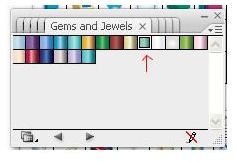
Opening the Gradient Style Box
We will use a gradient style to create the button. You will need to open the gradient style box, so go to the top of your window and click Window > Swatch Libraries > Gradients > Gems and Jewels. The gradient box will open in a new box.
Applying the Gradient
The gradient that you are looking for is called Jade. You can hover your mouse over the boxes to see the names of the gradients. Make sure that your rectangle is selected before you click the Jade gradient to apply it. Once it is selected, click the Jade style. You will also need to change the border color. Double click the stroke color box and change the stroke color to #30998F.
Creating the Cross
Now we will create the cross that goes on the button. Grab your text tool and click your button. Type the letter e in the text field. Right click on the text and change the font to Christian Crosses I. Right click on the cross again and change it to the size that you need. Then change the color of the cross to #30998F. Position your cross where you want it.
That’s all for the button. Now you can create more buttons by copying and pasting the buttons. You can also start adding the text to your buttons.
This post is part of the series: Adobe Illustrator CS3 Buttons
This series will show you how to create buttons in Adobe Illustrator.
- Introduction to Creating Web Buttons in Adobe Illustrator CS3
- Adobe Illustrator CS3 Buttons: Rose Faded Drop Shadow Button
- Applying a Chrome Effect to Web Buttons in Adobe Illustrator
- Adobe Illustrator CS3 Buttons: Pink Gradient Leaf Buttons
- Adobe Illustrator CS3 Buttons: Green Gradient Cross Buttons
- Creating Glass Buttons With Illustrator
- Adobe Illustrator CS3 Buttons: Pink and Silver Bullet Button
- Adobe Illustrators CS3 Buttons: Water Blue and Yellow Buttons
- Adobe Illustrator CS3 Buttons: Black and Silver Chrome Pill Button
- Creating Slanted Gold Web Buttons in Illustrator
- Adobe Illustrator CS3 Buttons: Blue Steel 3D Slanted Button
- Adobe Illustrator CS3 Buttons: Silver Plastic Pill Button with Spirals
- Adobe Illustrator CS3 Buttons: Silver Bullet Buttons


