
Virtual Private Networks use protocols to tunnel data from a client computer to a host computer by encrypting it. Windows XP Professional is one of Microsoft’s most stable operating systems. VPNs allow further security to your business environment allowing the secure transmission of data.
VPNs and Windows XP Professional
Below is a step by step guide on how to setup a Windows XP Professional Workstation on a Virtual Private Network.
How to Setup a VPN on Microsoft Windows XP Pro
- Select Start - go to Settings - click on Control Panel
Control Panel
Creating a New Connection
2. Select Network and Internet Connections if you cannot see the adapters immediately, you will need to click on Network Connections.
- Under Network Tasks click Create a new connection.
New Connection
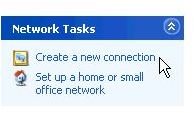
Network Wizard
4. The Windows XP Professional Welcome to the New Connection Wizard screen will open.
Wizard

Network Connection Type
- Click Next to access the Network Connection Type dialog box.
Images
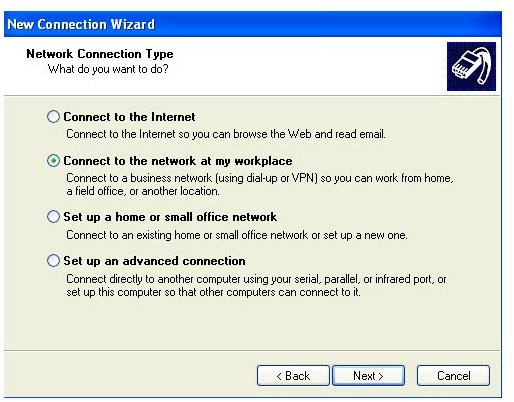
Connect to WorkPlace
-
Select the Connect to the network at my workplace radio button (Pictured Above).
-
Click Next to continue.
Advertisement
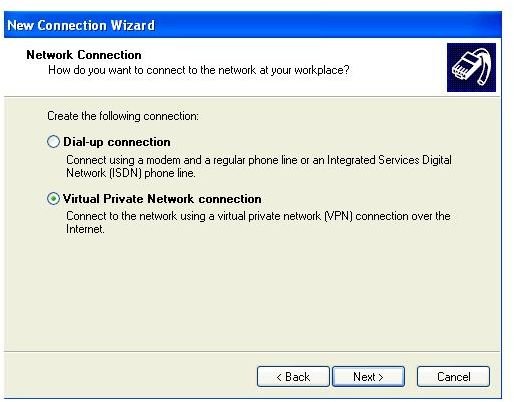
Select the VPN Option
-
Select the Virtual Private Network connection radio button.
-
Click Next to continue.
Advertisement
VPN Option
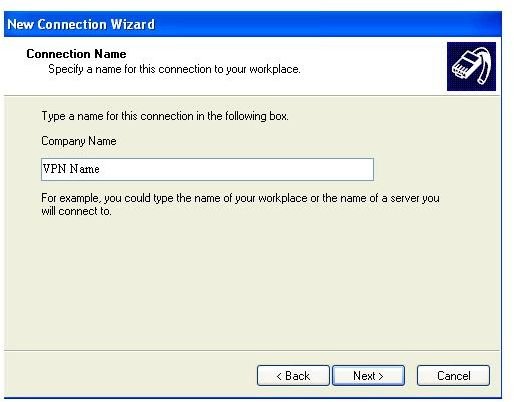
Company Name
- For Company Name, type: Your Description
- Click Next to continue.
Name Your Connection
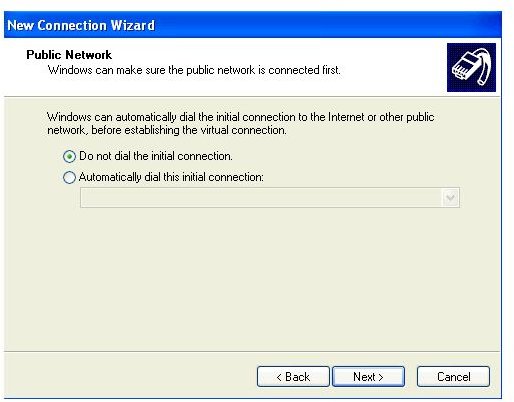
Dialing Options
-
If you have dial-up or a previous profile in Windows XP, select the Do not dial the initial connection radio button if your policy permits this.
-
Click Next to continue.
Advertisement
Do Not Automatically Dial
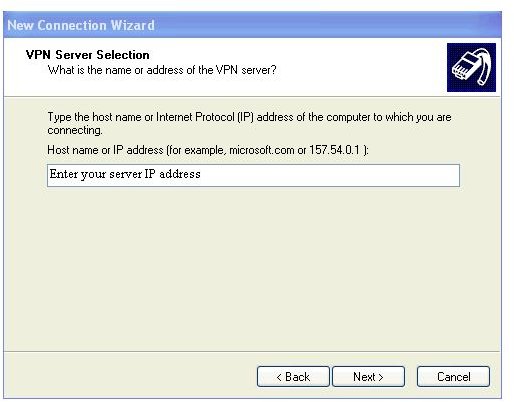
Enter the Hostname or IP Address
-
For Hostname or IP address, type your domain name or IP address that you are connecting to.
Advertisement -
Click Next to continue.
Enter the Domain or IP Address
Finishing the Install
-
In the Completing the New Connection Wizard dialog box, place a check next to Add a shortcut to this connection to my desktop if you desire.
-
Click Finish to continue and the Connection window should be displayed.
Advertisement
Finished


Conclusion
Windows XP Professional with Service Pack 3 is one of the most stable operating systems out today. You should check your firewall settings if a connection fails. Security Suites can block outbound traffic. The administrator should check any rules to ensure data is allowed out on specific ports. The most common port for a Virtual Private Network is TCP port1723. Other ports such as ports 50 and 47 may be used if GRE and ESP are used. If ISAKMP is used, it may be necessary to open UDP port 500.
After a connection is made to the server, your workstation will obtain another internal private ip address from the server.
It is important to train users on how to use the VPN. Scripts can be added to map network drives to the server when using your VPN. This allows the user to have or share a folder on the server and ensures that whatever data is passed between the two is secure.
In the next part of this series, we will give a step by step tutorial on connecting MacIntosh to a VPN server.
This post is part of the series: Virtual Private Networks in Business Environments
Virtual Private Networks provide encryption for your critical data while it is in transit to a server. This series gives a step by step tutorial on how to setup a VPN on Microsoft Windows Vista, Windows XP, Macintosh and Linux.
- Virtual Private Networks in Business Environments
- Virtual Private Networks in Buiness Environments: Windows Vista
- Virtual Private Networks in Business Environments: Windows XP
- Virtual Private Networks in Business Environments: Apple Mac
- Remote Access Service on Windows 2003 Setup Guy
- A Guide to VPN Setup in Ubuntu
- Virtual Private Networks in Business Environments - Wireless VPN Solution


