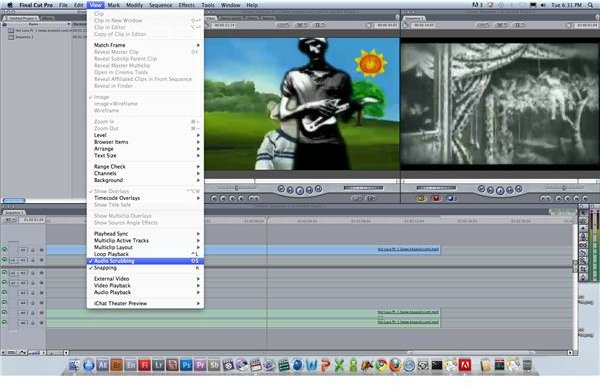
Here is a look at the audio scrubbing features in Final Cut Pro.
Scrubbing
Scrubbing is a term that usually refers to moving along a timeline in an editing program like Final Cut Pro in a way that allows for playback during that controlled slide. When you select the playback bar and drag it left and right you will get the video playback in the Canvas, and the change forward or backward will be relative to how you “scrubbed” through it. This is not always the case with audio, and in programs like Adobe After Effects you do not even get that option. Here is a look at how to set up the FCP audio scrub so that it works for your needs.
Turning FCP Audio Scrub On and Off
The standard setting for FCP audio scrub is to be on, which means that when you scrub left and right you do get some audio playback. This is not a good way to monitor your audio track in your FCP project, but you can easily find your exact location in things like music and dialogue. This may be difficult to work with when you are trying to cut the picture around, and so you will want to turn it off. Go up to the View option in the upper task bar and then go down to select Audio Scrubbing, which is directly below Loop Playback and above Snapping. If it is on then there will be a check mark for it, and if it is off then that will be absent. If you select it, it will either place or remove the check mark depending on the original position. The Final Cut Pro keyboard shortcut for this is Shift and S.
Slow FCP Audio Scrubbing
Though the FCP audio scrub is usually considered to be a mouse control over the playback, if you want very slow FCP audio scrubbing then you
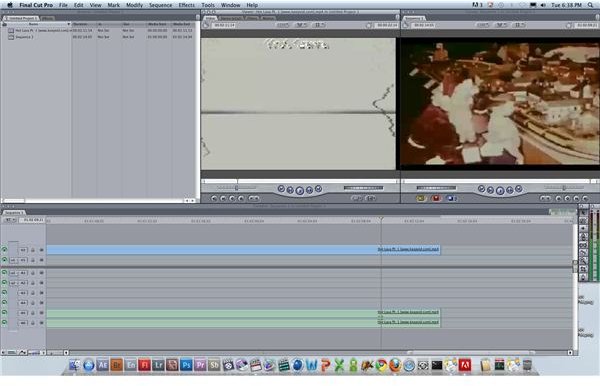
may want to actually try some of the keyboard place options. When you want the slow FCP audio scrubbing, go ahead and start by holding down K. From here you can then hit and hold down the play forward or play reverse buttons - J and L - respectively. This will cause the playback to scrub through the FCP timeline at a dramatically slowed down rate, and you can actually hear the audio scrub through at the same speed. If you want more control over this slow FCP audio scrubbing then you can just tap J or L and it will move forward incrementally, but you will also still get the audio playback through this. That is usually hard to achieve, and it can be a nice option if you just want to inch through your timeline while still getting audio playback. Of course, if you just hit J or L on their own you can get a forward or backward play at a normal speed.
References
Source: Author’s own experience.
This post is part of the series: Final Cut Pro Interface Tutorials
Here is a series of tutorials on how to work with different features in the Final Cut Pro interface.


