Microsoft Publisher fonts usually install along with the actual program, but often routine work requires type with different appearances. Here are some sources for free Microsoft Publisher fonts that will take your work to a higher level.
Finding Free Fonts
Looking for free fonts to use in Microsoft Publisher requires a bit of patience. First you have to sort through an assortment of fake free font sites that actually either offer fonts for sale or act as a fake font search engine that connect you to premium font sites. When you look for Microsoft Publisher fonts, keep in mind that you need to find fonts that will work with Windows, which are normally either True type or Open type fonts.
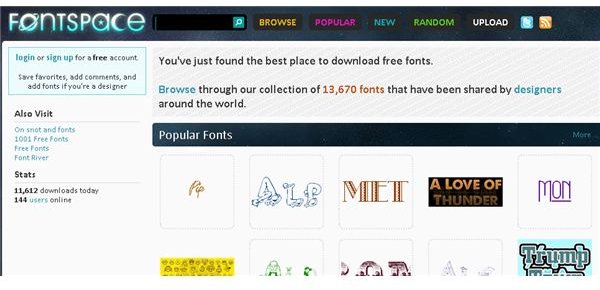
Fontspace has free fonts that you can download on the spot. you can browse through the fonts available on the site by name or you can choose to view new fonts, or popular fonts by selecting those options from the main menu. If you have created fonts that you wish to share with others, Fontspace has a place where you can add them to the community using an upload link.
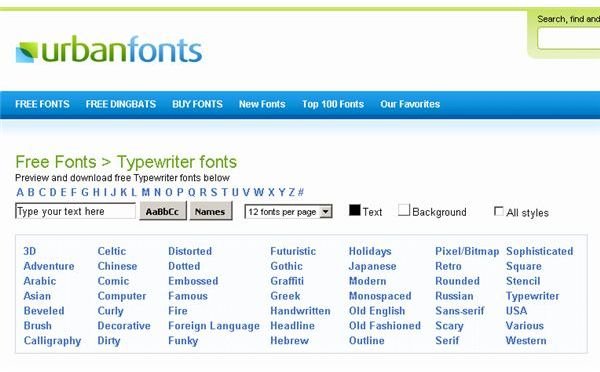
Urban Fonts is another Web site where users can browse a large number of free Microsoft Publisher fonts that work with any Windows application. This site features mouseover previous of all fonts and offers basic navigation options. This site also has a commercial fonts section that offers Windows fonts that are for sale.
Installing a New Font
This Microsoft Publisher tutorial will show you how to install the free font called “Abstrakt” found at UrbanFonts.com under “Distorted.” The procedure here uses Windows 7 and Microsoft Publisher 2010, but you should be able to follow along with other versions.

Click the “Distorted” link and then scroll to the “Abstrakt” font. When you have found it, click the “Download” button to get the file.

The font will save to your downloads folder in a “Zip” format.
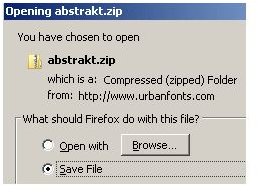
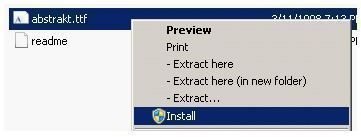
When the download is complete, use Windows Explorer to browse to your downloads folder. When you find the file, right click “abstrakt.zip,” and choose to expand the folder. Next, double click the “abstrakt” folder to open it and then right click on the file “abstrakt.ttf” and choose “Install” from the context menu.
You will see a status window open that shows your font installing. It should automatically close when the font is installed.
Microsoft Publisher fonts
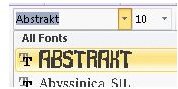
Now that you have installed your new free font , open Microsoft Publisher and create a new document. Draw a text box and then click the “Fonts” drop down box on the ribbon. You should see your “Abstrakt” and any other new Microsoft Publisher fonts accessible for use in Microsoft Publisher.
Wrapping Up
In this Microsoft Publisher tutorial, you learned about finding and installing free Microsoft Publisher fonts. You can now go on your own and add as many free fonts as you want or need so that you have the typefaces available to use for your next Microsoft Publisher layout.
Image Credits: Screenshots taken by Bruce Tyson


