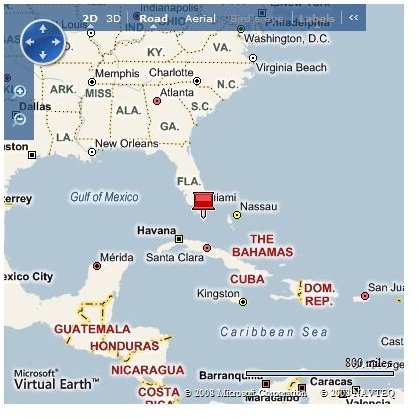
Solve real business problems or just have fun creating innovative mash-ups with Microsof Virtual Earth. You can develop immersive experiences based on high-resolution map detail, precision aerial imagery, bird’s eye views, and comprehensive 3D city models that bring location-based info to your site.
Virtual Earth Map API
Most of the mapping applications / software are not free, however, Microsoft Virtual Earth offers free maps and allows anyone to use their API. Of course there are other mapping services, such as Yahoo Maps and MapQuest. There are also several costly products, such as MapInfo, but, Microsoft Virtual Earth Map API seems to work for everyone in just about every situation. I’m the developer for Albany Chamber of Commerce site (see the attached screen shot “Chamber Site”) and I used MS Virtual Earth Map for member page.
In this article I will show you how to use the Microsoft Virtual Earth Map API within any HTML page.
Very Basic Map Example
Step 1. Create a HTML or .Net page, let’s call it Sample_1
Step 2. Within the HEAD section, enter the below JavaScript line.
Let’s talk about these lines for a minute. First, the script tag uses “src” which is source of the JavaScript which is hosted by Microsoft so we do not have to have this file in our folder. Second, notice the second set of “script” tag attributes. This is where we have the function which will load the MS Virtual Earth Map within our page.
Step 3. Modify the BODY tag of your HTML page to match this,
Step 4. Now let’s add a place holder for Microsoft Map. Add the following code within the opening and closing of the BODY tag
Notice we have id=”myMap”. This is used by Step 2 above and our code in Step 3 which will load Microsoft Map here. It’s basically used as a map placeholder.That is all, now you have a page that will show Google Maps using the API, offered by Microsoft Virtual Earth for free. See the screen shot of this example so far. (Example_1.jpg)
More Advanced Map Example
Step 1. Please modify the code within the HEAD section. This is modification to the Step 2 above.<script type=“text/javascript” src=“https://dev.virtualearth.net/mapcontrol/mapcontrol.ashx?v=6.1"> </script>