Always wanted to print your Word, Excel or PowerPoint files to PDF but didn’t know how? Here is how you can print any file to PDF easily.
Notepad and Microsoft Word are the two applications you are most likely to use when editing a document. However, when it comes to reading documents or ebooks, Adobe’s PDF (Portable Document Format) is virtually ubiquitous.
You can find almost every ebook in PDF format even though EPUB is the official format for many ebook readers.
Advantages of PDF
There are many advantages to using the PDF format to share your documents. First, not all computers have Microsoft Word installed, so some recipients may not be able to view your DOC files. Even if you are sharing Excel worksheets or PowerPoint presentations, converting them to PDF first may be more prudent.
Many users do not have Office applications installed for various reasons, but most computers do have a PDF reader installed. In addition, PDF preserves all of your formatting, whereas your other documents may look different in different applications and operating systems. PDF documents are also relatively difficult to edit compared to text documents.
This tutorial will show you how you can print any file to PDF using a virtual printer. This will help you convert any file to PDF, be it a document, spreadsheet or a presentation.
Print to PDF Instructions
There are many applications available that let you print your files directly to PDF, but the best option you have is CutePDF. This application provides the easiest way to print to PDF, as it uses a virtual printer to convert documents and other files to PDF format. The virtual printer can be used to convert your documents to PDF by simply using the Print command.
Installing CutePDF
First of all, you need to download CutePDF - Download CutePDF Writer + Converter . It’s free to download and use.
Next, extract the files from the archive and install both the files - CutePDF Writer and Converter - onto your computer.
Using CutePDF to Print to PDF
Installing these two files creates a new virtual printer on your computer.
Now whenever you want to print any document to PDF or convert any document to PDF, you can just open the document and give the Print command.
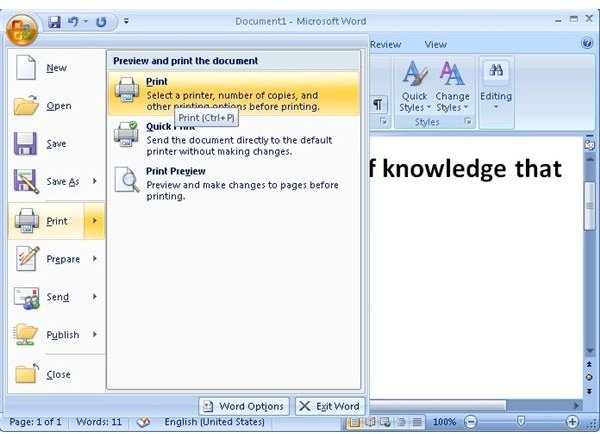
To print the document, press Ctrl+P or go to File > Print (in Word 2003 or 2010) or Office Button > Print (in Word 2007).
From the list of printers available, select CutePDF Writer and click on the Print button.
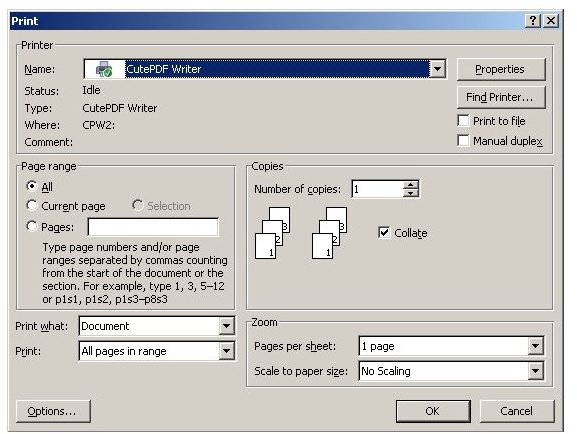
You will get a Save As File Dialog box. Rename the PDF to what you want and save it where you want to.
This is how you can print files to PDF or convert any document to PDF easily. You can use this method to print any file to PDF using a virtual printer.
Alternatively, you can also use PrimoPDF , but CutePDF is recommended as it is the easiest and the most intuitive option.
References
CutePDF: Homepage [https://www.cutepdf.com]
PrimoPDF: Homepage [https://www.primopdf.com/index.aspx]


