Tired of cells not wrapping the way you want in Excel? Read on to learn a few tricks to fix this problem.
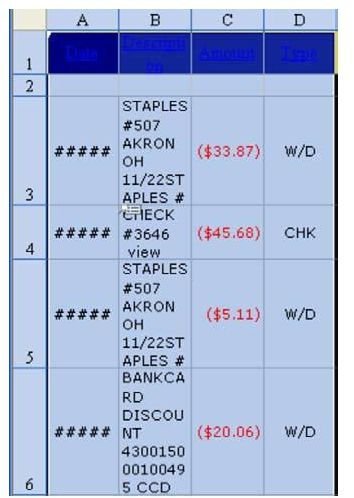
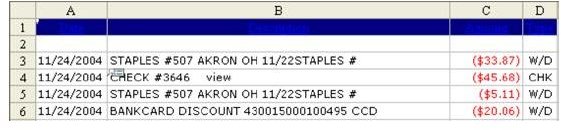
Problem: If you regularly paste information from web pages, you might be frustrated at the way Excel wraps text in the cells. In Fig. 1321, column A is not wide enough for the date and column B is wrapped so that you can only see a few rows on the screen. Using AutoFit to make the columns wider will make the spreadsheet too wide to work with easily. Is there another solution?
Strategy: Follow these steps to correct this.
-
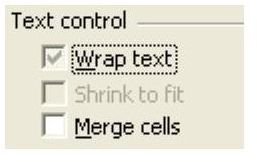
First, hit Ctrl+1 to open the Format Cells dialog. On the Alignment tab, look in the Text Control section. The Wrap Text choice is probably a grey checkmark, as shown in Fig. 1322. This means that for some cells in the selection, the Wrap Text property is on, and for others it is off.
-
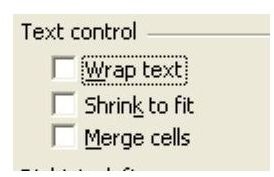
You want to turn the Wrap text property off. The first mouse click will change the grey checkmark to a black checkmark. The second mouse click will turn off the checkmark, as shown in Fig. 1323.
Advertisement
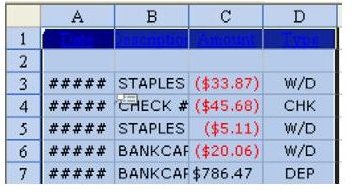
After this step, you can see more rows, as shown in Fig. 1324. You still need to make the columns wider.
- From the menu, select Format – Column – Autofit Selection. You can now see the bank statement, as shown in Fig. 1325.
Summary: Data pasted from web pages will often have the Wrap Text property turned on. This prevents the AutoFit selection command from working.
Commands Discussed: Format – Cells – Alignment – Wrap Text; Format – Column – AutoFit
Images
References and Additional Resources
If you’re looking for more tips and tutorials, check out 91 Tips for Calculating With Microsoft Excel . This collection of easy-to-follow guides shows how to customize charts and graphs, different ways to make complex spreadsheets easier to update, and even how to play games like Craps in Excel.
Other Resources:
Microsoft Excel Official Site, https://office.microsoft.com/en-us/excel/
Bill Jelen, Microsoft Excel 2010 In Depth, Available from Amazon.com .


