You can find newsgroups on virtually anything. While a newsgroup on golf getaways may only provide a means to fritter away a good part of a day, the right newsgroup could help you bring your business to new heights.
What are Newsgroups
In case you didn’t know, newsgroups have pretty much zilch to do with news; they are actually places to share thoughts, post opinions, get answers to questions, and meet other people in the same business as your own. You might find that a newsgroup that focuses on your business might just be the quick fix you’re looking for, at least in the ability to share ideas and get advice from others. Additionally, a newsgroup that deals with printer issues, Vista issues , or computer issues may take the place of your computer repairman, provided you have at least some knowledge of the inner workings of such things.
Once you have newsgroups set up, reading and posting messages is very similar to reading and sending email messages. You can create a new message, reply to a message, forward a message, and reply to the individual sender of post or to the entire newsgroup. Additionally, newsgroup data is archived, so you can easily find answers to any questions previously asked, quickly.
Setting up a newsgroup account requires that you contact your Internet service provider and obtain its news server address, along with your user name and password. My ISP is Time Warner, and my newsgroup name is news-server.tx.rr.com. My user name and password are the same I use to send and receive email. You’ll find yours is similar.
Configuring Windows Mail for Newsgroup Subscription
To configure Windows Mail and subscribe to a newsgroup:
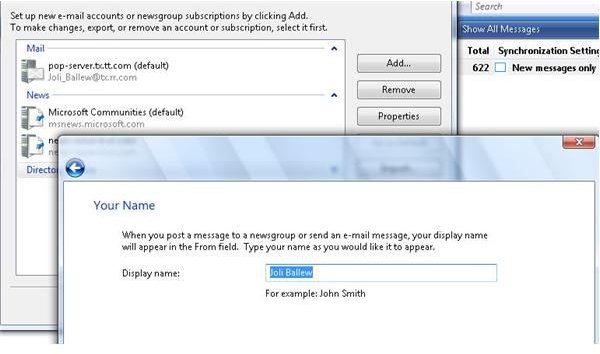
1. Click Tools, and click Accounts.
2. Click Add.
3. Click Newsgroup Account.
4. Click Next.
5. Type your display name. Remember, this isn’t your e-mail address, it’s the name you want people to see when they read newsgroup posts from you.
6. Click Next.
6. Type your e-mail address.
7. Click Next.
8. Type the name of the news server given to you by your ISP. If your ISP told you to input your user name and credentials, check My
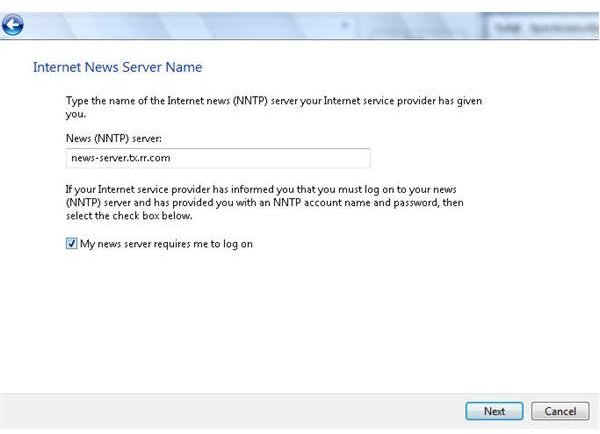
news server requires me to log on. [See Image 2]
9. Click Next.
10. Type your e-mail username. This is often your e-mail address.
11. Type your password. Passwords are case sensitive.
12. If you want Windows Mail to remember your password, leave Remember Password checked.
15. Click Next.
16. Click Finish.
17. Click Close.
18. Click Show available newsgroups and turn on Communities. This choice lets you check for supported community features, including ratings, rankings, and more.
19. Wait while the newsgroups are downloaded. This needs only be done one time.
20. Under the All tab, use the scroll bar to view the available newsgroups. If you find one you want to subscribe to, click it, and click Subscribe. Here I’ve selected uk.sport.squash. Notice the icon next to it, this means I’ve chosen to subscribe to it. Repeat this step as desired.
21. Click Go To.
22. To subscribe to additional groups, click Tools, and click Newsgroups. Then repeat steps 20-21.
For a related article consider this:
Windows Mail (Vista) - Get the most from configuration settings.