For years Microsoft Office users have struggled with latent incompatibilities between its core applications. Also for years, Publisher users have been copying and pasting Excel spreadsheets into Publisher, but now you can import an Excel spreadsheet into Publisher with ease.
Getting Ready to Import Excel a Spreadsheet into Publisher
Rather than creating a table in Publisher 2010 , you may want to place existing data from an Excel spreadsheet into your publication. This can be especially valuable if you have table data that changes a lot because you can link your spreadsheet to your document so it automatically updates every time you open it.
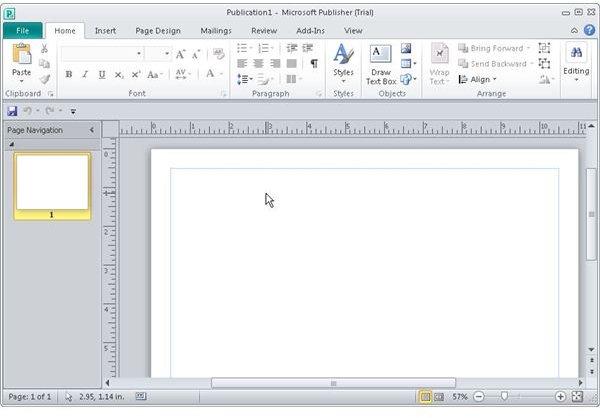
To get started with this Microsoft Publisher 2010 tutorial, you will need to have Publisher 2010 installed. If you are ready, open Publisher 2010 and create a blank publication.
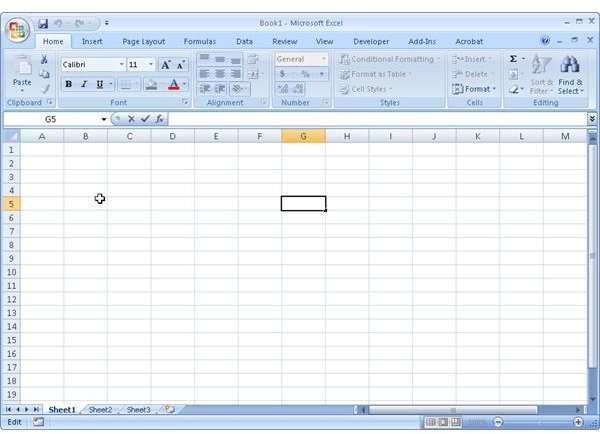
Also, you need to open a Excel and create a blank spreadsheet.
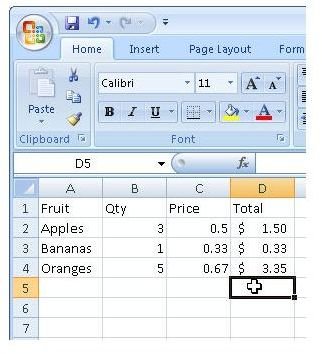
Now, let’s create some data in this new spreadsheet for use in this tutorial. Don’t worry too much what your spreadsheet says because this is only sample data.
Now, save your spreadsheet and close Excel. The rest of our time together will be spent in Publisher 2010.
Importing the Spreadsheet
The ability to import Excel spreadsheets into Publisher 2010 makes it easy to bring existing data into a Publisher document. To begin, go to Publisher 2010 and click on the “Insert” tab to get to the “Insert” ribbon where you will find the “Insert Object” icon.
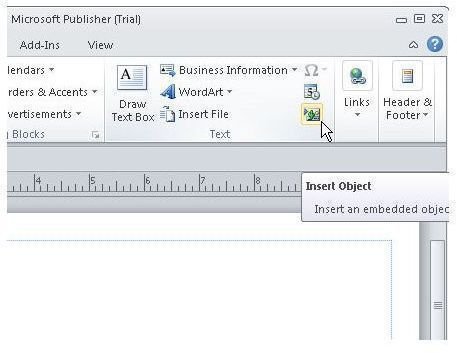
Now, click the “Insert Object” icon and you will see the “Insert Object” dialog open. This is where we will import the spreadsheet into your publisher document. In the “Object Type” window, scroll down until you see “Microsoft Excel Worksheet” and highlight that line.
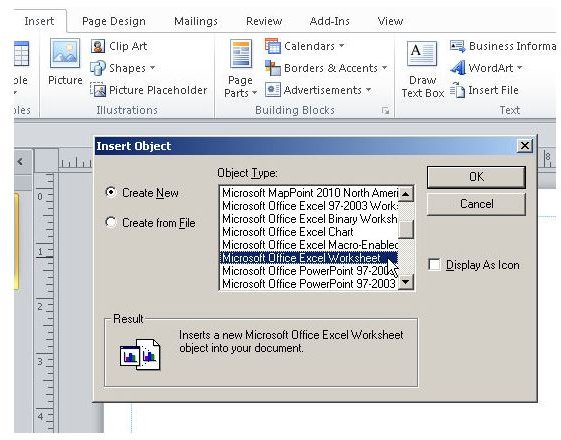
Next, look over to the left of this window: you can choose to create a brand new Excel document if you want to, or you can create your object from your existing spreadsheet. In this case, you want to use the spreadsheet created early, so click the “Create from File.” You will now see your “Insert Object” window change.
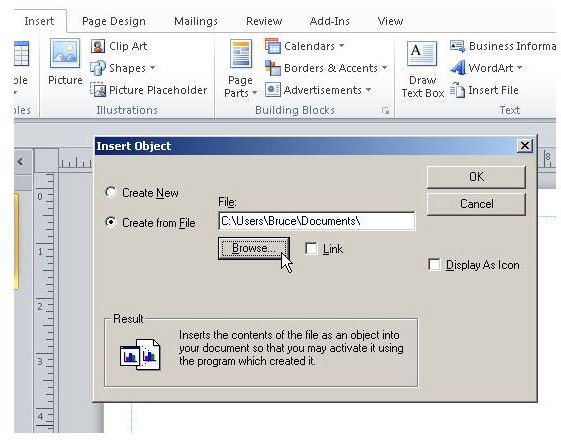
Here you see the “Browse” button that you will click to locate the Excel spreadsheet you wish to import. You also see a “Link” check box. If you want to make sure that your Publisher 2010 document always has the latest data from your spreadsheet, click “Link.”
Let’s go ahead and click the “Link” option. Most of the time you probably won’t want to use the “Display As Icon” checkbox. Now, browse to your spreadsheet and select it.
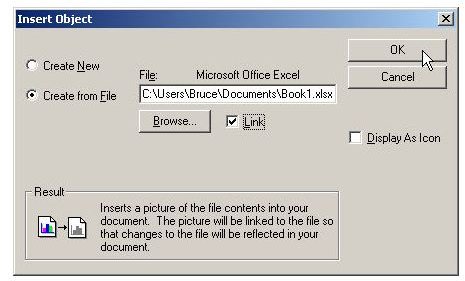
Click the “OK” button to import the Excel spreadsheet into Publisher 2010.
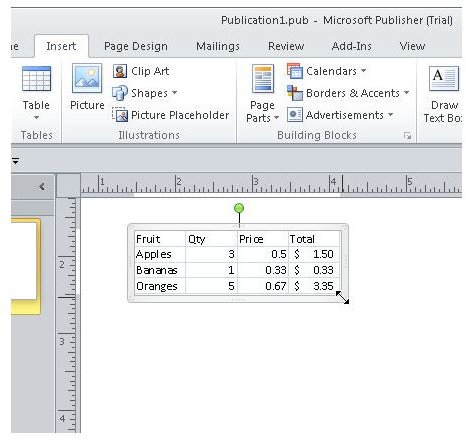
The import is now complete: your Excel spreadsheet is now an object placed into a Publisher 2010 document. You may now format this object as you see fit to integrate it into your Microsoft Publisher publication.
Testing it Out and Wrapping it Up
To see if our spreadsheet really is linked to the Publisher document, save your publication and close Microsoft Publisher 2010. Now, open your spreadsheet and add a new line. Here we will use watermelon.
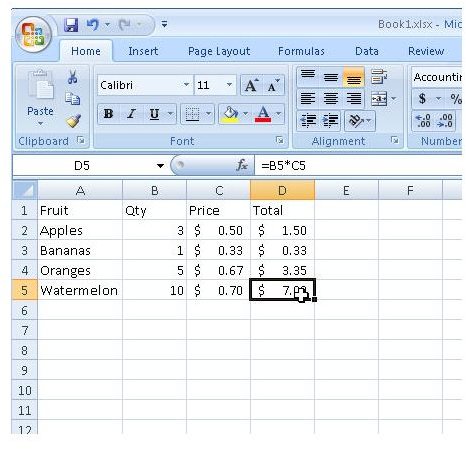
Save and close your spreadsheet and then re-open your Publisher document. You will be greeted with a notification that your publication has linked data, asking you if you want to update. Here you want to click the “Yes” button.
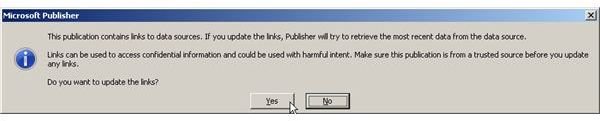
You now see that the data that you placed into your Publisher 2010 document has been updated. It now includes your “Watermelon” data. You have learned how to link and import Excel spreadsheet into Publisher.
Image Credits: Screen shots taken by Bruce Tyson


