
Create your own Thanksgiving eCard Invitations using free graphics, borders, and Adobe Fireworks using this guide.
Creating Your Own
You can create your own Thanksgiving eCard invitations using Adobe Fireworks. These invitations can be designed using Thanksgiving borders, Thanksgiving graphics, or basic borders created in Adobe Fireworks. In this guide, I will walk you through the steps of creating your own Thanksgiving eCard invitations and show you how to email them.
What You Will Need

You will need to get your graphics, borders, and anything else you want to use for your invitations. You can find many free Thanksgiving graphics and Thanksgiving borders on the web. Simply do a search and save what you want to use to your computer.
Creating Your Thanksgiving eCard Invitation in Adobe Fireworks
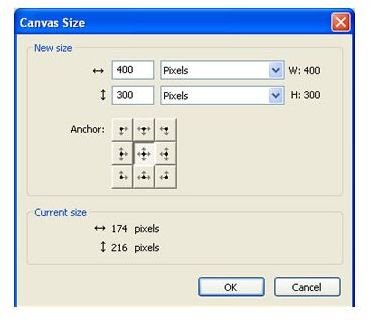
Now you can open your Adobe Fireworks program and create the document the size you want the Thanksgiving eCard invitation to be. A good size to use is 400px x 300px. However, you are free to choose the size you want.
If you are using a border for your eCard, you can open the border by importing it in Fireworks. If you are

using a border like the one in this guide, you will need to duplicate it. Right click on the border, click Edit > Duplicate. Drag the duplicated border below the other border. Continue doing this until you have the border covering the page.
If you are going to create your own border, grab the rectangle tool in Fireworks and draw a box on your

document. Change the color fill to No Color and change the Border Color to what you want. Then change the border properties to what you want.
If you are not using any type of border, you can import the Thanksgiving graphic or graphics you want to use. Layout your graphics the way you want and then add your text. You can also

use graphics and borders to create your Thanksgiving eCard invitations. Please see my examples in this guide to get an idea of how you can create the invitations.
Exporting Your Thanksgiving eCard Invitation in Adobe Fireworks
Once you have finished your Thanksgiving eCard, you will need to export it. Go to the top of Fireworks and click File > Export Preview. A box will open and you will need to drop the format box down and select Jpeg. Click Export at the bottom of the box. Another box will open and you will need to give your eCard a name and click Save. The Thanksgiving eCard Invitation will then be saved to your computer.
Email Your Thanksgiving eCard
To email the invitation, open the email client you use. Create a new email like you normally would. Then select to add a file attachment. When the box opens, locate the eCard you saved and select it. The file will then be attached and you can send your email.


