You can have problems using InDesign that result from the wrong language settings being in place. These issues can be frustrating and cost precious time as deadlines loom and as your blood boils. Common InDesign language setting problems are discussed here as well as how to resolve them.
Apostrophe and Quotation Marks Problems
One of the more common Adobe InDesign language setting problems invovles quotation mark and apostrophes. When these characters do not display properly, the problem usually stems from one of two settings: the “Single Quotes” and “Double Quotes” options or the “Language” option. To view or modify these settings, click on the “Edit” option in the main menu and then click “Preferences.” In the “Preferences” window, select “Dictionary.” Here you should make sure you have your language selected as well as appropriate choices listed for single and double quotes.
Spell Check Not Working Properly
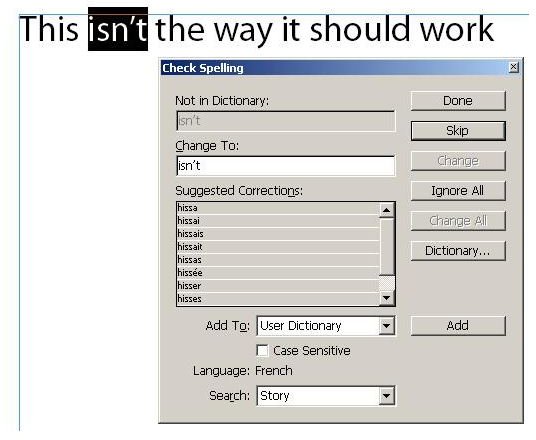
Another problem often seen among users with InDesign language setting problems is that their spell check doesn’t act right. It flags words that really are spelled correctly and then offers bizarre alternatives as seen in the following screen shot.
In this case, “isn’t” was not found by InDesign. Proposed replacements include hissa, hissai, etc. To correct this, go back to your dictionary settings (Click “Edit” and then “Preferences”) and check your language setting there.
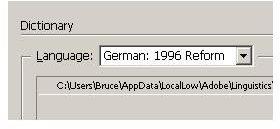
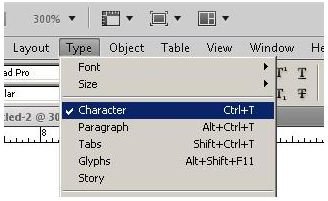
In this case, the culprit was “German.” Set this to “English” and you are back in the game. If you return to your layout and spell check still does not behave properly, open the “Character” window. Do this by clicking on the “Type” option on the main menu and then clicking “Character.”
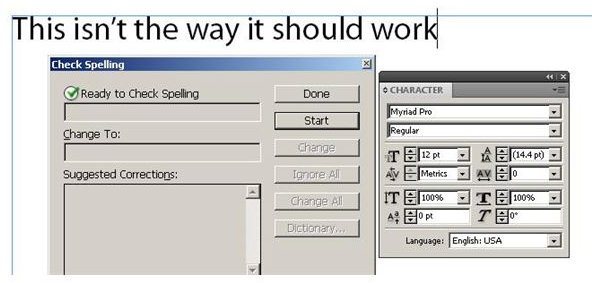
You should see the “Character” palette open. At the bottom of this window, you will see another “Language” setting. In this case, it was mistakenly set for “French.” Highlight your text and change this back to “English” and see if your language problem is resolved.
Improperly Formatted Placed Text
When you place text into an InDesign layout and it does not look right, unto the operation and then follow these steps:
-
Click “File” and then “Place” (or press
D) to open the placement window and then check the “Show import options” box near the bottom left corner. Advertisement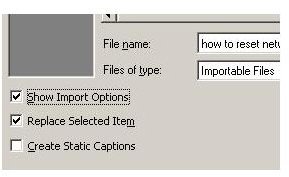
-
Next, click the “Open” button. You will see you have several options. Often the “Character Set” is wrong here, so be sure to select the correct one as well as your platform and dictionary. Click the “OK” button and your text should import correctly.
Advertisement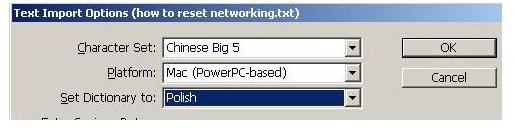
How Does This Happen?
These tips should help you when you have InDesign language setting problems. Before panicking, review all the language settings until you locate the source of the problem you are having.
Often, people want to know why the settings for their InDesign files are so messed up. This happens a lot when you load files prepared by someone else, especially if it was done in another country. When you open the file, the original settings carry over to your machine. Another way it happens is if children or adults play around with your computer and mess it up.
Image Credits: Screen shots taken by Bruce Tyson


