InDesign plugins can save you time and increase your productivity as you perform your daily work with the powerful program from Adobe. Find here some of the top free plugins for InDesign that will boost your bottom line at absolutely no cost to you.
PlaceAutoSynchronizer
The PlaceAutoSynchronizer plugin from Rorohiko adds the ability to place automatically updating text in InDesign layouts. With this plugin in place, images and text inserted into your layout will automatically update within the layout if it is changed outside of InDesign.
To use the plugin, all you do is place the word “subscribe” in a text or image box that will contain the information you want to automatically update. The plugin will automatically update information from a text, RTF, PDF, or other placeable file so that the material in your layout is always up to date.
Lightning Brain StoryParker for InDesign
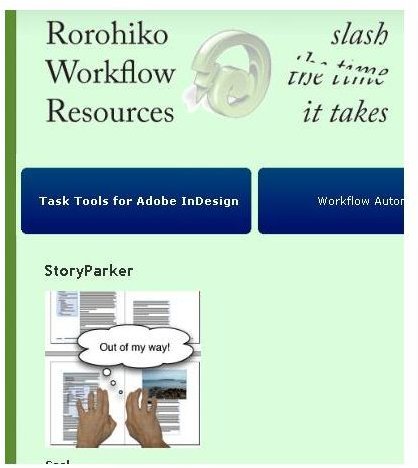
If you want to speed up the way you navigate through the InDesign interface, you might benefit from the Lightning Brain StoryParker for InDesign plugin available from the Rorohiko Web site. By allowing elements on every page to be parked out of the way, you can get them out of the way while you work on your layout. The power of the StoryParker plugin becomes evident when you can easily restore the elements you parked to their original positions.
EasyCatalog
InDesign interaction with databases can be simplified through the use of the EasyCatalog plugin for InDesign. Whether you have a formatted database or a flat text or delimited file, you can create dynamic Adobe InDesign documents. This one plugin can help you rapidly produce documents without error by pulling in information from external data sources.
EasyCatalog is perfect for the production of catalogs, price lists, and directories when time and accuracy is a factor.

PatternMaker
This free Adobe InDesign plugin allows you to create patterns for your designs formed by scallops, crosses, and lines. After installing this plugin, select a frame on your layout and then click “Window” on the main menu and then “PatternMaker ” to get the window where you can configure your pattern parameters.
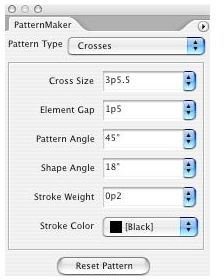
Once you have filled your frame with a pattern, you can save your file and then print your creation via any InDesign installation, even if not equipped with PatternMaker. A package of premium patterns is also available to purchase from the Teacup Software that can give you even more powerful options to choose from.
TransformMaster
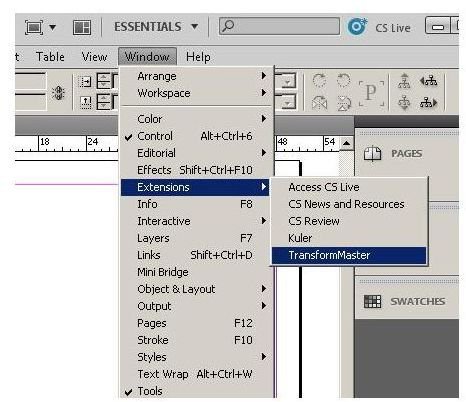
If you need to find a quick way to resize, scale and rotate master pages, allowing them to easily be applied to pages of various sizes. Once the plugin is installed, it is accessible by clicking the “Windows” option on the main menu and then choosing the “Extensions” option. This is another powerful plugin from the Rorohiko Web site that is downloadable for free.
Installing an InDesign Plugin
Installing InDesign plugins is easy: all you have to do is follow a few steps:
1. Locate the plugin file using Windows Explorer and extract it (if necessary) to a new folder.

2. Some plugins such as the TransformMaster plugin may require you to double click in order to configure it through the Adobe Extension Manager. Other plugins merely need to be copied into your plugins folder (normally C:\Program Files\Adobe\Adobe InDesign CS5\Plug-Ins).
3. Start / restart Adobe InDesign. Plugins are only made available when Adobe InDesign starts, so be sure to copy your plugin to the plugins folder before opening InDesign or else restart it before trying to access it.
Plugins can be accessed by clicking “Windows” and then “Extensions” from the main menu bar or by other means as found in the documentation associated with the plugin.