Importing fonts into iInkscape is not very difficult once you get past the mysteries surrounding Windows fonts. In fact, if you properly install the font in Windows, your job is pretty much done. In this example, we will be installing a font called Blackoak Standard.
Getting Started
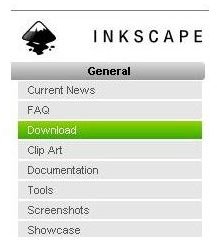
Inkscape is an open source vector graphics program that is available for free. This Inkscape tutorial assumes that you are using a Windows-based computer and have Inkscape already installed. If you do not have Inkscape installed, please visit Inkscape.org. Once you are there, you can click “Download” on the left hand side of the screen.
You will see all the current versions of Inkscape listed in the main section of your screen. If you want to run Inkscape for Linux or Unix, you will have to download the source tarball and then compile it. The Macintosh version of the program is there too. Because this is a tutorial based on the Windows version, click the “Installer” option to the right of Windows. You will be prompted by your Web browser to save the file.
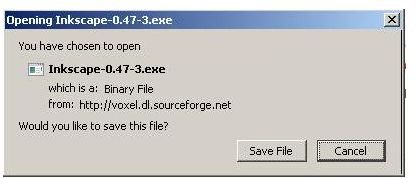
After the file has finished downloading to your computer, run it and follow the Inkscape installation instructions on the screen. When installation is complete, choose the option to start Inkscape. You are now ready to work in Inkscape.
Importing a Font into Inkscape
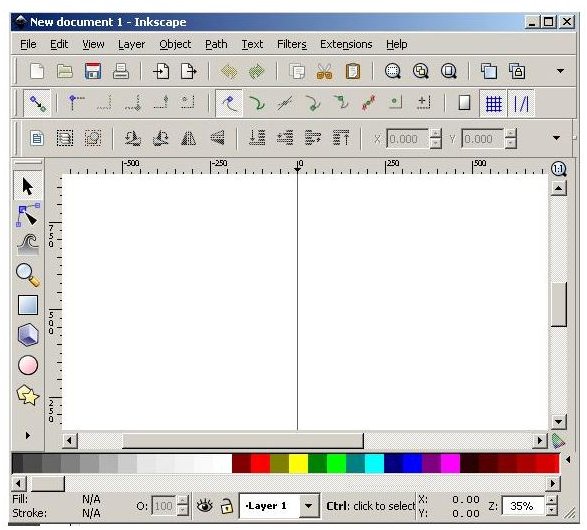
Inkscape should function as a normal Windows program. To demonstrate the process of importing a font, begin with a font to install. In this case, we will install a font called Blackoak Standard to be used with Inkscape. This particular font is an Open Type font. You should be able to import any Windows compatible font by following these steps. Let’s start by checking out the fonts currently installed in Inkscape.
1. On the Inkscape menu bar, click the “Text” option and then click “Text and Font.” You can also get the same window open by clicking
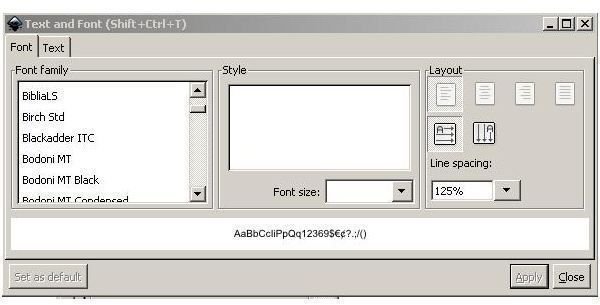
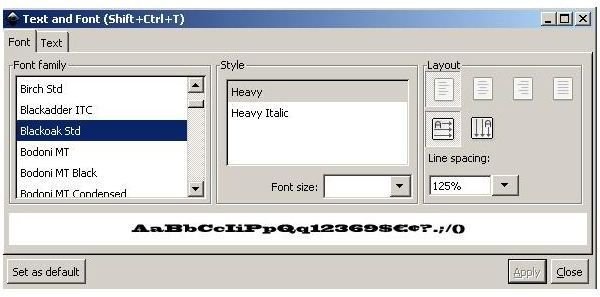
If you are looking for the Blackoak Standard font, you would see it between Blackadder ITC and Bodoni MT. It is not there. That means that we have to import it into Inkscape. Before you do this, close the Inkscape application.
2. The next step requires that you know where your new font is located. Is it on a CDROM? Did you download it? Is it on a flash drive? Only you know where the file is. Using Windows Explorer, browse to the location where your font is.
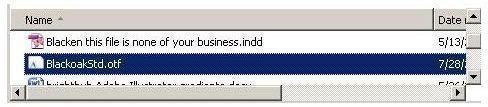
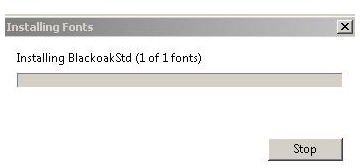
3. Next, right click on the font and click “Install” on the context menu. You will see a dialog box appear as the font is installed by Windows.
4. Now open Inkscape on your computer. When you open the “Text and Fonts” window from the “Text” option on the menu bar, you will now see that Blackoak has been imported into Inkscape.
Now that you know that importing fonts into Inkscape is done primarily through Windows you now can now import fonts into any Windows compatible program. If you are using Linux or Macintosh, be sure to check with the documentation of your operating system to see how to install and import the fonts for your version of Inkscape.


