This is a tutorial which shows you how to run Google Android on your computer or laptop.
This tutorial will show you how to run the Google Android mobile operating system on your X86 based PC. Android is primarily a mobile OS which runs on smartphones powered by ARM based processors. However, it is very capable and many has been ported to many other platforms as well, including X86. One such port for the X86 platform is Live Android, which can be used to create a Live CD of Android which can then be run on any X86 based computer.
It is an open source project and the source is freely available under the Apache 2.0 licence. You can download the Live Android CD image ISO from the official torrent - https://live-android.googlecode.com/files/liveandroidv0.2.iso%20[mininova].torrent
Alternatively, you can also download the ISO from these links -
https://live-android.googlecode.com/files/liveandroidv0.2.iso.001
https://live-android.googlecode.com/files/liveandroidv0.2.iso.002
After downloading these files, just download HJSplit - https://www.freebyte.com/hjsplit/ .
To join them, save both the parts in a single directory, run the main HJsplit executable, click on Join and select the first part - .001 and click Start. The combined ISO will be saved in the same directory as the parts.
Once you have the ISO, you can burn it to a blank CD using a disc burning software like Nero or Magic ISO. Just reboot your computer and boot from the CD to run Android on your PC.
You can also use some application like the W32 Disk Imager to copy the Live Android ISO image to your flash drive and then boot from it to run Android. To download W32 Disk Imager, visit https://launchpad.net/win32-image-writer/0.2/0.2/+download/win32diskimager-RELEASE-0.2-r23-win32.zip .
After downloading, just run W32 DiskImager, select the ISO file and the USB drive to copy it to and Write the image.
If you don’t want to go through the hassle of burning CDs or if you want to try it out directly without rebooting your PC, you can also install a virtualization application like Virtual Box and then capture the ISO image in your virtual PC and boot from it.
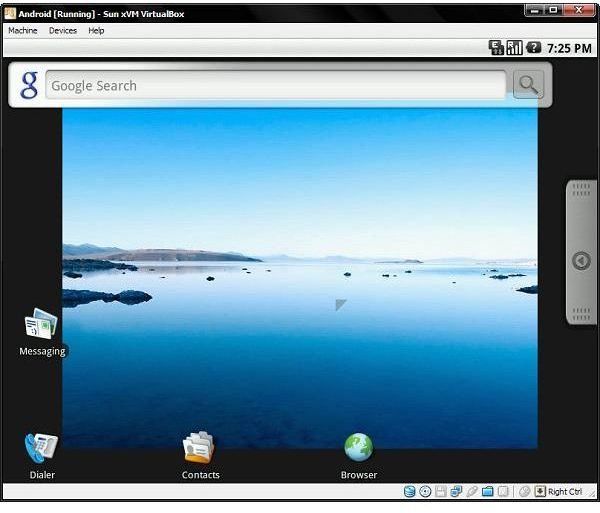
Screenshots: