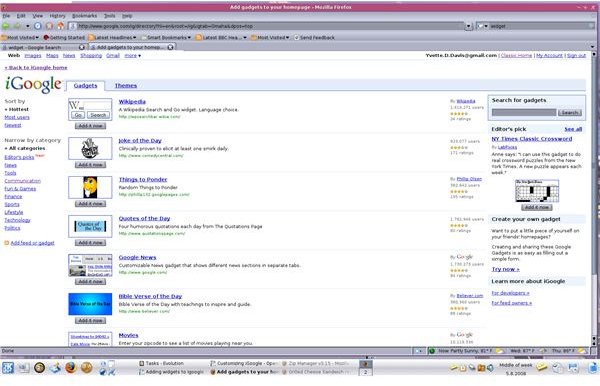
Functionality is what it’s all about. With iGoogle gadgets, you can have email, jokes, weather, Bible verses, movie review, and even games right on your iGoogle desktop. There are hundreds of gadgets available, allowing you to do just about anything with your iGoogle page.
Adding Gadgets
Gadgets or widgets are small programs that can be inserted into a web page in order to bring specific functions to that page.
For example, you can use a gadget to bring your gmail account, google docs account, or even the latest weather right to your iGoogle page. There are hundreds of widgets available, allowing you to do just about anything with your iGoogle page.
To Find and Add iGoogle Gadgets
1. Log into your iGoogle account
2. Click on Add Stuff, in the lower right corner of the theme bar.
3. There are 2 tabs at the top of the page, Gadgets, and Themes. Ensure Gadgets is selected.
4. In the far left column, you will see a list of sort options, and widget categories. You can search by category, or simply browse through all available widgets.
5. When you find a gadget you’re interested in, click on the title of that widget to learn more about it.
6. Click Add it now, to add the gadget to your iGoogle page.
Sometimes, you’ll want to add a gadget/widget or an RSS feed that isn’t in the iGoogle gadget list. iGoogle makes this simple.
To add an RSS feed or gadget not listed:
1. Under the category listings, you’ll see Add feed or gadget. Click on the link.
2. A text box will appear. Type the URL of the RSS feed or gadget you’d like to add.
3. Click Add.
Search for Gadgets
If you’re looking for a gadget to do a specific thing, try doing a gadget search
1. In the search box in the upper right of the window, enter the type of gadget you are looking for.
2. Click Search
Editor’s Pick:
Under the search box, you will find the Editor’s pick. This is where Google staff highlights gadgets they like. To see all the Editor’s picks, click See all. The past Editor’s Pick gadgets will be listed in the main display area of the page.
Have fun exploring all the useful and cool iGoogle gadgets.


