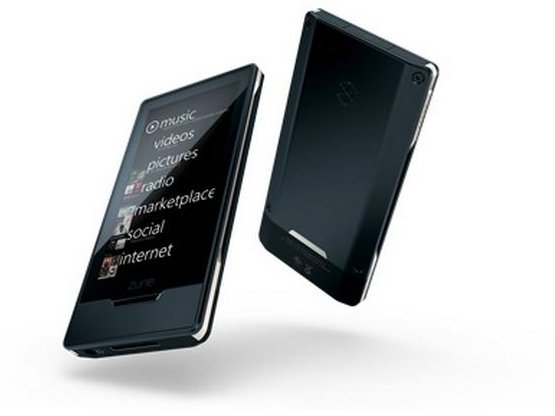
If you’ve got a Zune player and not yet installed any software on your PC, you’ve probably found that you can’t transfer songs, photos or videos to your device. It’s easy to install the Zune software on your PC to remedy this situation. And the first step is knowing how to download Zune software.
Zune Software
Before I tell you guys how to download Zune software, you’ll need to know that, to make your Zune device work successfully, you’ll need two different pieces of software. One of them is the Zune firmware on the device that needs to be updated, which of course I’ve covered in a separate article of mine.
The other part is the Zune software installed on your PC. Zune software is compatible with any PC and it helps you organize your media collection on the PC while keeping it synced to the files you use on the Zune player. Without this, you cannot add or remove songs or videos to or from your Zune. One should note that this vital software is unavailable for Mac OS X , so Mac users will have to run Windows, via Bootcamp or Parallels, to be able to install Zune software.
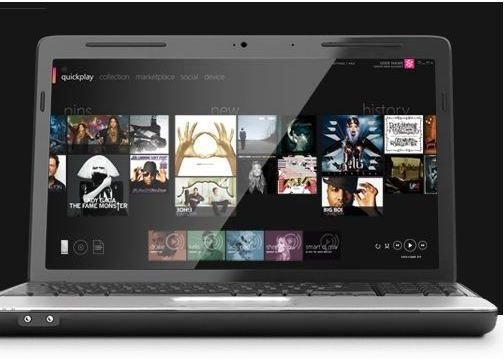
Downloading Zune Software
The Zune software for your PC will usually come on a CD included inside the package in which you got your Zune device. Though this is the easiest way to install the Zune Software, we’re here to see how to download Zune software.
Before you download, there are a few things you should be aware of. Be sure to note what version of the Windows operating system you’re running on your PC. Remember that you cannot use Zune software on Mac OS X, so don’t try to. The Zune software download is also around 120MB in size. So make sure you have a stable enough connection and enough bandwidth to download the Zune software. For smooth operation of the software on your PC, you will need a 1GHz processor atleast.
Once you’re ready, these are the steps you need to follow:
- Go to this site first.
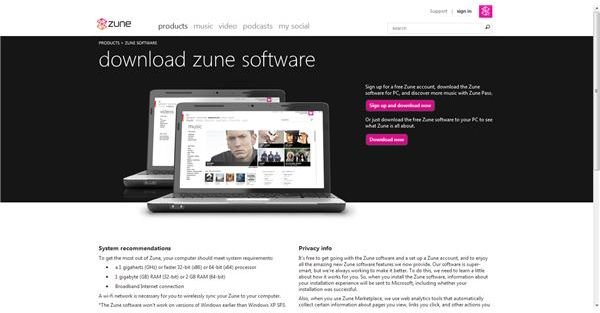
- Here, you will find two options. The first one is to sign up for a zune account and then proceed to download the Zune software. The next is to download without registering yourself for a Zune account. Feel free to choose either one, but you might as well register for a Zune account.
- Choose a directory when prompted to save the installation file and click Save.
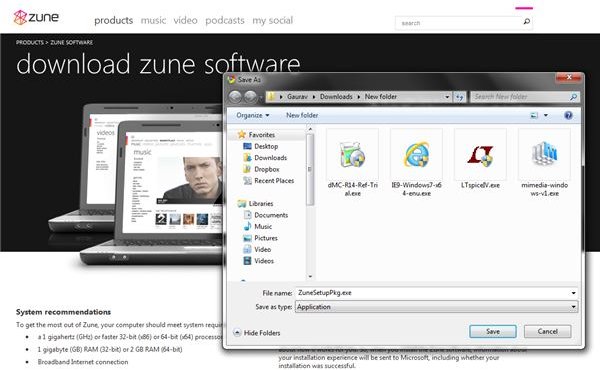
- Now once the download of the file (ZuneSetupPkg.exe) begins, wait for it to complete.
In case the above link does not work, you can find an alternate mirror here on softonic . The software available there is the Zune Software version 4.7.
If you prefer to have a completely offline version of the Zune Software installer, head to Microsoft’s download page to get the file. You can use this to install it on a computer that isn’t connected to the Internet too.
Installation
Installing the downloaded file is a piece of cake once you know how to download Zune software. Just double click ZuneSetupPkg.exe and you’re good to go thanks to the user-friendly installation wizard. Once installed, you can hook up your Zune device to it and start transferring media to it.
If you get errors on any Windows OS version, please make sure to right click ZuneSetupPkg.exe and choose the compatibility settings for your OS version.
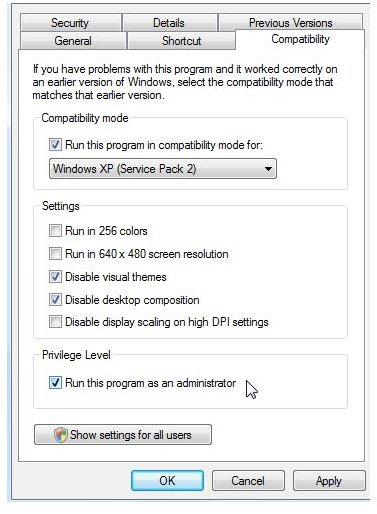
Image Sources
In sequence from top to bottom:
Pictures 1, 2, 3, 4, 5 - Screenshots from my PC and Web Browser