Those who claim that the only way to get content for the Kindle is to purchase it through Amazon don’t know what they’re talking about. It’s perfectly legal to download free eBooks from many other sources on the Internet, and we’ll show you how.
Don’t Listen to the Rumors!
One of the biggest myths concerning the Amazon Kindle is that users are restricted to buying and downloading all content from Amazon. This couldn’t be further from the truth. Just like with any other eBook reader, you can connect your Kindle to your computer and get material from other sources. In this guide, we’ll show how easy it is to access these other sources and download content. A lot of these third-party eBooks are free, so this is a great way to build your Kindle library, whether you own the original Kindle, the Kindle 2. or the Kindle DX .
Connect the Kindle to Your Computer
First, you’ll need to connect your Amazon Kindle to your computer using the USB cable. If you can’t find the original cable that came with the Kindle, don’t worry – any USB cable will do. You can always “borrow” a cable from one of your other devices or just buy a new one for less than $10.
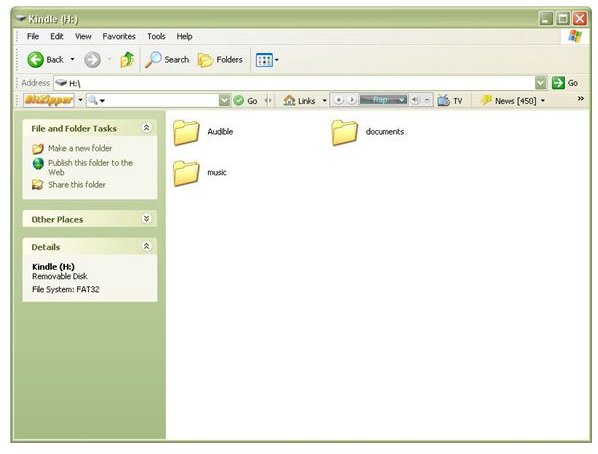
Wait for the message on your Kindle screen that indicates that the Kindle is in USB drive mode. Additionally, the Kindle is plug-and-play. So, if you’re working on a Windows operating system, a Windows Explorer screen should also pop up that will let you browse your Kindle directories from your computer if you wish. This is helpful if you want to make sure you’re not downloading a duplicate eBook since you can’t use the Kindle device while it’s hooked up to your computer.
Find an eBook Web Site
In your web browser, go to any web site that offers eBook downloads compatible with the Kindle – look for either the Kindle or Mobipocket format. Either of these options will work. As an example, we’ll show how to download an eBook in Kindle format from ManyBooks.net , one of the largest collections of free eBooks on the Internet .
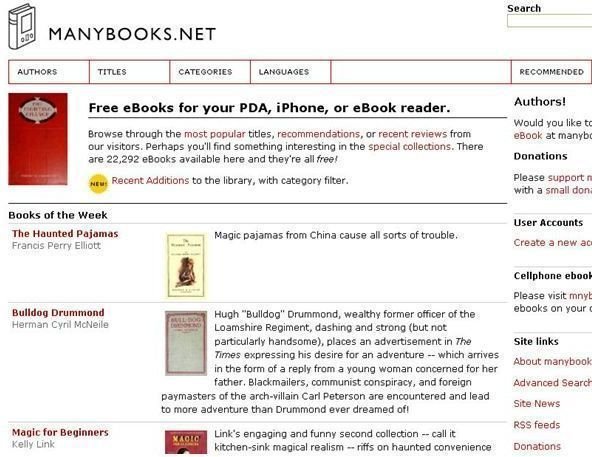
Locate the book you want to download. I was just thinking about the Adventures of Tom Sawyer the other day so I’ll pick that one.
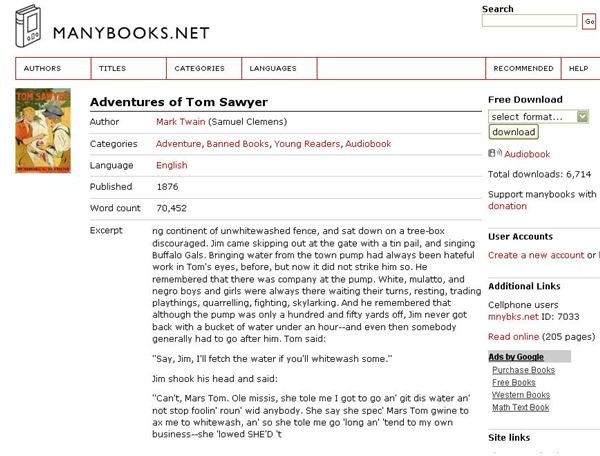
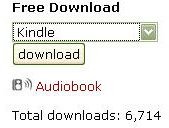
From the Select Format dropdown list, choose Kindle and then click the Download button.
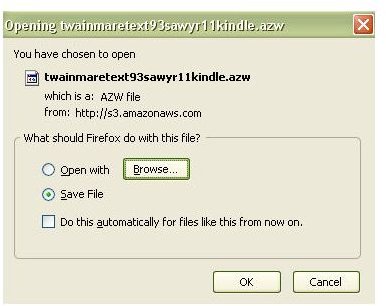
When the Download box appears on your screen, make sure to select the Save File option.
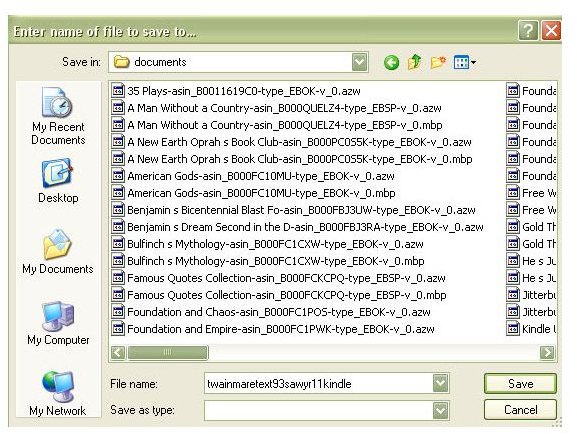
Next, you’ll be asked where you want to save the file. Find the Kindle on the drive list, and then select the Documents folder. You should also see all the eBooks you have stored on your Kindle in this folder. Click Save and the eBook will download directly to your Kindle.
Wait until the download is complete and then disconnect the Kindle from your computer. If you go to the home screen of your Kindle, you’ll see the eBook there with the New tag next to it, indicating it was recently downloaded.