Need to capture a part of your PC screen for a business presentation? Need to capture streaming video playing in your web browser? Want to document an application’s capabilities with voice notes while you interact with it? Replay Video Capture can do all of this - and more - simply and easily.
Introduction
What if you could purchase a Windows application that does only one thing, but does it perfectly well? Replay Video Capture by Applian Technologies is such a program. Its sole mission is recording what’s displayed in an area of the PC screen while capturing audio playing through the sound card. It really doesn’t care what it’s recording. It can be a video playing in your web browser, a DVD playing in Power DVD, your own application that you want to add voice notes to, or anything else on your screen that you want it to peer at and record.
The documentation says that best results will be obtained by sizing the source to no more than 640 x 480 pixels. Going larger than this really increases the demands on the CPU and other resources. We found that to be true. Although the program was able to record full-screen on our Vista test machine, it made us wish for a quad-core CPU .
Installation (5 out of 5)
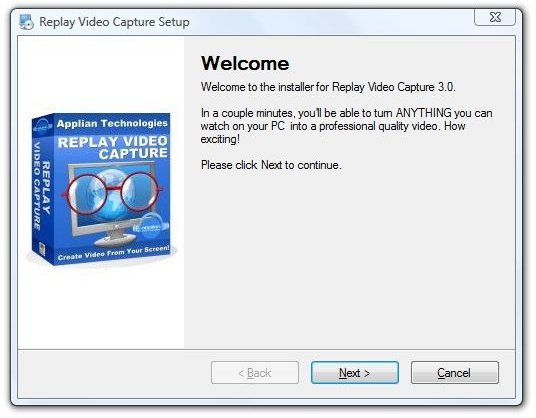
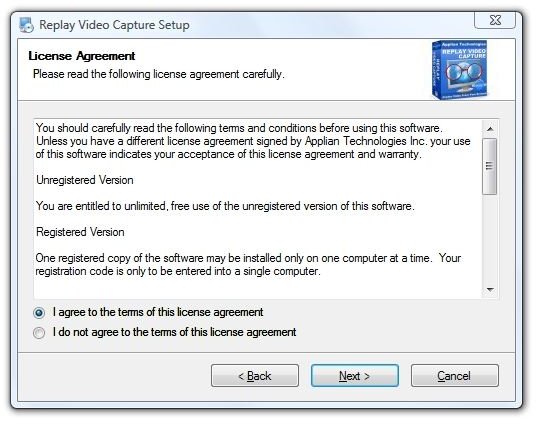
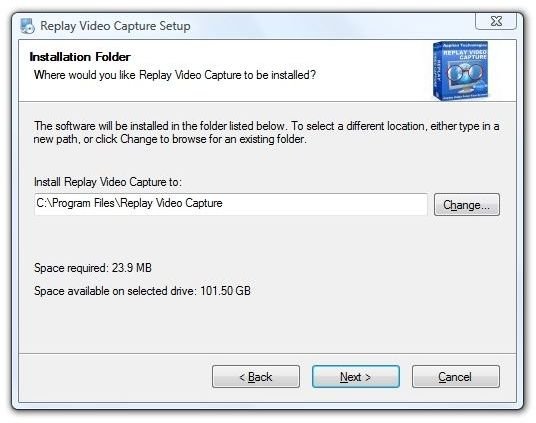
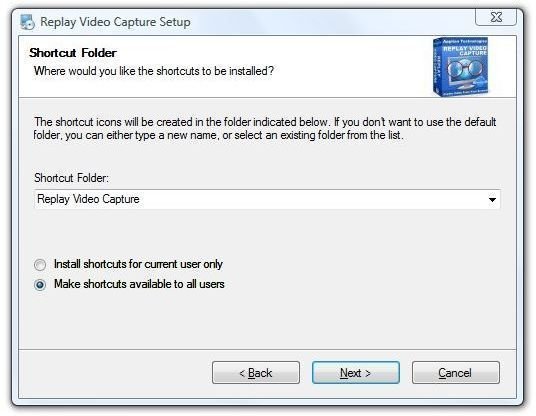
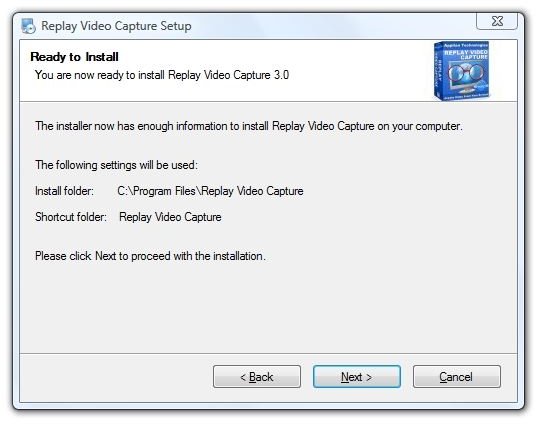
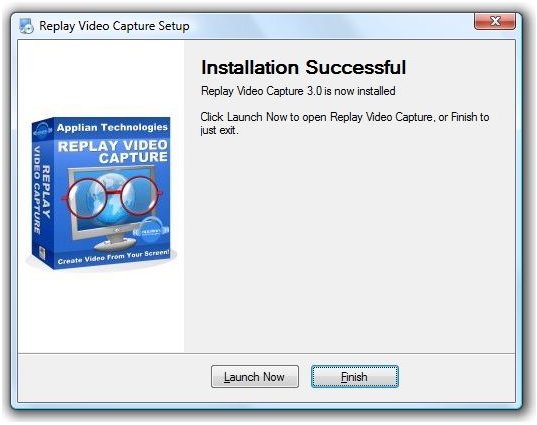
Installation went very smoothly. The download was 9.62 MB and was a self-installing executable file. A reboot was not required during installation.
The images below show the steps involved during the installation process. (Hover your mouse over the image to see the label, or click the image to enlarge it.)
Program Setup (5 out of 5)
Replay VC is a very simple application. There is one application window and only one Settings dialog. Clicking “View” opens the “Saved Recordings” dialog, and that’s it!
First Run
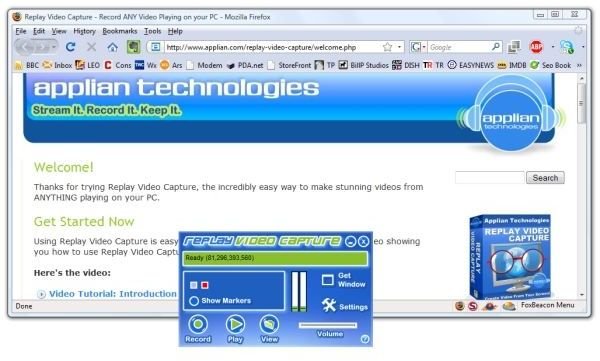
When started for the first time, Replay VC goes to a “Quick Start” support web page.
Settings
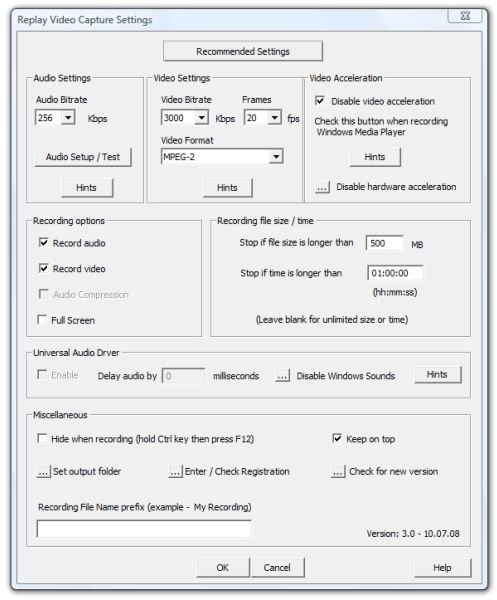
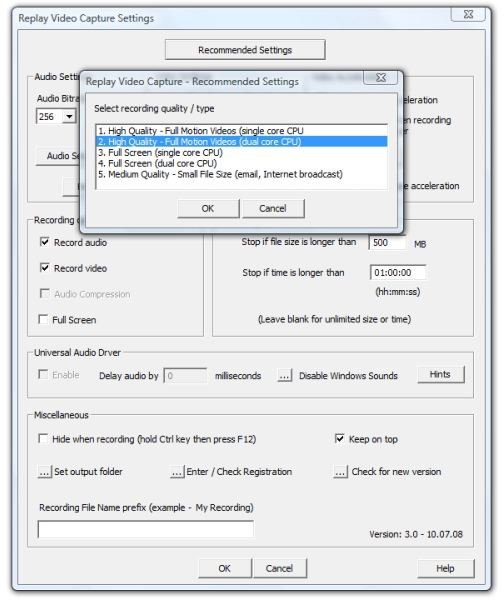
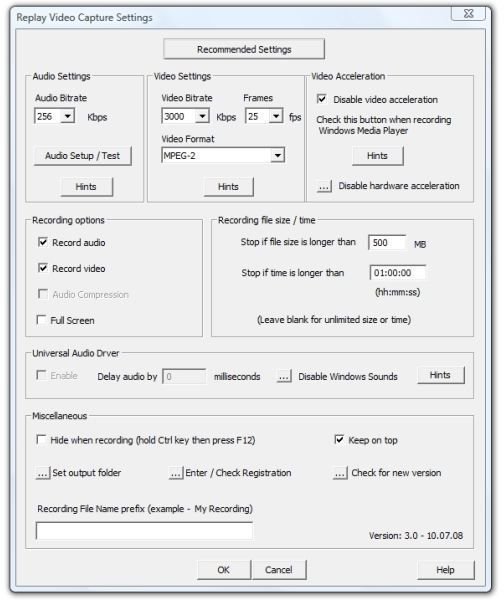
Clicking “Settings” opens the Settings dialog. Although there appear to be a lot of options, you can leave most of them at their defaults. One thing you shoud do, though, is to click the “Recommended Settings” button. As shown in the middle image below, it looks at your PC and offers five choices:
- High Quality - Full Motion Videos (single core CPU)
- High Quality - Full Motion Videos (dual core CPU)
- Full Screen - (single core CPU)
- Full Screen - (dual core CPU)
- Medium Quality - Small File Size (email, Internet broadcast)
We selected High Quality - Full Motion Videos (dual core CPU), and the program filled in 1200 Kbps at 20 fps in Windows Media 9 format.
After testing some recordings, we went back and changed that to MPEG-2, 3000 Kbps, 25 fps, and MPEG-2 format, which yielded better results on our mid-range Vista Media Center test PC.
Program Usability (5 out of 5)
The first task involved in recording in Replay VC is to select the source window. This is done by clicking “Get Window” and then clicking on the application you want to record. Replay VC is very good at selecting the correct region the first time, but you can also drag the edges of the green frame to adjust the size of the recording area.
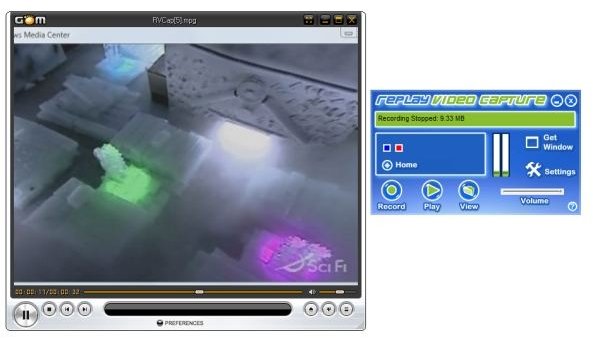
In the image below we’ve selected an .flv format file entitled “The Matrix Runs on Windows ” that was downloaded from YouTube using YouTube Downloader . The video application is GOM Player , an excellent general purpose media player that is compatible with Vista.
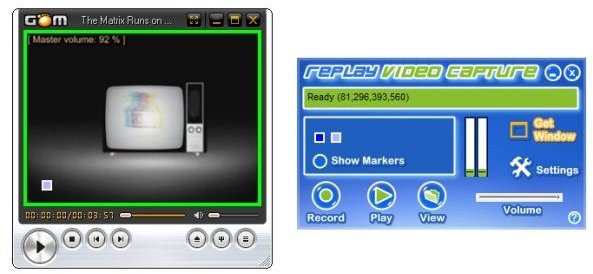
This is what Replay VC looks like while it’s recording.
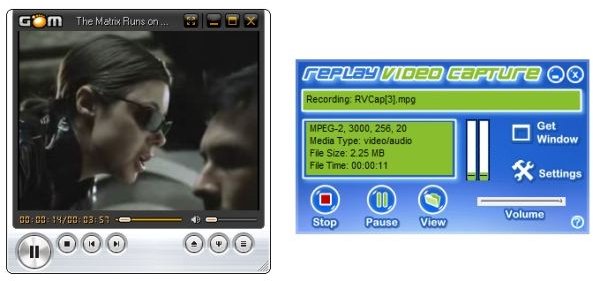
And here’s what playing the recorded video in GOM Player looks like.
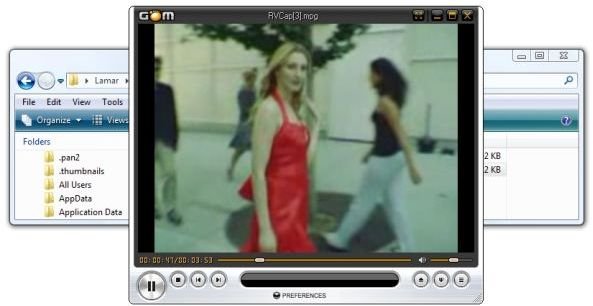
In my previous jobs, I often provided documentation for software applications running on Palm OS and Windows Mobile handhelds. Sometimes I used remote control applications on the devices that allowed me to interact with and control the mobile device from my PC.
As an example of a possible business use of Replay VC, I started up SOTI Pocket Controller Pro , connected to my Windows Mobile Smartphone, and captured a video while updating Evernote .
Replay VC actually listens to the sound cards output when it records, so if I had had a microphone hooked up to the PC, I could have annotated the steps involved in doing this update. This could allow for some low-budget product demonstration videos.
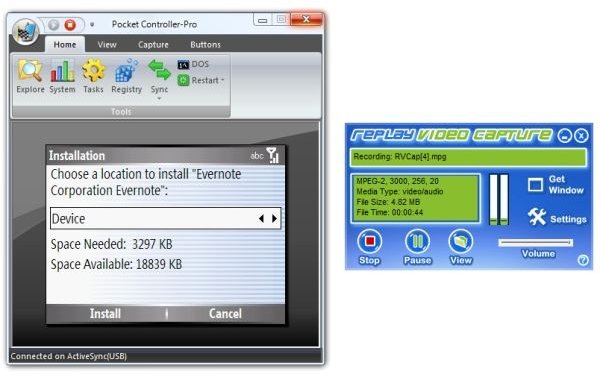
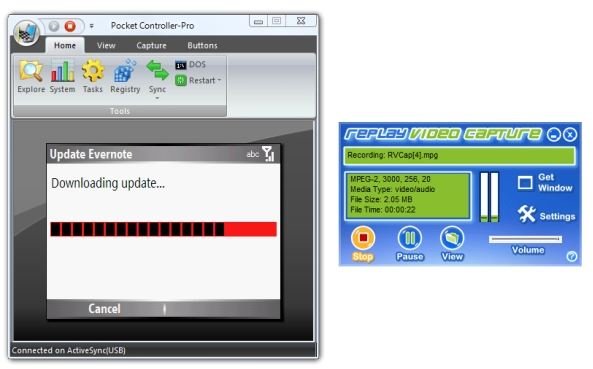
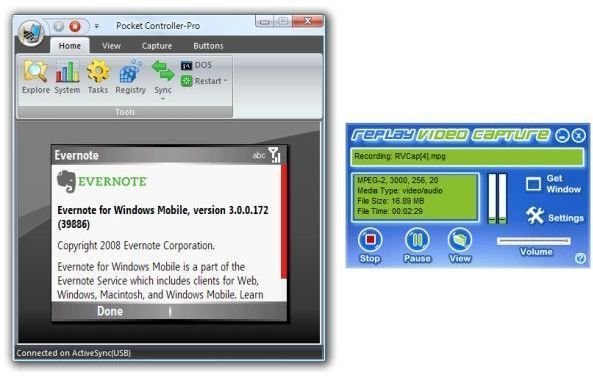
The recorded file was 16.89 MB and played back perfectly.
As a final test, I tried capturing live television in Vista Media Center. This was also trouble-free, and the image below shows the playback.
Documentation and Support (4 out of 5)
Replay VC doesn’t get a perfect score in this section because no on-board help file is provided. The program assumes that an Internet connection is present. Since I do a lot of work on a notebook that may or may not have a connection, I think they should have at least included the HTML help files in the download.
Replay VC does get an above-average, solidly good rating here, however, because their online documentation is excellent , it includes product video tutorials and demonstrations , and they have a responsive support forum.
We spent some time reading in their forum . Common problems seemed to be with audio from some cards/sound drivers, errors due to the lack of DirectX 9 or later, and the common problems users encounter when doing capture and encoding on underpowered machines or when running other processes or applications that compete for resources. We have also seen such issues with Tunebite , another resources-intensive capture application. The solution is often giving the application the PC while recording. This means shutting down applications like Skype, Outlook, and Solitaire that can suck up CPU cycles while the recording’s running.
Conclusion (5 out of 5)
So there’s the Bright Hub Review of Replay Video Capture. Should you feel good about parting with $39.95 for a product that does one thing, but does it exceedingly well? If you have a need to capture high-quality video and audio, including streaming video, from an application or a part of your screen, we can tell you that this product worked perfectly in all the tasks we gave it.
That’s truth before commerce.
Replay Video Capture - $39.95
Thank you for visiting. We hope that you are enjoying reading and learning at the new Bright Hub.


