
How to use the active directory Group Policy editor to set restrictions and options for Microsoft Word and other Office 2007 products.
Group Policy for Microsoft Office 2007
Did you know that system administrators can set Microsoft Office policies in the Group Policy settings for Windows? This will allow much greater control over system-wide settings for Office applications, such as active directory group policy Microsoft Word restrictions. This article covers the steps you need to first download the policy template files from Microsoft, add them to the Group Policy editor and then look into some of the group policy settings you can put into place.
Note: These policies only work on Windows Server 2003, Windows Vista and Windows XP with at least Service Pack 2 installed.
Group Policy Template Download
Since the configuration templates for Office are not included with the Group Policy editor, you will need to download them from Microsoft. Just follow the link below and follow the instruction on screen. It is a 9.8-megabyte file download.
Once you download the file and open it to install, it will ask you where to put the templates. Save them to a convenient location that you can find later and preferably in their own folder.
Now that you have saved the templates, open the Group Policy editor by going to Start - Run - type gpedit.msc and click OK.
To insert the Office 2007 administrative templates into the Group Policy editor, right click on Administrative Templates and then choose Add/Remove Templates… from the pop-up menu. In the next window, click the Add button and then browse to the folder where you saved the policy templates. Open the ADM folder and then open the en-us folder. You will see a list of *.adm files and just click the one you want to configure. The names are abbreviated, but you can easily tell which corresponding Office application they apply to, such as outlk12.adm for Outlook or word12.adm for Word. You only need to add the templates for the Office applications you wish to configure.
Microsoft Office 2007 Group Policy Settings
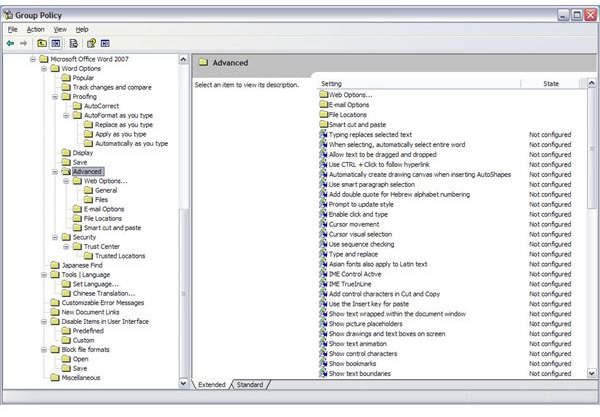
Now that you have your templates set in the Group Policy editor, you should take the time to explore all the settings under each submenu and see what it lets you do, then determine if these options may be something you want to enable or disable on your system or for your users. There are tons of things for you to configure, and many of them are worth enforcing.
For example, Microsoft Word has a screen full of choices (see screenshot) for customizing the behavior of Word while opening, saving or working on documents. Under the Proofing section, you can set options for spelling and grammar checking as well as auto correction and auto formatting. There is also a ‘Block file formats’ section that lets you prevent users from saving or opening files with certain extensions, and this would be a good way of locking down the file format for documents created within Word.
The main reason for using the Group Policy editor to enforce these type settings is so that you can standardize the behavior of certain applications across your network. Doing so makes them easier to troubleshoot and configure. It also helps in a roaming profile environment when settings are the same from machine to machine.


