In this Microsoft Word 2007 tutorial, we’ll show how to insert a citation for references used in the document.
Using Citations in Word 2007
If you’re creating any type of academic or business document, chances are that you’ll be referencing several other sources. For those documents that only have one or two references, you may be able to get away with just using footnotes . However, more complex works will need some type of formal bibliography with citations to those sources appearing within the text of the document.
How to Add a New Source
If you’re referencing a source for the first time, you’ll need to first create an entry for that source so that it can be cited. To do this, follow these steps.
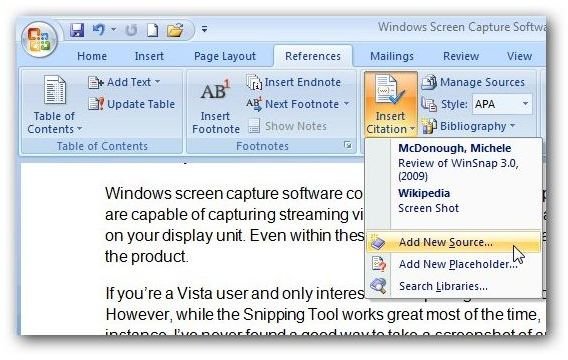
Step 1: Open the References tab on the Word ribbon, and click on the Insert Citation icon. A drop down box will appear that contains some of your existing sources (if you have any) and a few other options. Select Add New Source.
Step 2: In the Create Source window, first choose the type of source that you are adding from the Type of Source drop down box. Different fields will appear in the form depending on which type of source you are creating.
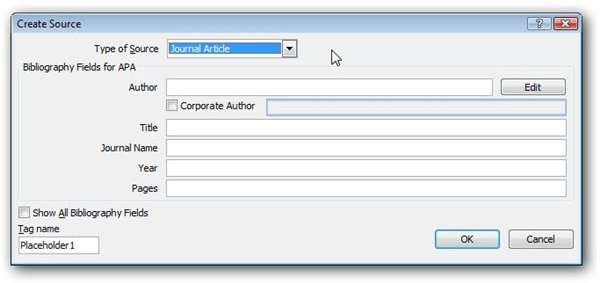
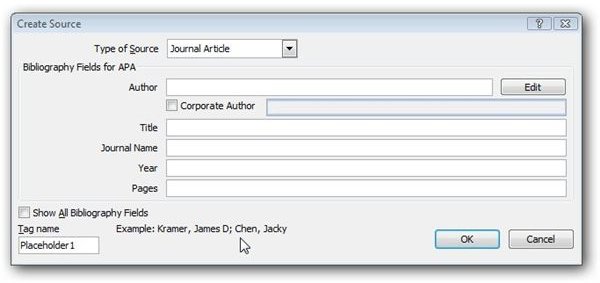
Step 3: Fill in the information for each field. If you are unsure of what format you should use, place your cursor in that field and an example of the data format will appear at the bottom of the window.
Step 4: Once you’ve entered all of the information, a unique Tag name will be generated by Word in the corresponding field. If you don’t like the name chosen, you can manually change it by typing over the entry.
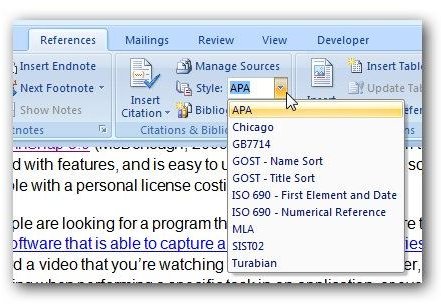
Step 5: When done, click OK. This will cause two things to happen. First, the new source will be added to the main source list and you can easily access it again for any future citations needed for that same reference. Secondly, Word will add a citation for that source in the document itself. The format of that citation will depend on what Style is selected in the Citations & Bibliography area of the References tab.
Adding a Placeholder
There will be times when you don’t have the information for the source on hand, but you’ll still want to mark the spot in the document where the citation is needed. For this purpose, you can add a placeholder. To do this, click on Insert Citation in the References tab and select Add New Placeholder.
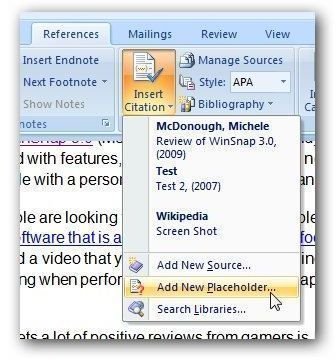
This will mark the place in the document where a citation is needed. You can edit the placeholder later when the reference information has been obtained.
Inserting a Citation
Once you’ve created a source entry, you can quickly add new citations for these pre-existing references. In the References tab, click on the Insert Citation button and a list of existing sources will appear.

Select the one you wish to use and the proper citation will be added to your Word document.
For additional tips and tricks, be sure to browse through the other items in Bright Hub’s collection of Microsoft Word tutorials . New items are being added on a regular basis, so check back often.


