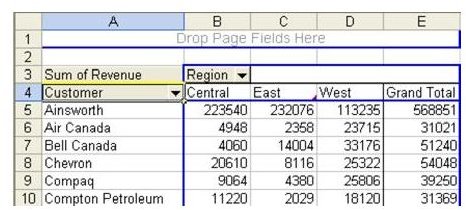
Problem: A Pivot Table organizes data alphabetically by default, as shown in Fig. 892. You want to produce a report sorted high-to-low by Revenue.
Strategy: Each pivot field offers a sort option. To access the Sort options for the pivot field, follow these steps.
-
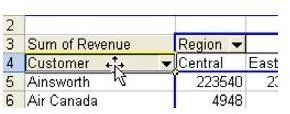
As shown in Fig. 893, doubleclick the Customer field in the pivot table.
Advertisement -
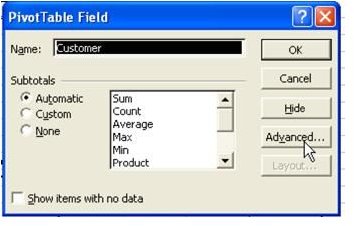
This brings up the PivotTable Field dialog. Choose the Advanced button on the right side, as shown in Fig. 894.
-
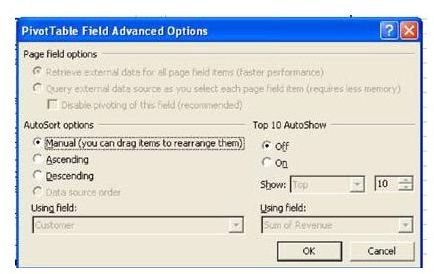
As shown the PivotTable Field Advanced Options dialog in Fig. 895, you can see that the default sort is Manual. This option lets you resequence items by dragging or retyping. In the current example, you want to choose Descending.
Advertisement -
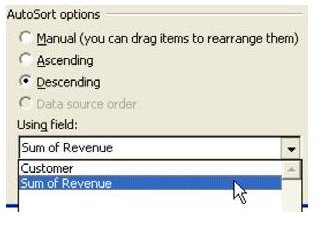
Use the dropdown in the Using Field: area to choose to order by Sum of Revenue, as shown in Fig. 896.
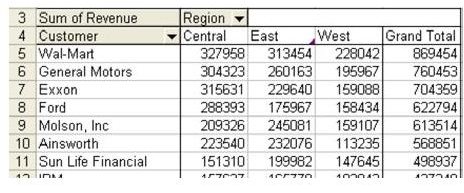
Result: The report is sequenced with the largest customers at the top, as shown in Fig. 897.
Summary: The AutoSort options are fairly well hidden, but offer a variety of sorting options for each field in a pivot table.
Images