Problem: Your manager loves your reports with automatic subtotals. He wants the subtotal lines formatted in bold pink Tahoma 15 point font. Again, there is no hope for the manager to be transferred soon.
Strategy: Anonymously send your manager copies of job postings for other departments. In the meantime, follow these steps.
-
Add subtotals to the dataset.
Advertisement -
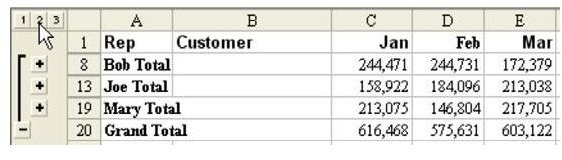
Choose the #2 Group and Outline button to display only the subtotals, as shown in Fig. 717.
-
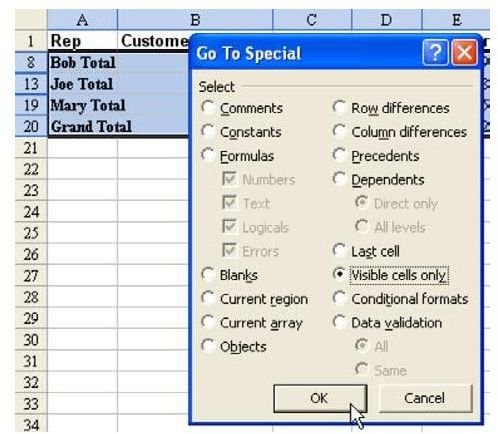
Select all data except the headings. In Fig. 717, this would mean dragging the mouse from A8 to N20. From the menu, select Edit– Go To. In the Go To dialog, choose Special. In the Go To Special dialog, choose Visible Cells Only, as shown in Fig. 718.
Advertisement
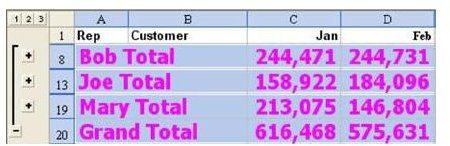
Result: You will have selected only the total rows. You can now do any formatting changes necessary, as shown in Fig. 719.
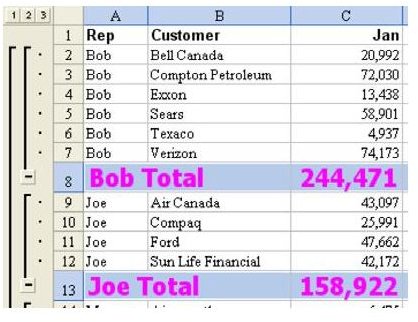
When you display the #3 Group & Outline button, only the subtotal rows will have the desired formatting, as shown in Fig. 720.
Summary: Using the Visible Cells Only option of the Go To Special dialog, you can apply any particular formatting to just the subtotal rows.
Images