Although Windows Vista is one of the most controversial operating systems created, the overall performance can be improved on any computer running the OS.
Windows Vista Performance
In order to boost Windows Vista’s boot time and overall performance, you can do several things to optimize your computer. Tweaks for Microsoft’s resource hungry operating system help older slower computers. Here is a list of tips to optimize your computer.
Disable the sidebar
Use msconfig to disable items in your startup group
Often boot performance is based on mapped network drives and your network connectivity. These tips work on Snap Servers and NAS devices that Snap and Microsoft say are NOT Vista capable and XP workstations that will not connect to Vista computers.
Option One
When connecting Vista to XP, if you have problems, make sure the time is correct on both machines. If the time zone is off and the time is incorrect, the computers will not correct.
Option Two
On the Vista Computer
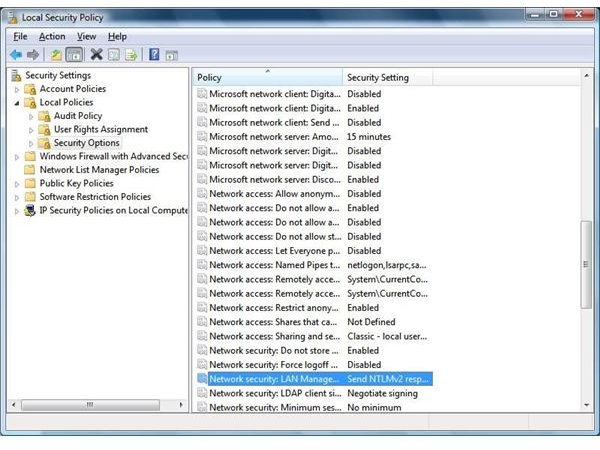
select Administrative Tools->Local Security Policy.
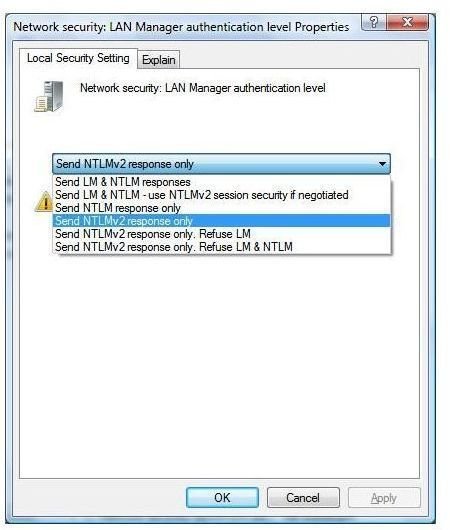
Select Local Policies->Security Options->Network security->LAN Manager authentication level.
Select this and use the drop down to change it to:
Use the setting “Send LM & NTLM - use NTLM v.2 if negotiated”
If you go to the UNC Path \\yourcomputer , you will have to use the username:
thecomputeryouareconnectingtoname\usernameonthatcomputer then enter your password.
Vista has great networking features, you just have to know how to use them.
Security Policy Snapshots
NTLM v.2 if negotiated
Disabling UAC
UAC
Click on the Start Button and key in secpol.msc and hit Enter.
Navigate through Local Policies and Security Options.
Scroll to the bottom and right click on “User Account Control:
Switch to the secure desktop when prompting for elevation” and select Properties.
Set the option to Disabled and hit OK.
During the boot process, Windows Vista begins ’enabling’ the UAC which can slow your computer.
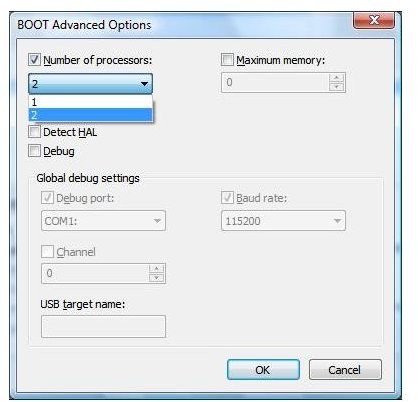
MSConfig
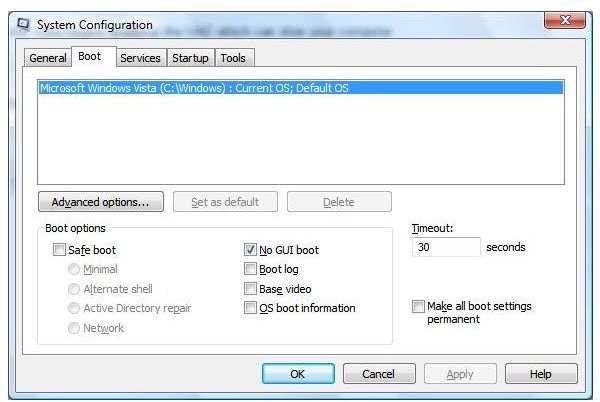
Advanced Information
Optimize the Windows Server Service
This setting in your registry allows for the optimization of memory, network or to balance these two.
Click on start type ‘regedit’
Navigate to HKEY_LOCAL_MACHINE\SYSTEM\CurrentControlSet\Services\lanmanserver
Create a new DWORD value, or modify the existing value, named “Size”.
Change the value to 1 for memory
Change the value to 2 for balanced
Change the value to 3 for network throughput
Exit the registry
Reboot your computer
Free Memory by Disabling Visual Effects
1- press start
2- type services.msc in the search bar
3- if UAC prompts, press ok
4- scroll down to letter “D” so that you can find “Desktop Window Manager Session Manager”
5- right click on the service and click on “stop”
6- then right click again on the service and choose “properties”
7- on the “general” tab, select startup type as “Disabled”
8- press OK and exit…
9- you will realize the changes just after you do this process
Note: doing this process causes lack of visuality such as the transparency
You can also turn off Aeroglass features
Disable Unneeded Features
Disable Tablet PC if your computer is not a Tablet computer
Disable Remote Differential Compression
RDC allows data to be synchronized with a remote source using compression techniques to minimize the amount of data sent. Disabling this option speeds up network transfer speeds and improves your computer’s overall performance.
Overview
While there are dozens of tweaks to improve your comuter’s speed and performance, adding physical memory to your computer is the best way to add performance to any computer. Windows Vista is an excellent operating system that needs good hardware and, like all operating systems, needs preventative maintenance.


