Windows 7 is the new Operating System released by Microsoft. It has a feature called AppLocker and let us look at this feature in detail.
Windows 7 AppLocker - an introduction
Windows 7 has many excellent features and one of them is Windows 7 AppLocker. This AppLocker feature addresses issues related to software restriction policies that were prevalent in earlier versions of Windows Operating System. Earlier versions of Windows Operating System had a feature called “Software Restriction Policies.” Using this feature, a user was able to block or allow applications in the system. This is basically what Windows 7 AppLocker does, but with some advanced features.
What is whitelisting? Choosing what applications to run on the system is called whitelisting and the vice versa is referred as blacklisting. How to configure Windows 7 AppLocker feature to whitelist applications?
Configuring Windows 7 AppLocker:
1. Open the search bar and type gpedit.msc. Press Enter. This will open up Windows 7 AppLocker. You are now ready to set the rules or policies.
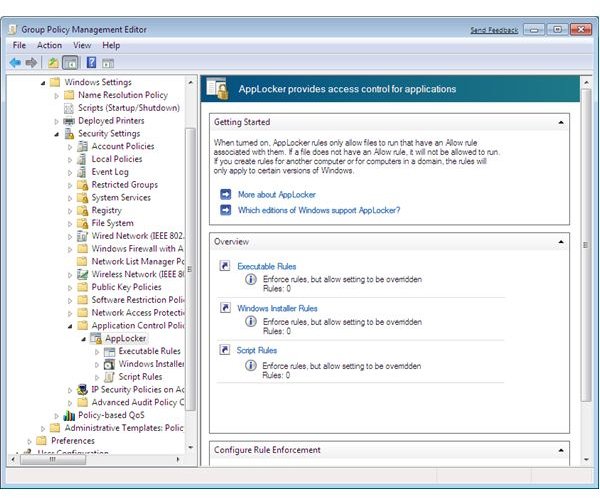
2. You will find three categories namely, Executable Rules, Windows Installer Rules and Script Rules. (Ref. Fig 1 - Group Policy Management Editor)
Image Source: Sysops
Fig 1 - Group Policy Management Editor
Creating new rule
3. Decide on the category and right-click the category. Click “Create New Rule.”
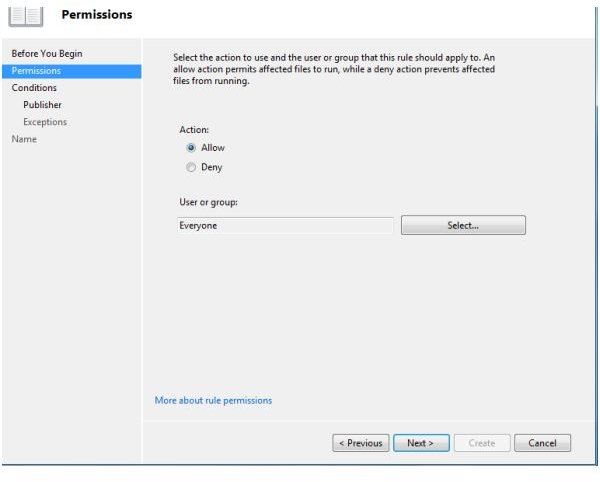
4. Choose whether you wish to allow the application or deny the application. It is also possible to choose a rule for an entire group. (Ref. Fig 2 - Choosing Permissions)
Image Source: addictivetips
Fig 2 - Choosing Permissions
Setting Conditions
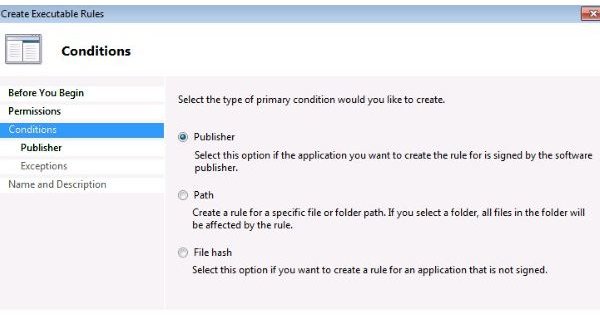
5. A rule can be set based on Publisher, program path or a file hash. (Ref. Fig 3 - Choosing a condition)
Image Source: livefilestore
Fig 3 - Choosing a condition
6. Let us create a rule based on Publisher. Information stored in application signing certificate is taken by the Rule wizard automatically; however, you can restrict on what information can be taken.
7. Move the slider to choose the properties that will define the rule. You can see an option called “Any publisher.” If you move the slider to “Any Publisher,” the rule is applied to all files that are signed. (Ref. Fig 4 - Specifying condition for one application)
Image Source: thelazyadmin
Fig 4 - Specifying condition for one application
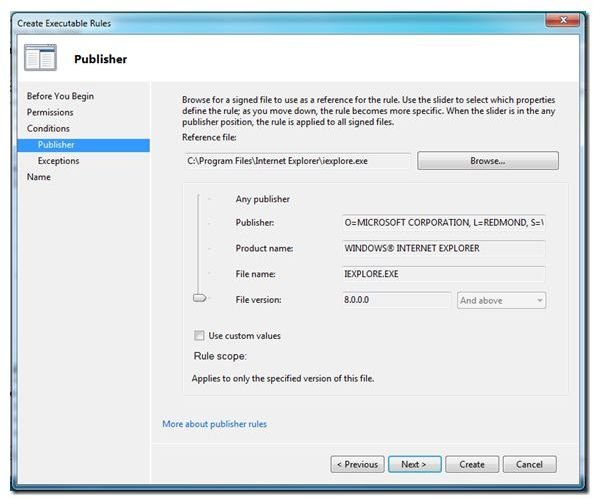
8. In this example, I’m setting a policy where systems will be able to run Internet Explorer version 8.0.0.0 and above. It is not possible to run earlier versions of Internet Explorer with this rule.
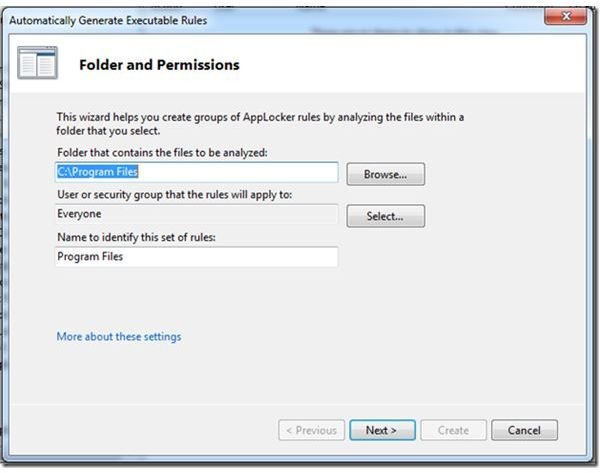
9. If you feel that setting rule for each and every application separately takes time, you can use “Automatically Generate Rules” option. This will enable you to set rules for all the applications installed in the system. Take for instance, there are certain applications installed in C:\Program Files and you wish to create the same rule for all applications installed in this folder. Just browse and select the folder and set the rule. Rule is now set for all applications installed in C:\Program Files. See how much time you can save with Windows 7 AppLocker. You can assign a name to this set of rules for easy identification. (Ref. Fig 5 - Automatically generate rules for applications)
Image Source: thelazyadmin
Fig 5 - Automatically generate rules for applications
Whitelisting is better than blacklisting, isn’t it? True, setting rule for blacklisting, which is programs that a user cannot gain access will definitely be a big list and is difficult to do so. Allowing a user to access applications or in other words, whitelisting is made easier with Windows 7 AppLocker.


