Have you wondered why an application starts automatically when you boot your computer or login, or do you want to know where to make changes to programs that run automatically?
Autostart locations are folders and Registry (Windows configuration database) items where Windows 7, Windows XP and Windows Vista look for programs to be run automatically without any user intervention. Such programs include legitimate applications and pieces of software like, for instance, MS Outlook, Yahoo! Messenger, or Firefox, their add-ons and Windows Services (e.g.Windows Audio). However, because auto-started programs can run without user knowledge or consent autostart locations in Windows are prone to be populated with entries for malware and PUPs (potentially unwanted programs).
Startup Folders
The most ordinary autostart locations in Windows are folders named Startup. On all Windows XP and Vista computers there is an individual Startup folder for every user (account) who has ever logged on in addition to a Startup folder shared by all users of a particular system.
In XP they are
C:\Documents and Settings\
C:\Documents and Settings\All Users\Start Menu\Programs\Startup whereas
In Vista they have been changed to
c:\ users\
c:\ProgramData\Microsoft\Windows\Start Menu\Programs\Startup
In both Vista and XP, these folders can be managed trough the paths above or Windows Start button → All Programs → Startup → Right click
By placing application shortcuts in Startup folders a user login on to Windows has the two folder’s merged list of pieces of software automatically started; however Startup folders offer hardly any flexibility compared to Services’ properties, they are best viewed as the most basic autostart locations in Windows.
Services
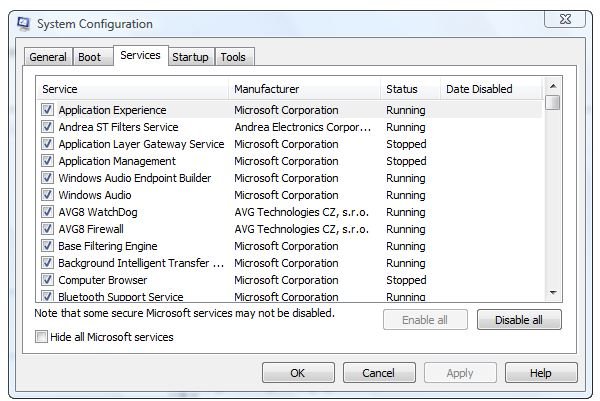
Services are manageable Windows operating system components like Bluetooth support as wells as applications running in the background such as, for instance, anti-virus software. Among other things Services can individually be configured to start either manually or automatically before log-on, or, alternatively, be (temporarily) disabled. Services additionally have the advantage that they can be stopped, paused and resumed. As opposed to user centric Startup folders are Services computer specific, regardless of the user login on, and have their autostart locations in the Registry.
Windows Defender
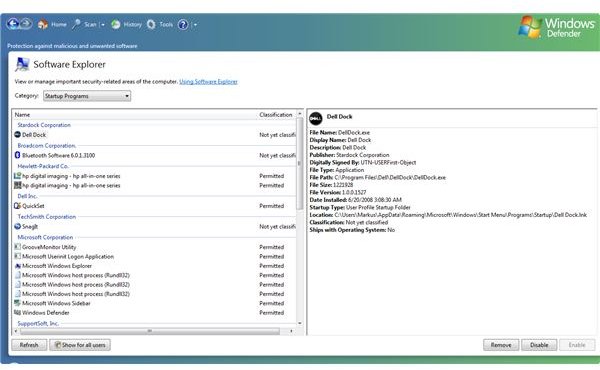
Use Windows Defender’s Software Explorer to remove, enable and disable Services as well as applications in Startup folders either for the user logged on, or for all users. It is included in any edition of Vista can be downloaded here for Windows XP with at least Service Pack 2. To check autostart locations in Windows using its Defender tool go to
Start → All Programs → Windows Defender → Tools → Software Explorer → Category Startup Programs
BTW: You may find using Software Explorer worth reading, so please check the link indicated in the image below.
Windows Defender showing Autostart locations in Windows
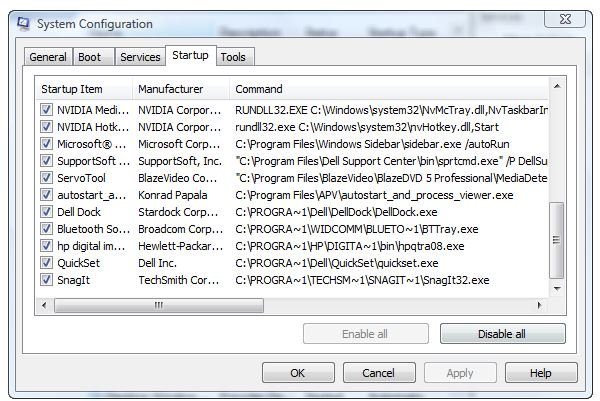
System Configuration tool showing Autostart locations in Windows
System Configuration
System Configuration is a utility included in Windows XP and Vista. In terms of autostart locations in Windows it basically does the same as Windows Defender’s Software Explorer but you may find its interface options more appealing or straightforward.
Windows 7 and Vista users use Start → Start Search → msconfig
Users of Windows XP open System Configuration trough Start → Run → msconfig
BTW: Its tabbed help section does a good job, too.
Further Autostart locations in Windows
Now you are able to look up a number of autostart locations in Windows and to configure and troubleshot basic entries, yet please note that you have so far only seen the tip of the iceberg. There are close to 100 potential autostart locations in Windows, and it doesn’t take much for a Vista or XP computer to have a total of 1000, or more, entries for all kind of auto-started software and their components.
Depending on your experience and the time you can spend tweaking or troubleshooting autostart locations in Windows you may want to consider using specialized malware removal tools such as free Spybot - Search & Destroy and aforementioned Windows Defender in scan-mode, for example:
Start → All Programs → Windows Defender → Scan.
To look further under the hood of autostart locations in Windows download free Autoruns , a comprehensive and capable tools when it comes to enumerating or scrutinizing pertinent Registry locations and similar objects. Then make a backup of your Windows computer system partition (C:\) or the entire Registry, as with this very powerful tool wrong action can lead to your computer become unstable or damaged.
Under option you can hide Microsoft or Windows items. Given that they are signed, this is safe to narrow the list of autostart locations where malicious or annoying software can hide. Before scrutinizing autostart locations and their entries uncheck “Include empty locations” unless, of course, you want to see them too. Check out the help sections to learn more about the categories.
Autostart locations in Windows revealed by Autoruns
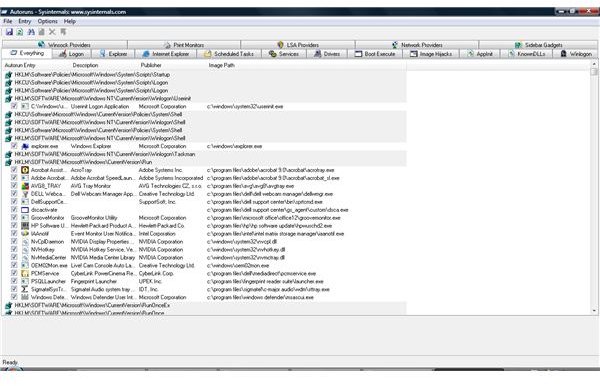
If you find a suspect entry try searching online for more information with the executable’s name or its Registry key. In case of malware this step will also beneficiary to you for damage assessment and to counter malicious pieces of software which even uses tricks to avoid elimination.
Now you know how to inspect all possible autostart locations in Windows XP or Windows Vista, and you are in the position to manage any piece of software run automatically on the fly.
References
Screenshots by writer
Writer’s own experience


