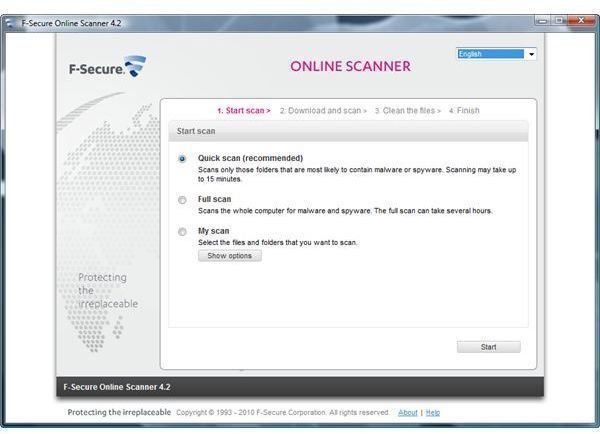
Most antivirus vendors will use an ActiveX utility to provide their online malware scanner. The F-Secure free online scanner doesn’t use this component, so you can check the security status of your system using any browser. Read on to learn about F-Secure’s online service.
Browser Requirements
Online virus and spyware scans have become popular with Windows customers, which is why some anti-virus vendors maintain websites with free online scanning. Most online services that offer to scan a computer for viruses, spyware, rootkits, Trojans, computer worms, hijackers or other types of malware require an ActiveX component to run. This component limits the end-user to only use Internet Explorer when using an online scanning service. Some anti-virus vendors, like F-Secure, understand that many people are now using alternative browsers, such as Firefox, Google Chrome, Opera or Apple Safari. Because of this, they decided to provide an online virus scanner that does not require ActiveX controls to be installed on the computer.
Alternative browsers are also useful when you need to fix malware that has hijacked Internet Explorer. If your IE browser has been hijacked but other browsers run normally, an online virus scanner may have a good chance of cleaning the computer by removing the malware. In this article, we’ll check how F-Secure’s free online scanner will perform in Windows.
System Requirements and Preparation
You can use any supported browser to use the online virus scanning service by F-Secure , but you must have JavaScript enabled. If you have installed Java Runtime Environment, also known as the Java Virtual Machine, you already have it and you have probably enabled already. If not, simply open the Java control panel from Windows’ control panel or type javacpl.exe in the run or search box to ensure that it is the default Java for Mozilla-based or IE browsers. You should also check if your browser setting is configured to enable JavaScript.
F-Secure online scanner will run on 32-bit and 64-bit editions of Windows 7 and Vista. It will also run on Windows XP. It only supports Internet Explorer Versions 8.0, 7.0 and 6.0, Firefox Versions 3.5 and 3.0, Google Chrome v3.0 and Opera v10.10.
Vista and Windows 7 users will see the User Account Control (UAC) prompt before the scanner starts. Simply allow the action to begin the scan.
If you are using Windows Defender’s real-time protection , you will be notified of changes to the computer. Don’t worry too much, it’s just because F-Secure installs standalone minifilter driver software in the computer’s temporary folder e.g. C:\Users\[Your Account Username Here]\AppData\Local\Temp\OnlineScanner\Anti-virus\fsgk.sys. Simply allow this change on the computer by clicking the “Apply Actions” button in Windows Defender.
Scan Options
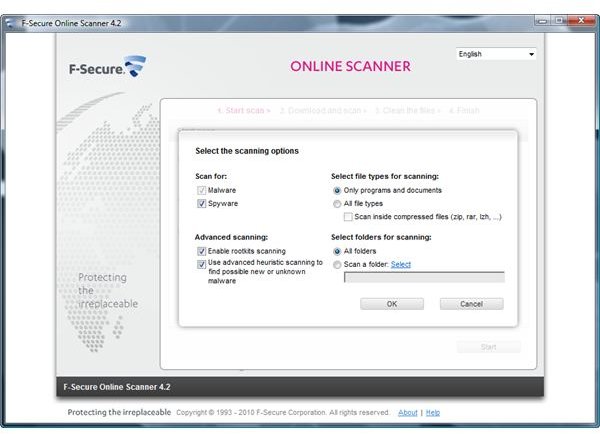
There are 3 available options when using F-Secure’s free online scanner: Quick, Full and Custom scans. You can only customize the scan settings when you choose to run the custom scan option called “My Scan,” which will let you adjust any of the following options:
- Scan for spyware and malware: Note that you cannot deselect the malware scan but you can uncheck the box for the spyware scan, if you like.
- Advanced scanning options: Rootkit and heuristic scanning are available.
- File types to scan: You may choose to scan all files or only your programs and documents. There’s also an option to scan compressed files, but F-Secure will not remove malware found in archived files. You need to manually delete the file instead.
- Folders to scan: You can select a specific drive or folder to scan with the online scanner.
When the scan has finished, the online scanner will automatically save a copy of the scan results in the temporary folder at C:\Users\[Your Account Username Here]\AppData\Local\Temp\fsonlinescanner_report.html
Malware Removal
F-Secure online scanner also provides an option to remove the malware that it finds on the computer. I allowed it to scan a folder containing 3 zero-day malware files (also known as new malware). The scanner’s status icon changed from a green check mark to a yellow exclamation mark. This meant that it was finding potential malware in the folder that I asked it to check.
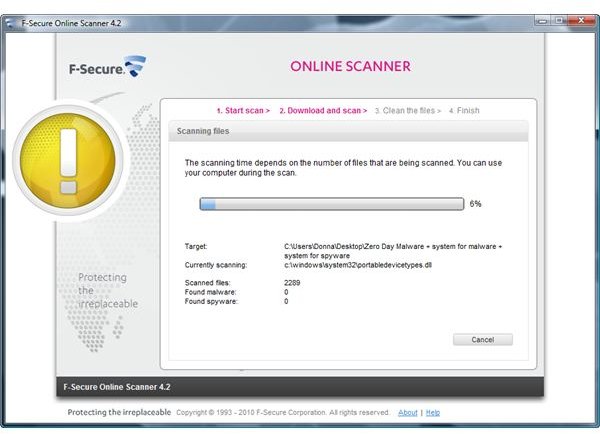
When it finally identified and confirmed the existence of malware files on the computer, the status icon changed from a yellow exclamation mark to a red icon. At the same time, Windows Defender notified me of another change on the computer. At this point, F-Secure added its F-Secure Blacklight Sensor service driver onto the computer in C:\Users\[Your Account Username Here]\AppData\Local\Temp\F-Secure\Anti-Virus\fsblsrv.exe.
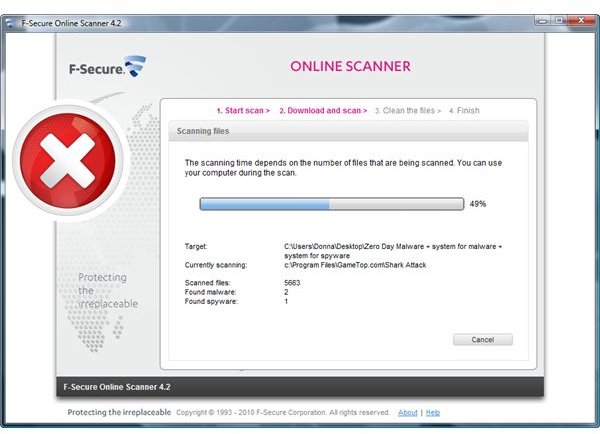
After a few minutes, the online scanner offered the malware removal option. You can also choose to send the malware samples to F-Secure for further analysis. There’s an option to automatically remove all of the malware that was found, or you can decide which items to remove yourself.
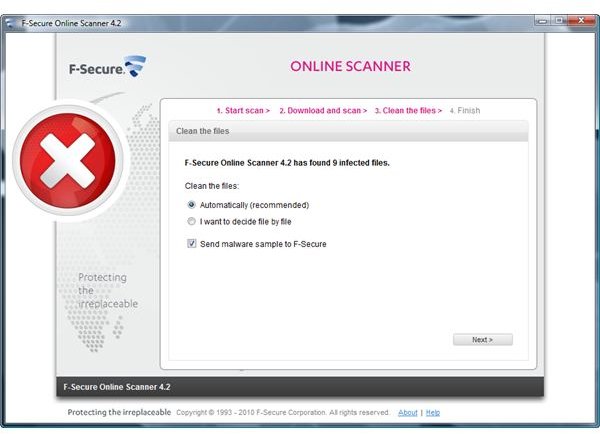
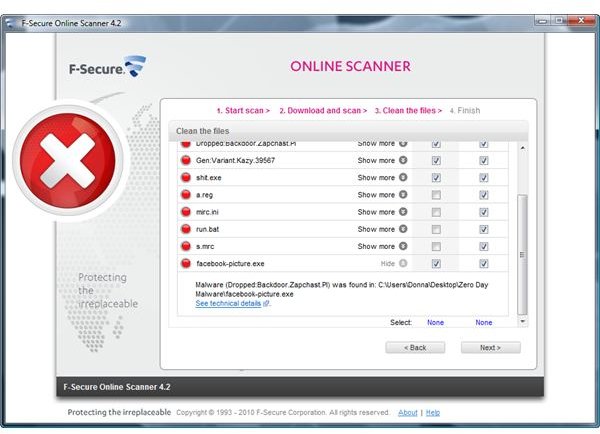
The scanner will display the names and also the locations of the infected files. It also includes an option to clean and send files, individually.
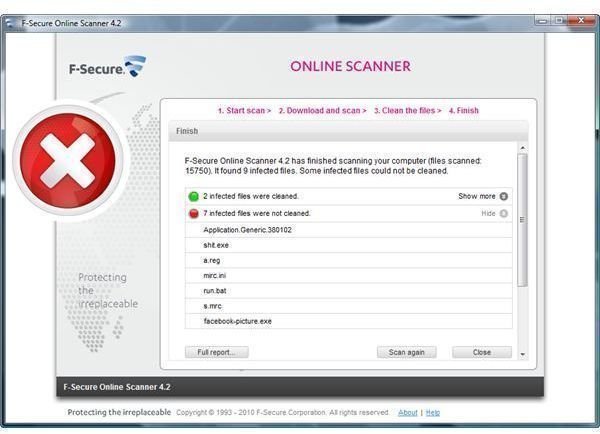
In my case, F-Secure cleaned the computer by deleting 2 out of the 3 malware files. It did not delete one because the malware found it in a compressed file. End-users will need to manually delete infected compressed files and then scan again using F-Secure scanner.
The Final Verdict
This online virus scanning service by F-Secure is highly recommended. If you want to double-check the security status of a Windows PC or if your existing virus protection has failed to remove certain malware, then this service should help. The best part of this scanner is that you don’t have to only use Internet Explorer to run an online scan. Let’s just hope that F-Secure will update the engine and support the latest versions of alternative browsers.
References
-
Image credit: Screenshots taken by the author.
-
Product version: F-Secure Online Scanner Version 4.2
Advertisement -
Source: Author’s own experience.


