Did you know that Mac OS X comes with a powerful public web server? It runs on Apache and you might just be able to host your website from your very own computer!
The Apache Web Server on Mac OS X

The Apache Web Server comes bundled in Mac OS X. If you enjoy tinkering with websites and are somewhat of an amateur webmaster when it comes to changing out HTML files and tinkering with the look and feel of websites, you may find this very interesting! It may be worth it to you to peek into this web server folder and change the index.html file to something more jazzy, and then make a note of the web address (which should include your computer’s name followed by a tilda and then the file extension.) It’s a lot of fun to test a webserver and play with HTML. So to all you budding and seasoned webgeeks alike, you really might want to take a look at this.
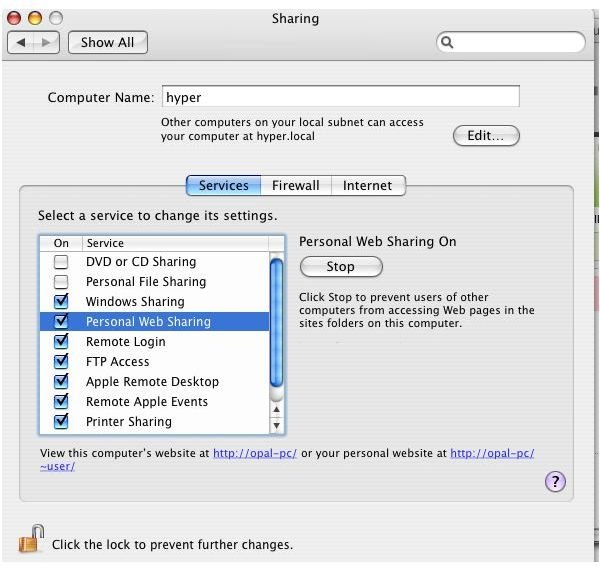
The easiest way to do this is to go into System Preference>Sharing> and turn Personal Web Sharing “ON”.
Some Considerations
Here are some considerations though.
Your ISP may not allow you to run a public server and they may block Port 80. Also you may have to look into DNS and consider things like dynamic versus static IP and how to point your server to a URL. You will also need to register the URL if you want a top-level (normal looking) domain.
But the reality is that you can have a public website complete with a funky URL which will point directly to a folder on your computer where your website is hosted. If you have a basic HTML editor and basic HTML knowledge you can have that index.html file public in no time!
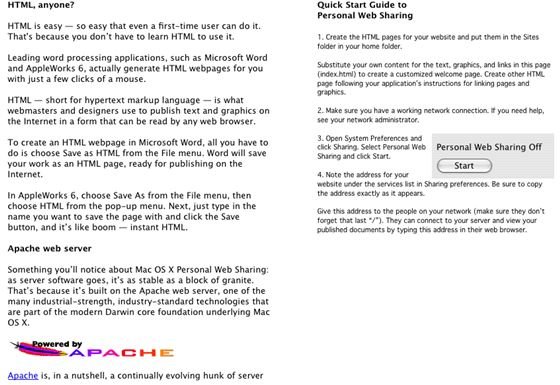
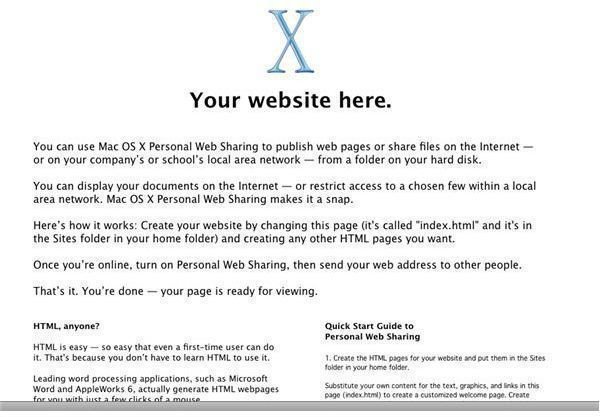
You’ll want to go to Users>(your user name)>Sites> and there should be a landing page that looks like this.
You can also go via your Harddrive>Library>Webserver and you will see this same page. One will be your public live website, and the other should be a folder for your backup files. They can both contain the same thing.

Let’s Get Technical
Also, things get a tad more technical from here on and you might do better with some command-line level Linux knowledge to help you with the DNS settings. You will have to enter a command prompt via Terminal for some of this. My caveat is to proceed with caution and make sure you have the code right before you go hacking away at it.
Note: As of the writing of this article, the author has been able to successfully publish websites live on the web. However, getting the URL’s to point and making sure Ports are not blocked is a different story. Chances are it has something to do with Port 80 and the author’s ISP. And possibly some router firewall issues combined with this. Next step: Linux command lines in the Terminal to change the DNS settings perhaps?


