If you have ever wanted to keep your Mac from going to sleep without adjusting your system preferences, Caffeine is a free application you need to try.
Overview
With the growing popularity of online video streaming services like Netflix and Hulu, the Mac has become more than just a computer for work and surfing the Internet. Many users now spend as much time sitting back watching videos as they do typing away at their keyboards.
A problem I often have when watching a movie is that I constantly have to move the mouse to keep my Mac from going to sleep. Sometimes I will adjust my settings in system preferences which is easy enough. However, I often forget to readjust them after the movie and my Mac stays awake until I notice it is not going to sleep.
If you find yourself having this issue, I recommend you take a look at Caffeine . Caffeine is a freeware program from Lighthead Software that keeps your Mac awake. It is simple to use and will keep you from having to adjust your sleep settings every time you want to watch a movie.
Using Caffeine
Once you download and install Caffeine, launch the application and a small icon of an empty coffee cup appears in your menu bar. To activate Caffeine, simply click on the coffee cup and the icon changes to a steaming full cup of coffee. Simple and intuitive, what else can you ask for from a Mac app.
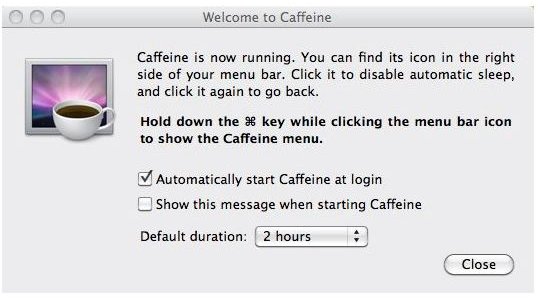
To launch the preferences menu for Caffeine, Command+Click the coffee cup icon and choose “Preferences”. A window appears with directions for using Caffeine. Additionally, you are provided with options to automatically start Caffeine at login, to show the Preferences window when starting Caffeine, and to set the default duration for Caffeine to run.
The options for the default duration are Indefinitely, 5 minutes, 10 minutes, 15 minutes, 30 minutes, 1 hour, 2 hours, and 5 hours. In addition to adjusting your default duration from the preferences menu, you can Command+Click the Caffeine icon and select “Activate for” to set a different duration for the current session.
I know it may seem overly simple but a few weeks with this useful little utility and you will come to appreciate what a little Caffeine can do for your Mac.
Caffeine Screenshots from Lighthead Software