The Linux KVM kernel virtual machine - included in the Linux kernel - uses the hardware virtualization extensions in new Intel and AMD CPUs to run virtual machines and guest operating systems. Manage virtual machines with a graphical program or use the powerful KVM command directly from a terminal.
Introduction
The Linux KVM kernel-based virtual machine system is a virtualization mechanism built into the Linux kernel. KVM takes advantage of HVM, or hardware virtual machine, support on newer Intel and AMD CPUs with the Intel VT and AMD-V extensions. KVM functions similarly to popular virtual machine solutions such as VMware, Parellels and VirtualBox. KVM is a convenient, open-source way to create virtual machines and run guest operating systems including Windows, Linux, the BSDs, Solaris, Haiku, ReactOS, AROS and more.
Requirements
KVM requires your CPU has the required hardware virtual machine extensions. You can check for these extension by running the command “. egrep ‘^flags.*(vmx|svm)’ /proc/cpuinfo” in the terminal on a recent Linux kernel. If the command returns any output, your CPU has support.
Intel VT or AMD-V support could also be disabled by default in your computer’s BIOS; check your BIOS for an appropriate setting if you believe your CPU should support HVM. Unfortunately, some motherboard manufacturers disable HVM in the BIOS and don’t let you enable it manually, so even if your CPU supports it, you might not be able to use it.
Virtual Machine Manager
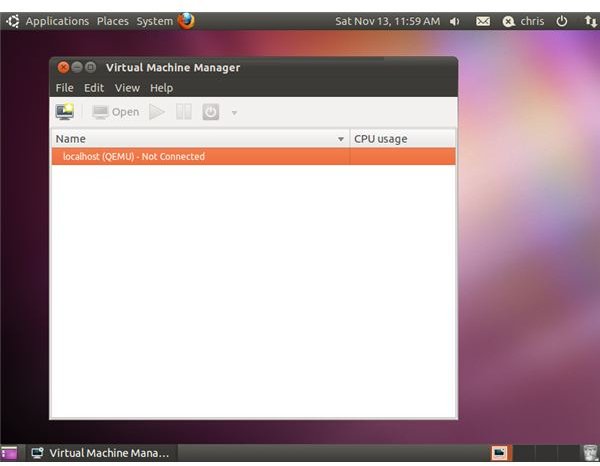
Popular Linux distribution including Ubuntu and Fedora include the virt-manager, or Virtual Machine Manager, program in their software repositories. After installing the virt-manager program, you can use it to create virtual machines with a wizard interface, run virtual machines in a graphical window, manage virtual machines on the computer and modify a virtual machine’s virtual hardware. The Virtual Machine Manager program walks you thought creating and installing a guest operating system just like VMware or VirtualBox would.
Find out more about Virtual Machine Manager at its official website .
Screenshot: Virtual Machine Manager on Ubuntu 10.10 / Chris Hoffman
Commands
You can also use KVM directly by calling the KVM command in a Linux terminal. Here’s an example KVM command:
kvm -m 512 -hda disk.img -cdrom linux.iso -boot d -smp 2
This command starts KVM with 512MB memory, using the file “disk.img” in the current directory as the first hard drive, the file “linux.iso” in the current directory as the CD-ROM, booting from the CD-ROM disc and providing two processors to the virtual machine.
You can also replace “linux.iso” with the path to a physical CD-ROM such as “/dev/cdrom” instead.
Boot from a hard disk image by typing something like this command instead:
kvm -m 512 -hda disk.img -boot c -smp 2
For more information on using the kvm command, type “kvm –help” or “man kvm.”
Alternatives
If KVM doesn’t run on your processor or doesn’t work properly with your guest operating system, you can always try VMware or VirtualBox. VMware Player is VMware’s free virtualization program which contains less features than VMware Workstation , and VirtualBox is free and even open-source. Both programs can take advantage of Intel VT or AMD-V, but don’t require them.


