The Evolution groupware client is an outstanding replacement for Outlook. Evolution does email, contacts, calendars, and more. But did you know you could manage your Gmail email with Evolution? In this Bright Hub article you will learn how to connect Evolution to Gmail.
First Things First
Before you start configuring Evolution you might want to take a look at my introductory article, Linux Applications: Evolution . Once you have read that (at which point you will have Evolution installed), you are ready to continue on configuring Gmail and Evolution.
Configuring Gmail
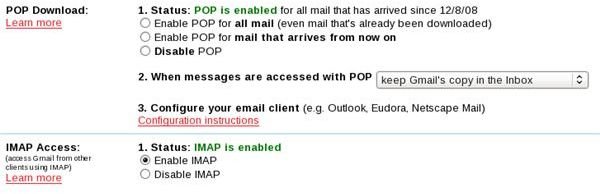
Log into your Gmail account and click on the Settings link. Once in the Settings window click on the Forwarding and POP/IMAP tab. With Evolution you are going to use IMAP to connect Evolution to Gmail. This is very simple. As you can see in the image below, you only need to click the radio button for Enable IMAP and then click Save Changes.
Gmail configuration
Configure Evolution
Open up Evolution and then click on the Preferences entry in the Edit menu. From this window you will see the Mail Accounts tab. From this window you will click the Add button. When you click on the Add button you will open up the Account Settings Wizard. This wizard is very simple to use. On the first page of the wizard you will need to enter the following information:
- Full Name
- Mail Address
- Reply To
- Organization
Only the first two pieces of information are required.
The second page of the wizard will want to know what type of receiving server you are connecting to. Select IMAP which will open up the next step of the configuration. In this next step you need to configure the following:
- Server: imap.gmail.com
- Username: Use your full Gmail address
The next window will allow you to configure receiving options. These options will depend upon how you want to use Gmail.
Now you need to configure your sending server. The server type will be SMTP. The options will include:
- Server address: smtp.gmail.com
- Authentication Type: Login
- Username: Use your full Gmail address
And that is it. You will finally be asked to give the account a name. Once you have named the account click Apply on the final window and you are ready to get your email from Gmail via Evolution.
Final Thoughts
Of course you can add as many accounts to Evolution as you like. But being able to check your Gmail account from Evolution makes it all the more compelling as a groupware client.


