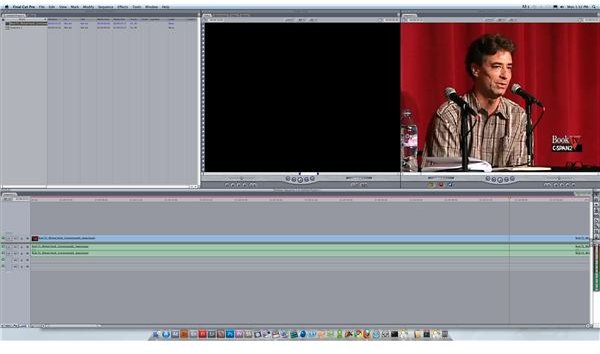
Here is a look at how to get that old film look in Final Cut Pro.
Final Cut Pro Video Effects
One of the most common video effects that is requested by Final Cut Pro users is to get that “old film look.” This means different things to different people, but in general it implies both the type of film grain that old film stock had when it was produced, as well as the change in color that it had. This simply requires bringing in a few Final Cut Pro video effects at the right intensity and in the right combination. Here is an easy tutorial on how to use Final Cut Pro for that old film look.
Getting the Old Film Look Just Right
Make sure that the clip or clips that you want to alter are already in the Timeline . You do not want to alter the base clips or sub clips in the Browser in case you want to change it. If you want to apply the same Final Cut Pro video effects to all of them to give them the old film look then just apply it to one, copy the effects, and paste them to the other clips. You will likely want to alter the intensity and specifics between
clips anyway.
Go into your Browser, select the Effects tab, open up the Video Effects folder, and go into Stylize. From here you want to select Bad Film and drag and drop it onto your clip in your Timeline. This is going to affect the brightness of the video, and film grain, and generally make it look as though it is being projected from old film. This may be enough of an old film look for you, but you will likely want to add others. You can also try to add
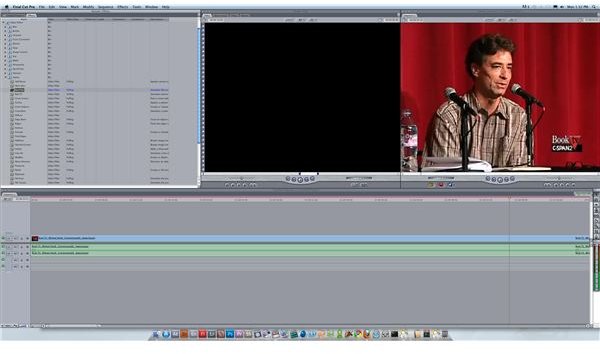
some Add Noise or Bad TV from the same folder, though these are not film specific and you may want to turn them way down so they do not dominate the collage of video effects. You may want to also put in Color Emboss, which will simplify some of your film color.
From here you will want to put in the 3-way color corrector, or even send it over to Apple Color . Again, there is nothing specific since the old film look is entirely subjective. In essence, you will want to bring back certain colors and then over saturate others to give the appearance of early color film.
Limitations
One thing that you have to keep in mind is that you have limitations with the Final Cut Pro old film look. You can provide many of the surface changes that will make it look like aged film, but you will not be able to change the frame rate of the base video or alter the depth of field. This means that you will not necessarily be able to make digital video or HD footage look just like film in the purest sense, but you will be able to give the appearance of the degradation that film will suffer from.
References
Source: Author’s own experience.
This post is part of the series: Final Cut Pro Video Effects
Here are articles dealing with Final Cut Pro and available video effects.


