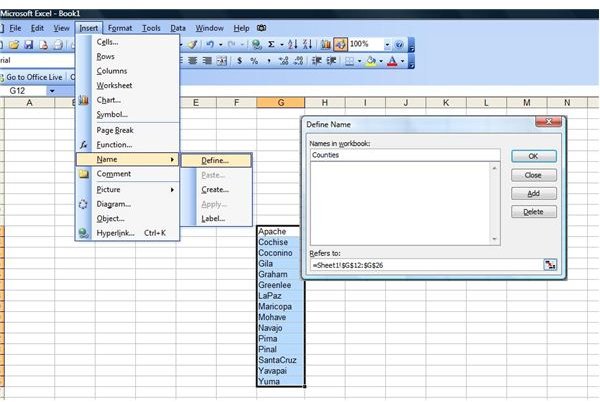
You know how to create drop down lists using Data Validation in Excel. Now you would like to create drop down lists that display items based on the user’s previous answer. This tutorial will show you how.
Overview
Excel gives you the tools you need to create custom drop down lists in your worksheets. You can make a simple list with two items, such as Yes and No, or a much more comprehensive list, such as the names of your entire staff. You can even take it one step further, creating a drop down list that displays items based on what the worksheet user selected in the previous cell.
Create the First List
The first thing you need to do is make the first list. Use the steps to make a named list, making sure your list entries are one-word items. The picture example shows a list of counties in the state of Arizona. Name this list. The options that appear in the second list will be dependent upon what the user chooses from this list.
Create and Name Dependent Lists
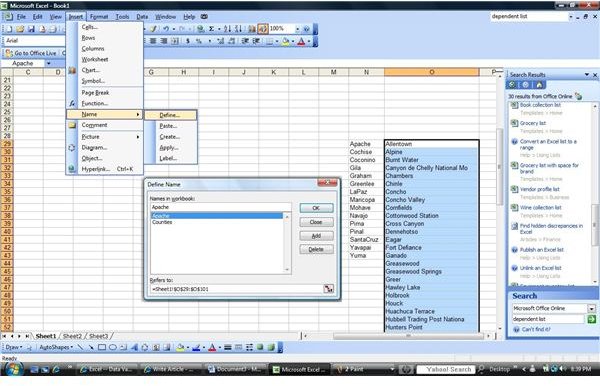
The second step is to create the first dependent list. Make the first dependent list for the first item in the first drop down list you created. This will be the drop down list available to users if they choose the first selection in your original drop down list. You must name this list exactly what your first item is in the original drop down.
For instance, in the picture example shown, the original list contained Arizona counties. The dependent lists will show cities for the county selected in the original list. The first county listed is Apache. Therefore, we named the first dependent list Apache. Create dependent lists for each of the items in your original list, naming each one the same as the corresponding item in the original drop down.
Apply Data Validation
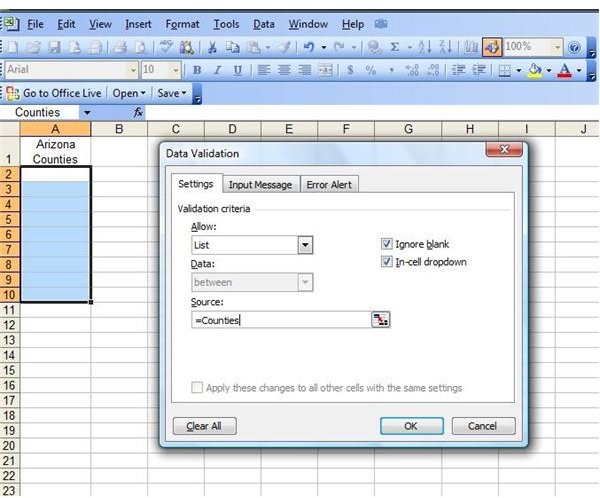
The next step is to apply Data Validation. Enter headings into the first row, if you choose. Then select the cell or cells in which you want a drop down list showing the first list you created. In this example, cell A1 contains the heading “Arizona Counties.” Cells A2 through A10 contain the Data Validation drop down list “Counties.”
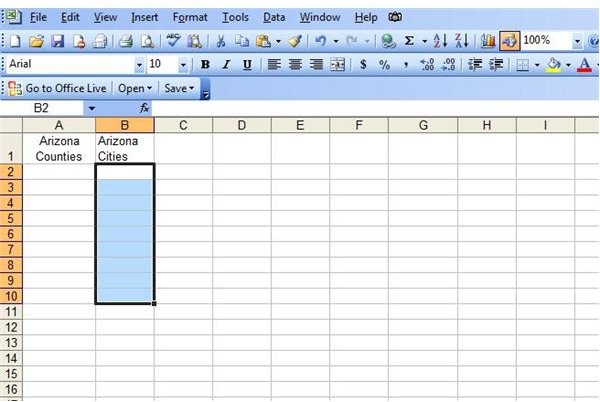
Apply Data Validation to the dependent cells. Select the cell or cell you want to contain the drop down list that appears depending on which option the user selects in the original list. For our example, cell B1 contains the heading “Arizona Cities.” Cells B2 through B10 are selected.
If you are using Excel 2003 or earlier, go to the Data menu and click on Validation. If you are using Excel 2007, go to the Data tab, select Data Validation and choose Data Validation from the drop down menu. The Data Validation dialog will appear. Choose List in the Allow box. Type =INDIRECT in the Source box. Directly after the INDIRECT function, enter the first cell with data in your original list. In the example spreadsheet, we entered =INDIRECT(A2), because A2 is the first cell with data that affects the dependent list.
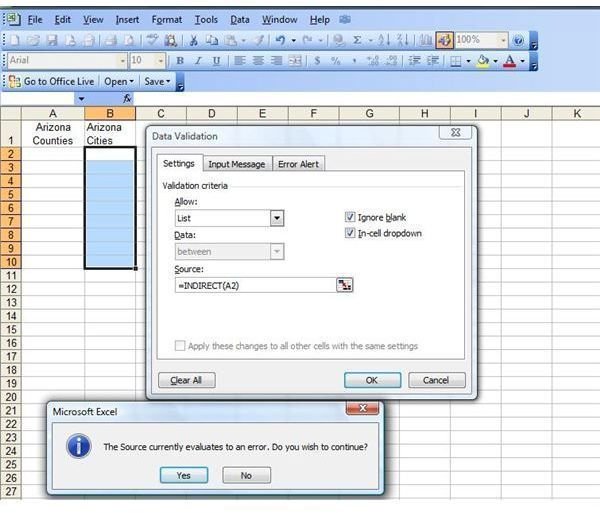
Click OK. Excel will show an error message, asking if you wish to continue. Click Yes.
Test a Dependent Cell
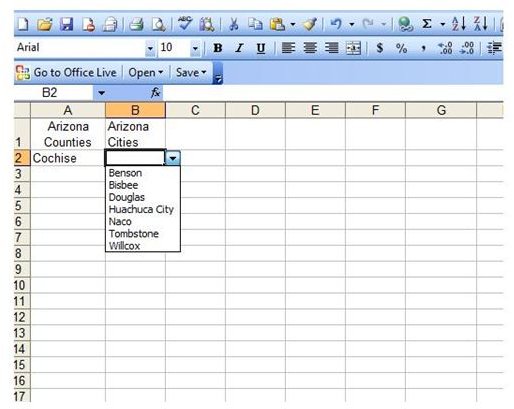
Click on one of the cells in your original list and choose an option from the drop down. Next, go to the corresponding cell in the dependent list. You should have a drop down available showing the items that are dependent on the first choice. Go back and try another. When you are satisfied with your dependent lists, save your worksheet and start showing it off.
Additional Resources: For more tips and tricks, take a look at the ever-growing collection of Microsoft Excel user guides and tutorials available on Bright Hub’s Windows Channel. Learn design tips for various charts and graphs , how to save an Excel object as an image , how to use the INDEX function , and more. Additional resources are being added all the time so be sure to keep checking back.
Related Articles
To learn more about making drop down lists in Excel, read Using Data Validation to Make a Dropdown List in Excel and Using a Data Validation Source List from a Separate Workbook .
This post is part of the series: Excel Data Validation
This series provides steps on using some of the features of Excel’s Data Validation tool.


