
When people talk about death by PowerPoint, they usually mean slide after slide of bulleted lists. Bulleted lists can get dull and repetitive if they are repeated slide after slide, so here’s my alternative, the fluffy cloud approach.
The problem with bulleted lists
Supposing that you really really want to use a bulleted list. It’s not a crime, we used them in our minimalist presentation. But they can get:
· dull
· repetitive
· boring
· and so on
if they are repeated slide after slide.
Attempts to jazz them up by making them whizz in, do a quick orbit before settling down are often counter productive, so here’s my post modern alternative, the fluffy cloud approach:
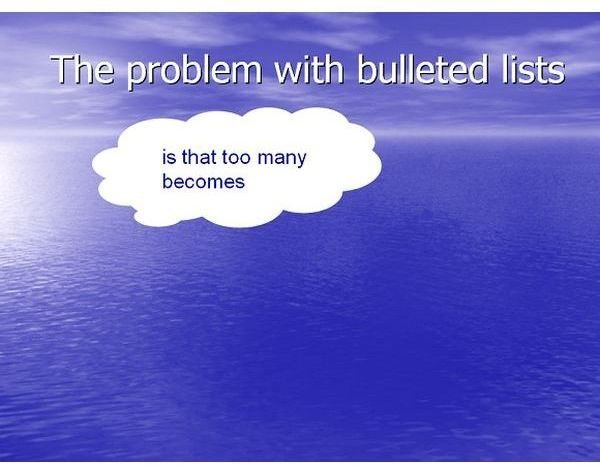
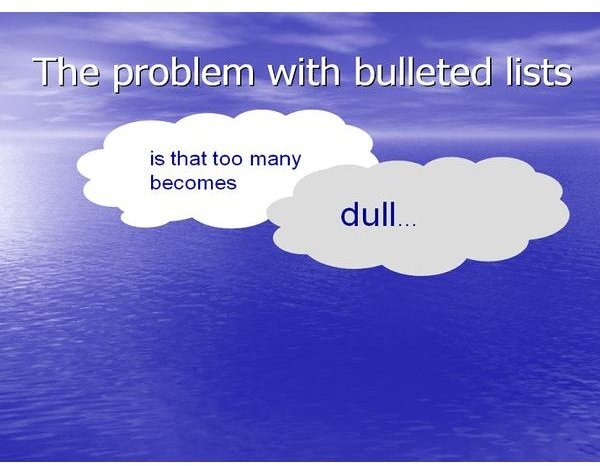
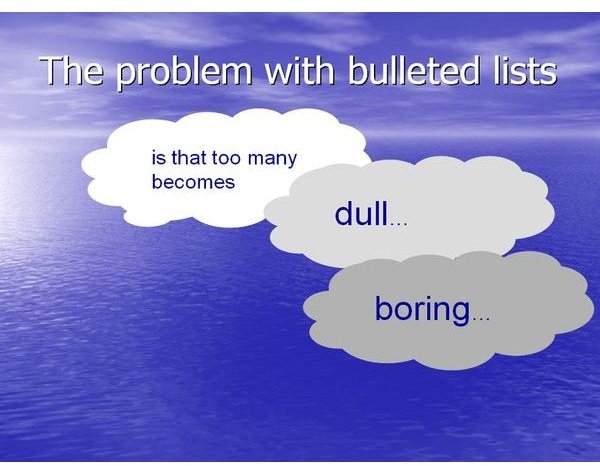
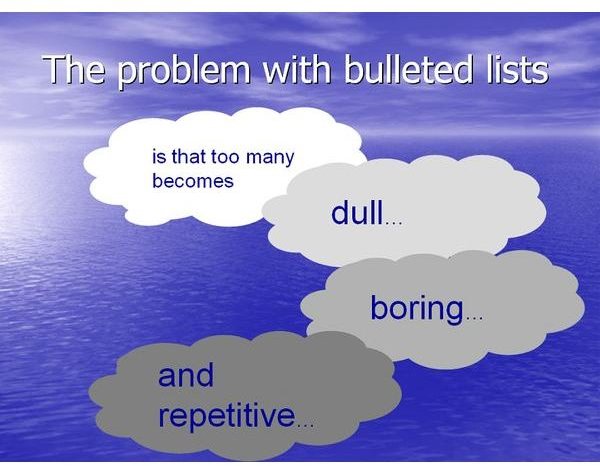
This version is produced on a single slide in the following steps
· In Microsoft PowerPoint, open a new show and adopt the ocean template (stored as ocean.pot)
· Enter the title as shown
· Delete the main text box
· From the Autoshapes menu select “Callouts” and then the thinks bubble
· Draw the callout for the first cloud
· To make the first cloud, set fill and line properties to white, then tuck the tail up inside the cloud so it disappears.
· Add a text box, type your text and set the text colour to blue and outline colour to white.
· Change the font to Arial
· Group the text and shape
· Copy the group
· Paste a new cloud
· Edit the text, and set the graphic colours to a light shade of grey
· Repeat for each cloud, setting progressively darker shades of grey
· Finally set the entrance transition to appear for each cloud
You can do something similar in Open Office Impress, if you’re an open source kind of person. Or for an alternative perspective, read https://www.brighthub.com/computing/windows-platform/articles/17116.aspx
Remember, less is more. If you use this every slide it’s just another boring bulleted list. Use it occasionally to break up the routine. You may be able to find a graphical theme that fits better than fluffy clouds. You may find it help to look on the web for suitable graphical objects. I found some nice three-dimensional spheres searching with Google, which enhanced a presentation.
Whatever metaphor you adopt, use sparingly for maximum effect!

Further Reading
Gillies AC (2007) The Art of Presentation: getting it right in the post modern era, Radcliffe Publishing, Abingdon.
This post is part of the series: Get Creative with PowerPoint
Learn how to use PowerPoint to create awesome presentations.
- Get creative with Powerpoint part 1: go minimal
- Get Creative With PowerPoint: Less is More
- Get Creative With PowerPoint: Fluffy Clouds
- Getting Creative With PowerPoint: The Build Transition
- Getting Creative With PowerPoint: Using Images for Reinforcement
- Getting Creative With PowerPoint: Using All the Elements of a Talk
- Use PowerPoint Presentation Slides as Milestones or Signposts
- Getting Creative with PowerPoint: Bringing Down the Curtain