Microsoft Outlook 2007 saves your work every few minutes. You can control the frequency and location of autosave content.
Configure Outlook 2007 Autosave
By default, Microsoft Outlook 2007 saves your unsent messages in the drafts folder if you do not send them within three minutes. They are autosaved to the Drafts folder every three minutes thereafter if changes are made. It also autosaves copies of calendar items, tasks and contacts being edited by the user but not yet saved after three minutes.
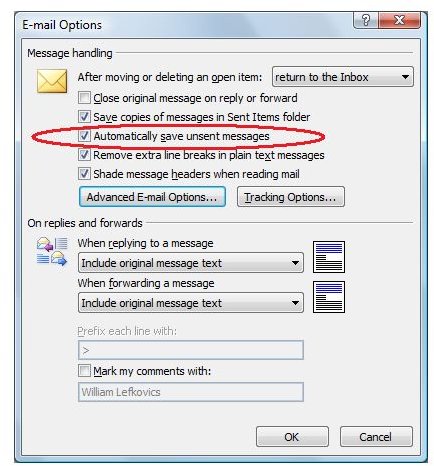
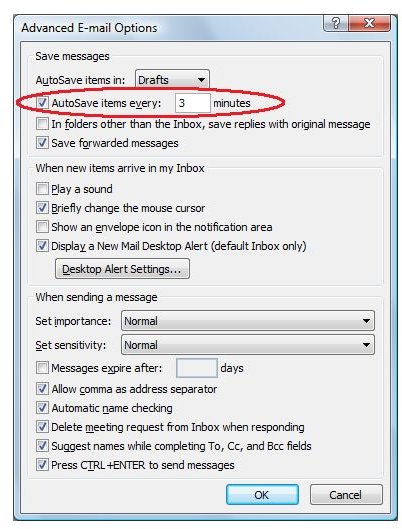
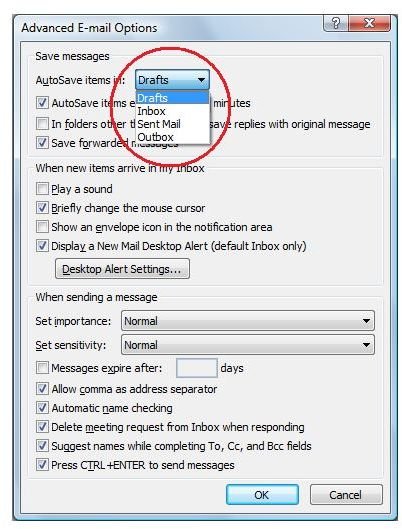
This default is reasonable for most people. Outlook offers some options for this setting nonetheless. Autosaving can be turned off completely. The frequency for saving items can be edited using the UI for any value in minutes from 1 through 99. Outlook also allows some control over which folder hosts these drafts. If the Drafts folder does not work for you, the other options are the Outbox, Sent Items and the Inbox folders. These changes are made in Outlook by navigating to Tools | Options and clicking the E-mail Options button on the Preferences Tab. Autosave can be turned off completely here by deselecting the box beside “Automatically save unsent messages” as shown in Figure 1. Click on the Advanced E-mail Options button to show the window seen in Figure 2. The setting circled in Figure 2 shows Autosave checked and the frequency set at the default of 3 minutes. Finally, Figure 3 displays the drop down box controlling the folder options to store unsent or unsaved items.
Screen Captures
Registry Settings
These changes are made specific to the user in the registry. The DWORD values in hex are located as follows:
Autosave Time (default 3 minutes):
[HKEY_CURRENT_USER\Software\Microsoft\Office\12.0\Common\MailSettings]
“AutosaveTime”=dword:0000000e
Autosave Location (default Drafts):
[HKEY_CURRENT_USER\Software\Microsoft\Office\12.0\Outlook\Options\General]
“SAVE_LOC”=dword:00000010
For the SAVE_LOC for drafts, there are four options with their decimal DWORD values:
16 Drafts
4 Outbox
5 Sent Items
6 Inbox
While the defaults should be suitable for more, there is some control for others who may work with Outlook 2007 a little differently.
This post is part of the series: Microsoft Office Outlook 2007 Tips
A series of Tips and Tricks for working with Microsoft Outlook 2007 both as a user and an administrator.
- New E-mail Account Configuration in Microsoft Outlook: Tip #1
- Use AutoComplete “Nickname” Cache in Outlook: Tip #2
- Configure Outlook Custom Message Views: Tip #3
- How to Configure RSS Feeds in Outlook: Tip #4
- Tip #5 - Making Changes to the Custom Dictionary in Microsoft Outlook 2007
- Tip #6 - Configure Outlook Autosave Settings
- Microsoft Outlook Keyboard Shortcuts: Tip #7
- Microsoft Outlook 2007 Tip #8 - Outlook.exe Startup Switches
- Microsoft Outlook Instant Messenger Addons: #9
- Tip #10 - Using Outlook 2007 to Access GMail
- Showing Full Message Headers in Microsoft Outlook 2007: Tip #11
- How to Re-Send an E-mail Message in Outlook: Tip #12
- How to View Animated GIFs Embedded in an E-mail in Microsoft Outlook 2007: Tip #13
- Telling Outlook How to Handle Messages: Tip #14
- Microsoft Outlook 2007 Tip #15 - How to Color Code the Task List in the To Do Bar
- Tip #16 - Importing from Incredimail to Microsoft Outlook 2007
- Viewing Multiple Outlook Calendars: Tip #17
- Removing Cancelled Future Appointments in Microsoft Outlook 2007: Tip #18
- Tip #19: How to Create New Outlook E-mail from the Command Line
- How to Configure Outlook AutoArchiving: Tip #20
- Using Custom Categories in Microsoft Outlook 2007: Tip #21
- How to Manage Outlook Add-ins: Tip #21
- Microsoft Outlook 2007 Tip #23 - Attachment Previewing Options


