This article covers the basics of adding movies, videos, TV shows, and music videos to your iPod Touch, Nano, or Classic. All steps cover directions for both Windows and Mac OS X, so that it’s easy to add videos to your iPod no matter what operating system you are using.
Go Get iTunes
Before you learn how to put music videos on your iPod, you first need to make sure that you have the latest version of iTunes installed on your computer. If you already have iTunes installed, open it up and click iTunes > Check for Updates… This option is located on the top iTunes toolbar in Mac OS X . If you have a PC, use the path File > Check for Updates…
If you do not currently have iTunes, you can download it directly from Apple . Make sure that you download the correct 32 bit or 64 bit version for your PC. After you have iTunes downloaded, install it onto your computer.
Open iTunes and Connect Your iPod
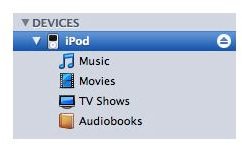
Now, it’s time to get started on learning how to put music videos on an iPod. With iTunes open and active on the desktop, connect your iPod to your computer. Upon doing so, you should see your iPod listed in the devices list located along the left side of the iTunes window. Click your iPod from this list to select it. The main iTunes window should now be displaying information about your iPod.
Adjust Settings

Click the Summary tab to navigate to your iPod overview screen. Select the option titled “Manually manage music and videos.” This should disable iTunes from automatically syncing your iTunes content to your iPod. By doing this, you can choose which specific videos that you would like to put on your iPod, rather than having all videos in your iTunes library copied to your iPod automatically each time you connect your iPod to your computer. After you are done adjusting settings for your iPod, click the Apply button.
How to Put Videos on an iPod
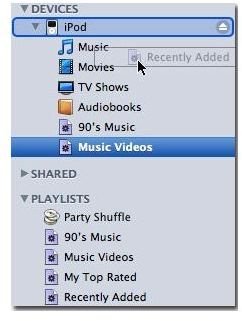
Locate the heading titled Library, located on the left hand side of the iTunes Window. You should see several options listed under Library, including Music, Movies, TV Shows, Audiobooks, etc… Select one of these source options to display your according Movies, TV Shows, Videos, Music Videos, or any other playlists that you have created, in the main iTunes Window.
Select any movies, videos, or music videos that you would like to add to your iPod, and drag them to your iPod icon, which should be listed under Devices, in the left hand side of the iTunes Window. iTunes should now start adding the videos to your iPod.
*If you want to select multiple videos, Command-click items on a Mac or Control-click items in Windows. From there, you can drag them onto your iPod icon in the Source list.*
Quick Tips
To add videos to your iTunes Library, you should be able to simply drag and drop the file into the main iTunes window. If this does not work, use the following method:
- In Windows, click File > Add File to Library. Locate your video file and click the Open button.
- In Mac OS X, click File > Add to Library. Locate your video file and click the Choose button.
You may need to convert your movie or video file to a different format in order to make it compatible with iTunes and your iPod. There are several different converter programs out there to choose from. You can do a basic Google search and find some, but for quick reference, you can use Handbrake if you are on a Mac, and Videora if you are using a PC.
In certain cases, you may want to reset your iPod to default settings .