What is CopyTrans? Is CopyTrans Manager just for iPods or for all devices? Find out how you can use CopyTrans Manager to manage the music on your iPod without using iTunes for everything.
Is CopyTrans Manager Just for iPods Or for All Devices?
CopyTrans Manager only manages iPod devices. You cannot use CopyTrans Manager with other devices, such as the Sansa Fuze or Microsoft Zune.
CopyTrans is mainly used as an iTunes alternative . Although you still must have iTunes installed and your computer authorized to make changes on your iPod, you can do so without logging into iTunes all the time.
CopyTrans doesn’t freeze up nearly as often as iTunes does. That’s why so many PC users enjoy using this alternative.
Syncing Media in CopyTrans
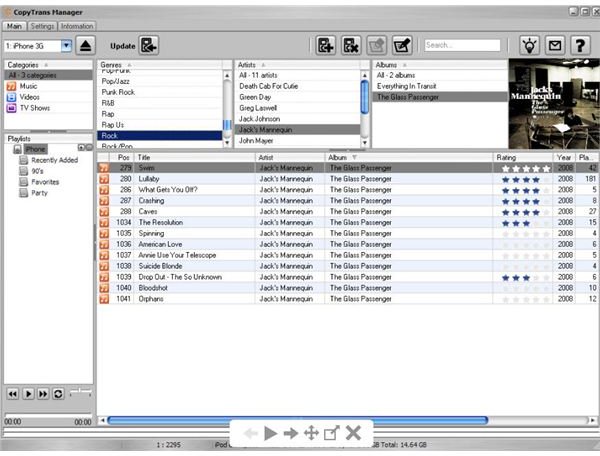
There are two ways to add music in CopyTrans . The most convenient way is to open the folder location of your music and drag and drop files into CopyTrans. You can edit the file name, artist name and album information by right-clicking a track and selecting “Edit.”
The second method is to click the “Add Files” button at the top right and select files from the file browser. This one takes a little longer since you can’t add as many files at a time, but if you can’t drag and drop, this is an ideal alternative.
You can also sync movies in CopyTrans using this same method.
Deleting Music in CopyTrans
Deleting music is a breeze in CopyTrans. All you have to do is select a track and press the “Delete” key or the red “X” button in CopyTrans. Your changes are not immediate, though.
In order to make any additions or deletions permanent in CopyTrans, press the “Update” button at the top center of CopyTrans.
Once music is deleted from CopyTrans, it’s gone from your iPod forever, since CopyTrans does not keep a library like iTunes does. So make sure you have a copy of all your music somewhere on a computer.
Making Playlists in CopyTrans
CopyTrans Manager makes it easy to create playlists. Just select the “Add Playlist” button on the left and you can begin dragging and dropping tracks from the iPod song list into the new playlist.
Your new playlists will appear on your iPod device the same as they would if you created them in iTunes.
Don’t Forget to Eject!
Take care not to yank your iPod out of the USB port mid-sync or before ejection. This could make you lose files on your iPod. Always be sure to press the little “eject” button at the top left of the CopyTrans Manager. Don’t unplug your iPod until the software says it is safe to do so.
CopyTrans Manager isn’t a complete iTunes alternative , as it cannot edit applications or games on devices such as an iPod touch or iPhone. But you can manage these on the device screens themselves, whereas you cannot delete or add music or movies without plugging into a program on the computer.
CopyTrans Manager is a free program that works seamlessly on PC’s.
Source:
Image credit: