If you want to know how to share Nook books, this guide will explain the easy steps as well as explain the “LendMe” technology. But don’t start promising out your whole library just yet–only some books can be lent using LendMe.
About the LendMe Feature on the Nook
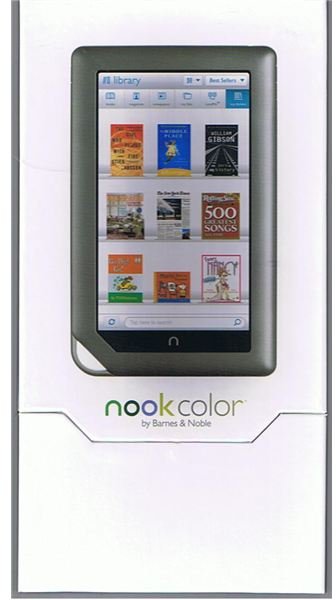
One of the coolest features on the Barnes and Noble ereader, the Nook , is the “LendMe” feature. The “LendMe” feature is how to share Nook books with other Nook users who have a Nook, Nook Color, or Nook application for use on their iPhone or PC, along with a linked Barnes and Noble account.
First you send a request to lend your book to someone’s e-mail address. The recipient of the request has seven days to respond to the lending opportunity. If they don’t claim the book during that time, it will return back to your library at the end of seven days. During the seven-day response period, you will not have access to the book you lent out.
Once the person you sent the book to responds, he or she has 14 days to read the book. During that time, you will not have access to the book, so keep that in mind prior to lending. After the 14 days have passed, you will receive the access to the book again on your Nook, while the person you lent it to will no longer have access.
Be advised: You can only lend a book one time, and you cannot lend out books which have been lent to you. If a person does not accept your request to lend them the book, you can lend it again, but once your offer is accepted, that book is stuck on your shelf forever. Also, not every book can be lent, but only books with a “LendMe” icon on the cover.
How to Use the LendMe Feature on the Nook
How to Share Nook Books:
Begin by holding down the power button to turn on your Nook. “Wake up” your Nook by sliding your finger across the tab at the bottom of the screen.
Press the “Library” icon on the left-hand side of your screen. Press and hold the cover of the book that you want to lend. Remember, lendable books have the “LendMe” icon on their cover. A menu will pop up. From that menu, press the “LendMe” icon.
You now have several options on how to lend your book. You can use your Nook friends list to send a book to the e-mail addresses of the friends in your contact list. You can link your Nook to your Facebook account and offer to lend it on your friend’s Facebook page. Or you can link your Nook to your Gmail account and import your contacts from Gmail and lend that way.
Choose one of the available options for contacting the person you want to lend. Write the message or Facebook wall post and send it off to your friend. They will now have seven days to respond to your request to lend, and your book will be out of commission until they either return the book or the lending period has lapsed.
You’re not limited to your own group of friends. Consider joining a Nook book swapping club online to broaden your available choices. There are also free Nook downloads you can access.
Resources and References
Scans of Nook Color box by Michael Elkins
Lending instructions taken from the Nook Color User Guide