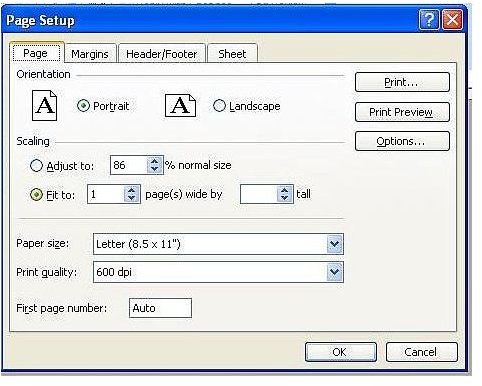
Excel has a fit-to-page feature that can simplify the process of printing all of your data on a specific number of pages. If this feature is not working properly for you, or you are having problems with a column or two falling off the page, read on to learn about making my spreadsheets fit to page.
Overview
If someone asked what problem you are experiencing in Excel and you were to answer, “Making my spreadsheets fit to page,” there would be no single, pat answer that would solve your dilemma. This doesn’t mean there is no solution. Rather, there are several solutions, one or more of which should resolve your issue. It all depends on the components of your spreadsheet that are not fitting to the page when you try to print.
Fit to Page Feature
The Fit to Page feature in Excel 2003 is called Scale to Fit in Excel 2007 and 2010. This feature scales the worksheet down so that it fits the pages you specify. This option is beneficial if you have a couple of rows or a column printing off of the page.
To use Fit to Page in Excel 2003, open the spreadsheet. Go to the File menu and click Page Setup. Go to the Page tab of the dialog box. Select Fit To under Scaling. Enter the number of pages wide and tall in the appropriate boxes.
In Excel 2007 or 2010, open the spreadsheet and go to the Page Layout tab. Enter the number of pages wide and tall in the appropriate boxes in the Scale to Fit group.
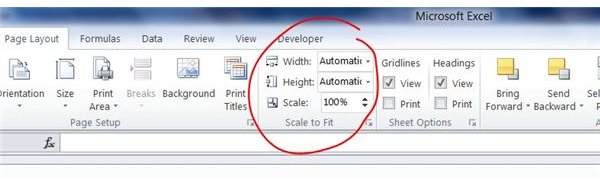
For instance, if you want to print to a single page but a few rows are printing onto the second page, enter 1 into the Pages Tall box. You can enter a number into each of these boxes or only one of them. For example, if you have a 15-page spreadsheet and a single column is printing on 15 separate pages, leave the Pages Tall box alone and change Pages Wide to 1.
Fit to Page Manually
If you do not want to shrink your spreadsheet objects or you tried the Fit to Page settings but are still having trouble making my spreadsheets fit to page, there are several page setup settings you can change.
Start with the page orientation. If you have your spreadsheet set to Portrait orientation but you have several columns after the end of the page, changing your page orientation to Landscape may solve the problem. In Excel 2003, go to the File menu, click Page Setup and go to the Page tab. Click Portrait or Landscape under Orientation. In Excel 2007 or 2010, go to the Page Layout tab, click Orientation in the Page Setup group and select Portrait or Landscape.
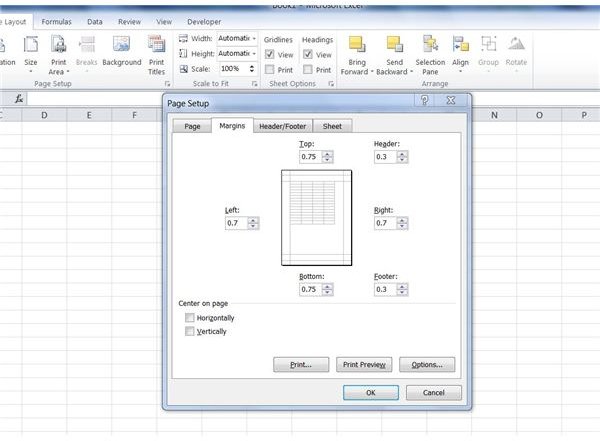
You can also adjust and customize the margins on the sides or top and bottom of the spreadsheet. In Excel 2003, go to the File menu, click Page Setup and go to the Margins tab. In Excel 2007 or 2010, go to the Page Layout tab, click Margins in the Page Setup group and select Custom Margins. Change the margin sizes, center the spreadsheet horizontally and vertically if desired and click Print Preview to see if you have been successful making my spreadsheets fit to page.
Use Page Break Preview to see where page breaks appear on your spreadsheet and to modify them, if necessary. Go to the View menu in Excel 2003 or the View tab in Excel 2007 or 2010 and select Page Break Preview. Adjust page breaks by clicking on and dragging them with your mouse.
Finally, you can change your font, column or row sizes to make your spreadsheets fit to page. Click the Select All button, which is the small gray box between A and 1 on the worksheet. With all of your data selected, change the font size in the formatting toolbar in Excel 2003 or the Font group of the Home tab in Excel 2007 or 2010. With all of the cells selected, you can quickly change all of the row or column sizes. Drag any row or column to the size you want and release the mouse. The remaining selected rows or columns will automatically be changed as well.
“Making my spreadsheets fit to page” no longer has to be an Excel problem for you!


