When you have created an expansive spreadsheet, rich with data and a graphic chart, you may want to share it. Chances are, the data in your workbook will be important to others and may need to be edited or updated by other users as well. Sharing an Excel workbook is easy. Read on to learn how.
Sharing in Excel 2003 or Earlier
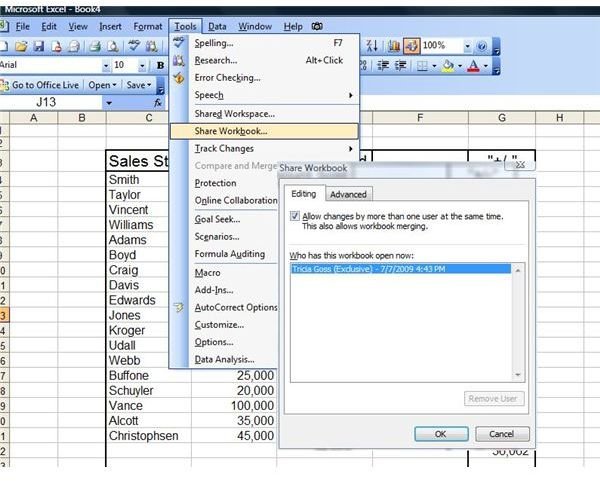
Sharing workbooks in MS Excel 2003 or earlier only takes a few steps. Open the workbook you want to share and go to the Tools menu. Select Share Workbook to open the Share Workbook dialog box. Make sure you are on the Editing tab of the dialog and select the check box next to Allow changes by more than one user at the same time.
You can also go to the Advanced tab for other settings. For example, you can decide how long you want to keep a history of any changes to the workbook you are sharing, or opt not to keep such a history. In the Update Changes section, you can determine whether to save changes to the workbook you are sharing whenever the Excel file is saved or automatically based on a time you select, and whether you want to view changes made by others. You can also select settings for prompts when there there is conflicting data entered by another user.
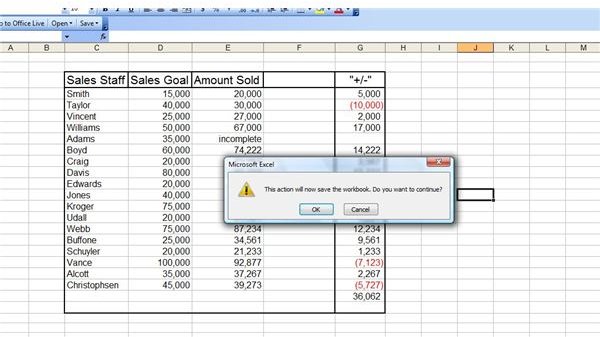
When you are finished with the advanced settings, click OK. Excel will notify you that the workbook will be saved and ask if you want to continue. Click OK again.
Go to the File menu and select Save As. Save the workbook you are sharing on a network location, so that it is accessible to those with whom you are sharing the Excel file.
Sharing in Excel 2007
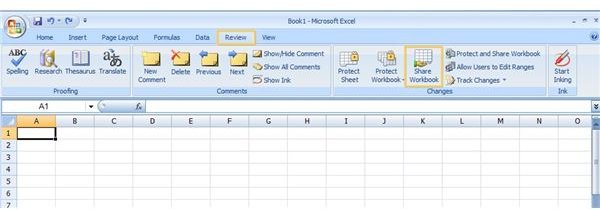
Sharing workbooks in Excel 2007 is quite simple, as well. Open the workbook you want to share and go to Review tab. Click on Share Workbook in the Changes group.
Go to the Editing tab and select Allow Changes by More Than One User at the Same Time check box. Go to the Advanced tab and, as with Excel 2003, select any of the advanced settings you wish to apply. When you are finished with the advanced settings, click OK. Excel will notify you that the workbook will be saved and ask if you want to continue. Click OK again.
Click on the Office Button and select Save As. Change the file name if you want to, and be sure to save the workbook you are sharing on a network location, so that it is accessible to those with whom you are sharing the Excel file.
Unavailable Features in Shared Workbooks
There are several features that are not accessible in a shared workbook, depending on the version of Excel you are using. For example, you may not be able to delete worksheets, create or change charts of Pivot tables, or insert or change pictures or hyperlinks.
If the inability to use such features makes sharing Excel workbooks impractical, consider using another method to share them. Read How to Save Files to Microsoft Office Live Workspace and Sharing Spreadsheets in Google Docs to learn more ways to share Excel workbooks.


