Google Docs has some cool sharing and communication features within its Spreadsheets program. Collaboration, viewing, auto publishing to the web, and in spreadsheet messaging make Spreadsheets the best program for anything you’d use a simple spreadsheet for.
Sharing Spreadsheets
Sometimes you’ll find it necessary to work with a collaborator to build a spreadsheet. Maybe you’re keeping track of individual sales, or building a cold calling list. In that case, you’d want each sales person or telemarketer to have access and editing privileges to your spreadsheet. Google Docs makes tasks like these easy.
To Share a Spreadsheet
1. Log into your Google Docs account
2. From the main Docs page, either select the spreadsheet to share, or create a new one by clicking New > Spreadsheet from the menu.
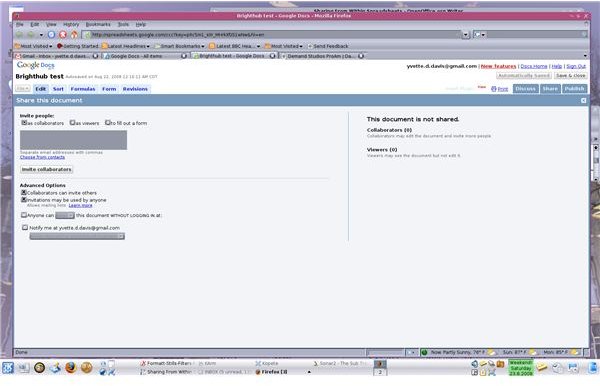
3. Designate the privileges you’re granting.
-
Collaborators have permission to make changes to the spreadsheet, just like the owner does. If you allow, collaborators can invite others. We’ll set this permission in step 5.
Advertisement -
Viewers can only read the spreadsheet.
4. The Permission to fill out a form section is where you give users permission to fill out a form you have created in Spreadsheets.
5. Enter the email addresses of the people you’re sharing the spreadsheet with. Alternately, select email addresses from your Gmail address book by clicking Choose from contacts.
In the Advanced Options section, you’ll find additional viewing and sharing options.
1. The option, Collaborators can invite others, allows your collaborators to send invitations just like the project owner can.
- The option, Invitations may be used by anyone, allows you to use spreadsheets like a mailing list.
3. To allow people to edit or change the document without logging into Google Docs select Anyone can view this document without logging in at: Select either View or Edit from the drop down menu.When you select this option, a URL appears. Google Docs will send this URL to everyone to whom you send the invitation. They will use this web address to access the spreadsheet without logging into Google Docs.
4. Select Notify me at(your email address) to have Google Docs automatically send you an email each time someone changes the spreadsheet, or once each day with a summary of changes. Select your preferred option from the drop down menu.
5. Click Invite collaborators under the email entry box.
To Publish your Spreadsheet on it’s own web page:
1. Open the spreadsheet you want to publish.
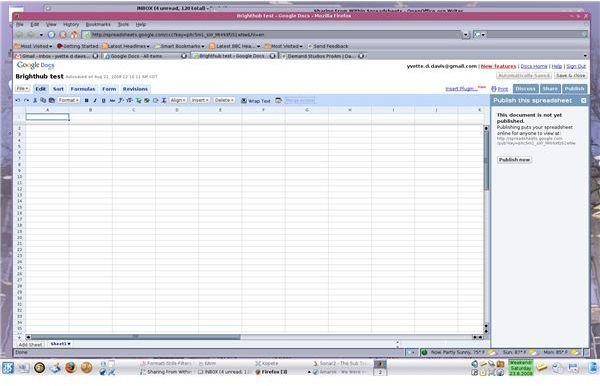
2. Click the Publish tab in the upper right of the window. A side bar opens. In this side bar you will find the published status of the spreadsheet. If it’s unpublished, the intended URL will be given. Make note of this web address, you’ll need to give it to those whom you’d like to view the Spreadsheet.
3. Click Publish now
4. If you’d like auto-updates when the spreadsheet is changed, select Automatically re-publish when changes are made.
5. Select which parts of the spreadsheet you’d like to publish from the drop down menu.
6. Designate file format, specific sheets to be published and specific cells to publish by clicking More publishing options.
To communicate with a collaborators from within spreadsheets
Select the Discuss tab from the upper right of the window. A chat window opens in a sidebar. Use this chat window to see who is currently online editing the spreadsheet, and to chat with them. Type your message in the text box at the bottom, and press the Enter key.
Google Docs makes it easy to share, work together, and chat about spreadsheets you’re working on. Really, with a little imagination, the applications are endless.
Images