Add Captions and an Index for Tables and Figures in Microsoft Word
I edit graduate student theses. These students grow tired of dealing with Microsoft Word’s quirks. It’s like you can’t untangle the mess no matter how hard you try. When this becomes a problem, I start with a fresh document using the shortcuts I know to copy and paste the thesis into the new document. Figures and tables support the thesis and give it a visual look for data or information. Besides, they offer a nice break from all the content.
Using this set up to label tables and figures ensures they show up in the table of contents, especially if you need to create a “Table of Tables” (yes, that’s what it’s called) and a “Table of Figures.” The standard for most formal documents is to display the caption for the table on top and the caption for the figure on the bottom and Word knows to do this. However, you can change this in the Captions dialog box.
Adding Captions to Tables and Figures in Word 2007
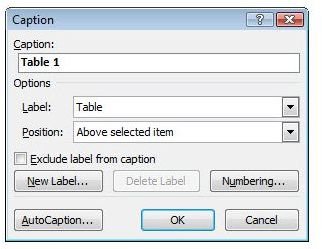
Microsoft Word 2007 works differently from earlier versions of Microsoft Word. But the concept works the same way. For Word 2007, you need to use the Reference Ribbon to get what you need. Here’s how:
- Select the table or figure needing a caption.
- Select the References tab.
- Select Insert Captions from the Captions group.
- Enter the caption into the Caption box.
- Select Table or Figure in the Label box depending on the item getting a caption.
- Change other options depending on your needs such as moving table captions to the bottom.
Add Captions in Word 2007
Add Captions in Microsoft Word 2003
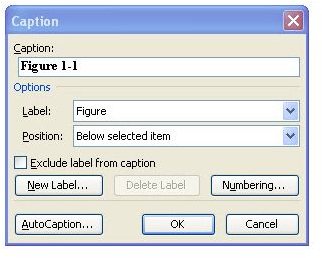
To add captions to figures and tables in Word 2003, use the following steps:
- Select the table or figure needing captions.
- Click Insert, Reference and Caption.
- Select Table or Figure in the Label box depending on the item getting a caption.
- Select other options as needed.
Add Captions in Microsoft Word 2003
Create a Table and Figures Index in Microsoft Word 2007
You may need a separate table for figures and tables from the Table of Contents. Because you label each item as a Table or Figure, it’ll be easy to create two separate tables.
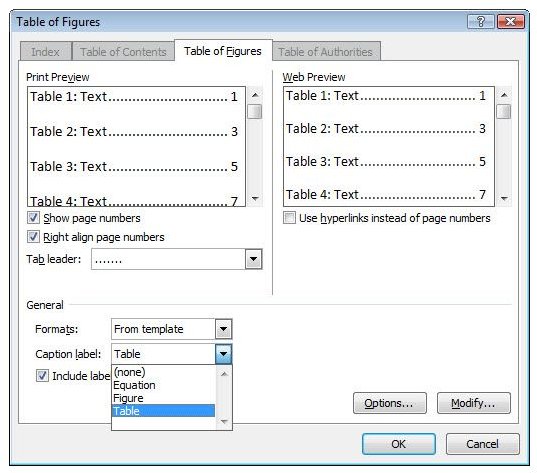
Go to the place in your document where you want to insert a Table of Tables or Table of Figures and do the following for Microsoft Word 2007:
- Select Insert Table of Figures in the References tab in the Captions group.
- Select Table next to Caption label to create a Table of Tables, otherwise leave it as is for Figures.
- Modify other options as needed.
- Click OK.
Create an Index in Microsoft Word 2007
Create a Table and Figures Index in Microsoft Word 2003
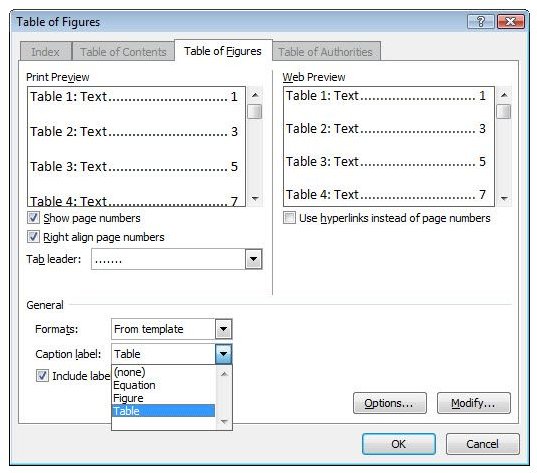
For Microsoft Word 2003, place the cursor in your document where you want to insert a Table of Tables or Table of Figures and complete these steps:
- Select Insert, Reference and Index and Tables.
- Select the Table of Figures tab.
- Verify the Caption label shows Figure or Table depending which item you need.
- Modify other options as needed.
- Click OK.
Using Insert Captions feature in Microsoft Word saves you time when working with documents. Just follow these steps and it won’t take any longer than doing the captions yourself. You might want to read Headers and Footers in Microsoft Word 2003 to enhance your document.
Create a Table Index in Microsoft Word 2003
Other Word Articles of Interest
- Using Building Blocks in Word 2007
- Creating Tables from Existing Text in Word 2007
- How to Format and Design Tables in Word 2007
- Create a Table in Word 2003
- Adjust Table Columns in Word 2003