FlipShare is a great software program … if you can get it to work. If you’re reading this tutorial, you have probably run into the FlipShare unexpected error. But, don’t give up hope. You may be able to fix it on your own.
So, What Do I Do Now?
FlipShare is the photo organizing and editing software from Flip Video . This tool also allows you to share your videos via Twitter, Facebook and YouTube. But, the software isn’t perfect. In fact, many people have had issues with it just freezing, or people can’t get the software to transfer their videos. The FlipShare unexpected error code can be very frustrating.
But, there’s no need to throw in the towel and give up. You may be able to fix the problem if you are willing to experiment. Just be prepared for a lot of trial and error.
FlipShare Stalled Out
One of the most common problems that people are experiencing is that the program stalls out when trying to install it. This is especially common with anyone that has Windows Vista. The first thing that you want to do is figure out whether or not you already have a previous version of FlipShare software installed on your system. If you do, it could block any new attempt to install a later version of the software program.
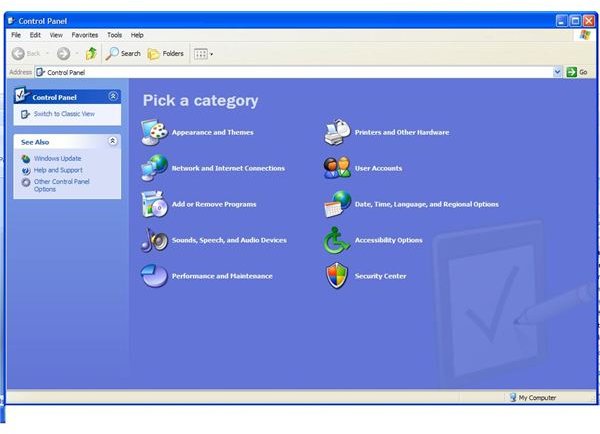
To see whether or not you have an older version installed, go to your Start Menu and then go into the Control Panel. Within this panel, look for Add or Remove Programs. Double-click on this, and it will bring up a list of all of your installed programs. Scroll through the programs, and search for FFDShow or FlipShare.
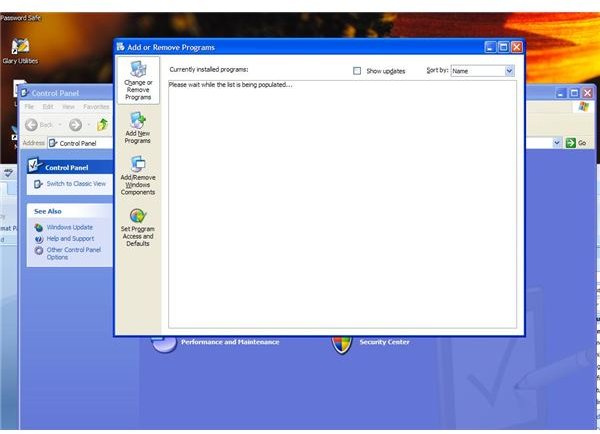
If you find this in the list, click Uninstall, and let the program completely uninstall the software. Then, try reinstalling FlipShare. If that doesn’t work, you should try upgrading your version of FlipShare .
FlipShare Unexpected Error When Transferring Videos
Another common FlipShare unexpected error code is that you can’t transfer your videos to your computer. Generally, if this happens, you’ll get the following generic code: “An unexpected error occurred. If this occurs again, please contact technical support.”
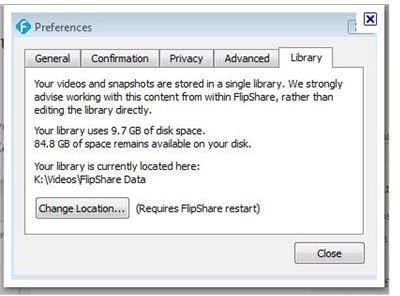
There are several reasons why this might be occurring. The first reason is that you are trying to download your videos on a networked computer. FlipShare cannot connect to your device when you are on this type of system. You should either switch to a local computer, or you can try rerouting your FlipShare Library. To do this, follow the below instructions.
1. Open up your FlipShare program.
2. Go into Edit and then Preferences.
3. Select the Library tab.
4. At the bottom of this tab, you should see a button that says Change location. Select this, and then select the drive to where you would like your video and images saved.
5. Select OK.
If this does not work, and you are using a Mac system, you should try emptying your trash bin. There could be something in there blocking you from downloading your videos. You also need to make sure that you have enough disk space to download your program, and this applies to all operating systems.


