You can apply transition effects to your photos and videos in Auto Movie Creator. This tutorial will show you how to apply the transition effects.
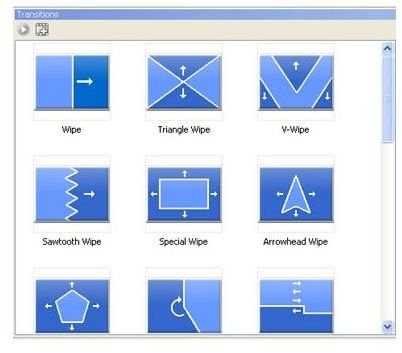
In this part of the series, I will show you how to apply transition effects to your videos and photos. You will need to click the Transition button at the top of your program to navigate to the Transition panel. In this section of Auto Movie Creator, you will see all of the transitions that are available for you to use. You can click a transition effect and click the preview button to see the effect in action. The preview button is located in the top left corner of the Transition panel.
How to Apply Transitions to Videos and Photos in Auto Movie Creator
There are two ways that you can apply transition effects to your videos and photos. You can click the video that you want the transition effect to appear after, then click the transition effect. After you have chosen the transition, click the Add button in the top left corner of the transition panel.
You can also click the transition with your mouse and drag the transition to the slot that you want it to appear in. The little boxes between the videos and the effects is the transition boxes. This is where the transition effects will be placed and if you want to click and drag, you will need to click and drag it to the boxes between the videos.
When you click and apply a transition effect to the video or photo, the properties box will open. Click OK on the properties box. In the next tutorial of this series, I will show you how to use the advance options of the Transition effects.
How to Remove Transition Effects
If you want to remove a transition effect, right click on the effect that you want to remove. When the menu drops down, click the Remove link. You can also click the transition effect and press the delete key on your keyword to delete it.
You can apply transitions to each video or photo. You can preview the transition at any time by clicking the play button on the preview panel. Please go to the next tutorial to learn how to use the advance options of the Transition effects.
This post is part of the series: Auto Movie Creator Tutorials
This series will show you how to create videos using Auto Movie Creator.
- Auto Movie Creator Tutorial – Introduction Article
- Auto Movie Creator Tutorial – Adding Videos and Photos
- Auto Movie Creator Tutorial – Applying Effects to Videos and Photos
- Auto Movie Creator Tutorial – Applying Transition Effects to Videos and Photos
- Auto Movie Creator Tutorial – Managing the Advanced Options of Transitions
- Auto Movie Creator Tutorial – Adding Titles and Credits to your Video
- Auto Movie Creator Tutorial – Adding Music to Your Video
- Auto Movie Creator Tutorial – Adding Narration to your Video
- Auto Movie Creator Tutorial – Exporting your Video
- Auto Movie Creator Tutorial – Creating, Saving, and Opening Projects