Creating custom color schemes in Microsoft Publisher gives users control over the colors used in their publication. In this Publisher tutorial you will learn important tips for creating and applying custom color schemes to your work.
Starting out with Custom Color Schemes
In Microsoft Publisher , users can choose from pre-defined color schemes or they can choose to create their own color schemes to fit their particular preference or job. To learn how color schemes work, you will need to have Microsoft Publisher installed on a computer that meets the minimum system requirements of the software. If you don’t have Microsoft Publisher, you can download a trial of the latest version by visiting the Microsoft Office Web site .
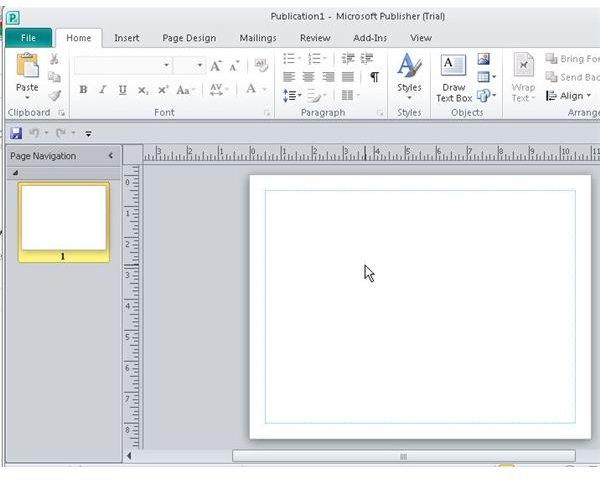
To begin, open Publisher and then create a blank document. It doesn’t matter too much what size your document is because this is just an example for demonstration purposes only.
You are now ready to work with custom color schemes.
Custom Color Schemes in Publisher
To access color schemes in Microsoft Publisher , click the “Page Design” tab to access that part of the ribbon. You will see a feature cluster called “Schemes,” toward the center of the ribbon. These are the color schemes currently available to your document.
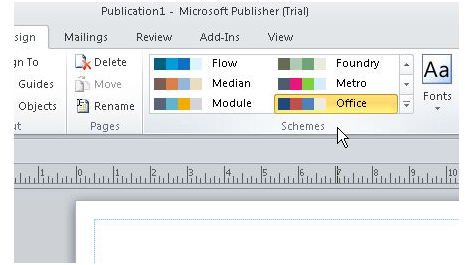
You can expand this option to see the complete list of color schemes by clicking the handle at the bottom right of the group.
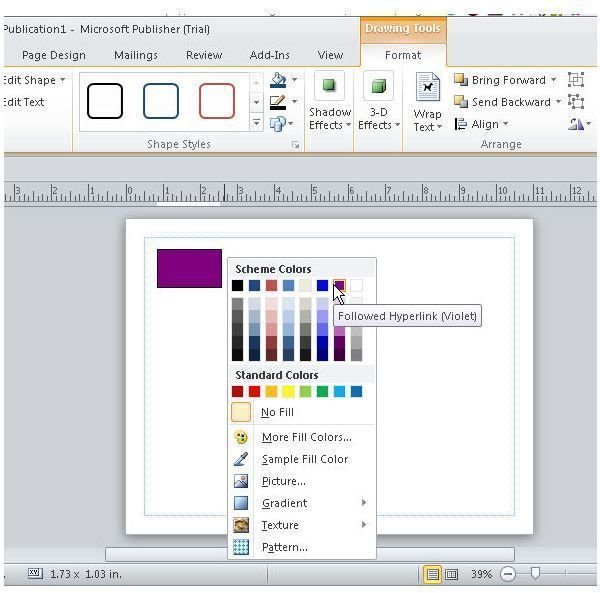
When you select a color scheme, you create a separate set of colors that will help you maintain a consistent look and feel throughout your publication. To access your selection, place an object into your document and then right click on it. You can choose the “Fill” option or the “Shape Outline” option to open up your color palette. Here you will see the colors included in your color scheme shown first, followed by a palette of “Standard” colors that you may also choose from. You will see a similar menu when you go to change the color of a font.
Getting back to the business of creating color schemes in Microsoft Publisher, return to the expanded view of available color schemes. All the way down at the bottom of the panel, you will see the option to “Create New Color Scheme..”
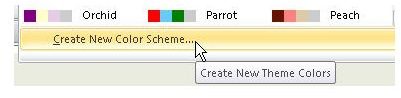
Click this option and you will see the “Create New Color Scheme” window open.
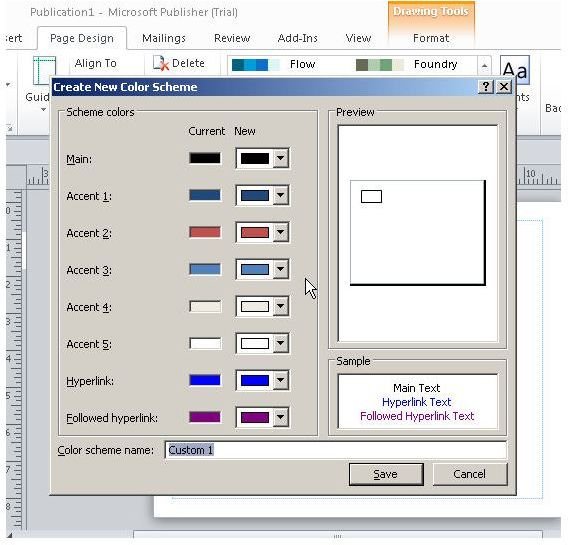
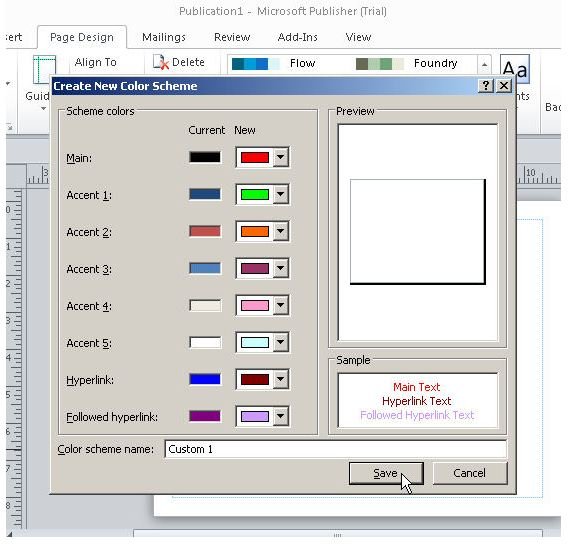
Here you can define different colors that will apply to different types of text in your publication. You set the main color, the link color and then the color displayed after a link has been clicked. Additionally, five accent colors can be set to augment the main color.
Now let’s set some custom colors and then save them as the “Custom 1” color scheme. After that, we’ll try it out.
Trying it out and Finishing up
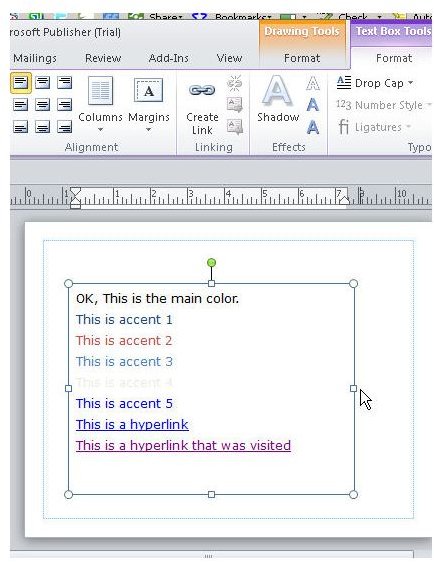
Creating color schemes in Microsoft Publisher isn’t very difficult, is it? Let’s create a text box to see if we can apply our new scheme. Here you see some text formatted with the “Office” color scheme.
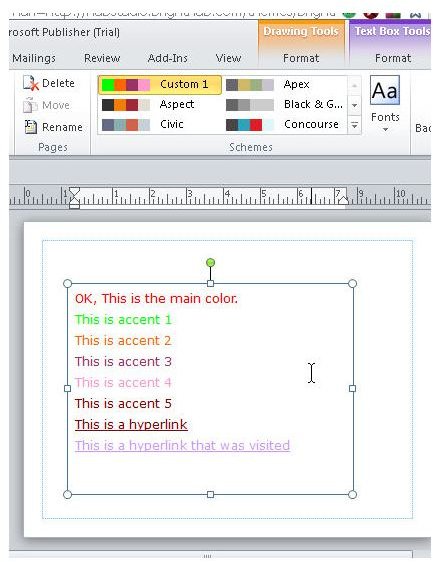
Now, expand the “Schemes” menu and then select the “Custom 1” scheme found at the top. Your text now reflects the new colors for each type as shown below.
You now have completed this tutorial. You know what a Publisher color scheme is and how to apply it as well as how to create a new color scheme and how to change it. You will now enjoy the power color schemes bring to the table as you perform your daily work in Publisher.
Image Credits: Screen shots taken by Bruce Tyson


