
Have you ever wanted to create a color palette from a photo? Thanks to Adobe’s brainchild, Kuler, you can. We will teach you how to use this fantastic and free online tool to take your favorite photographs and turn them into eye-pleasing color palettes that can be used for any DTP project.
Get Inspiration From Your Favorite Photos
Have you ever looked at a really well composed picture and loved everything about it? Chances are, the colors involved play a big role. By using a fun web color selecting program called Adobe Kuler, you can actually create several different color palettes from a single photograph. Not only is it fun and easy, it’s also free.
Why would you ever want to create a color palette from a photograph? Well, for starters, a great photo probably already has an eye-pleasing color palette. Another reason is that this can help give you new inspiration when it comes to creating desktop publishing projects. The last reason is fairly simple: it’s a no-fuss alternative. Because Kuler has been designed to create palettes from photos, chances are that if you upload photos you like into it, you’re bound to find a palette you enjoy. This can help you create the perfect design for that flyer you’ve been putting off, after all!
Getting Started With Kuler
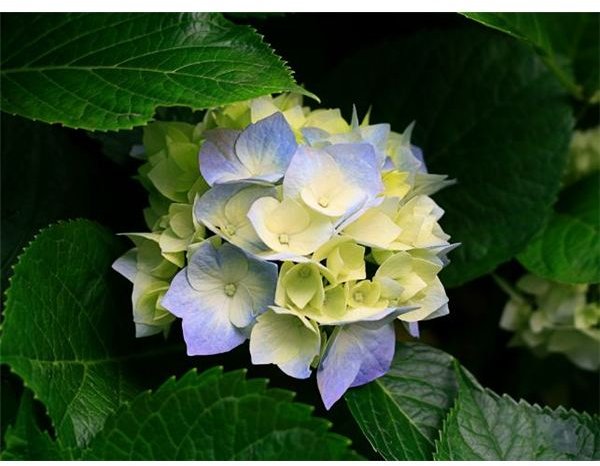
First and foremost, choose a photo that you enjoy the colors of. Or, if you’re like me, just start uploading a bunch of different photos. Variety is the spice of life, and half of the fun of Kuler is the ability to see what creative color palettes it comes up with. Here I’ll be using a default photo that came with my Windows 7 installation.
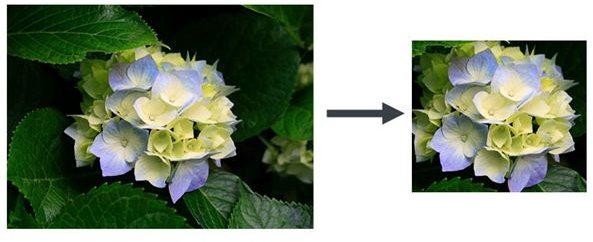
While this is entirely optional, if you only enjoy the colors in a certain part of the photo, you can use your favorite image editing program to crop out anything you don’t want to mix into your color palette, below is an example of how that might look.
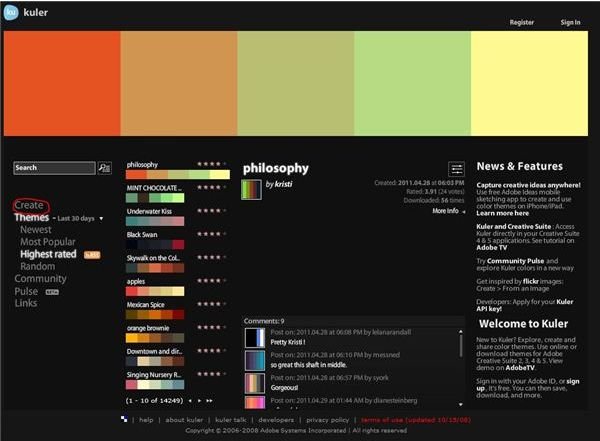
Next, go to Kuler’s website (see references below). Allow it a moment to load, and then click on “create.”
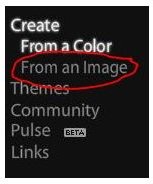
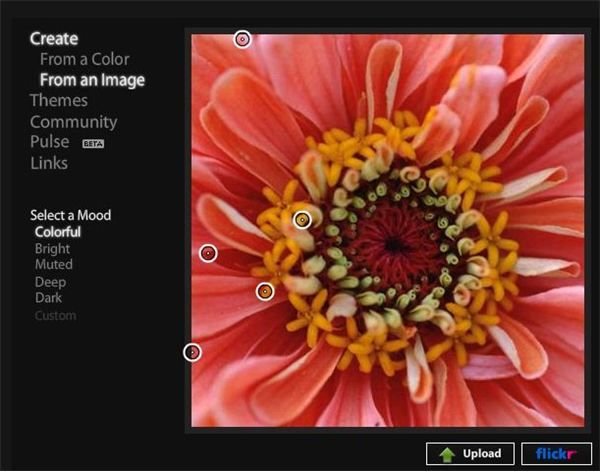
Next, choose “From an Image” if it wasn’t selected by default.
Take a few moments to familiarize yourself with the interface. You have the ability to upload an image from your hard drive, or search for images via the built-in Flickr browser. On the side bar, you have the ability to select the “mood” of the palette once you upload your photo.
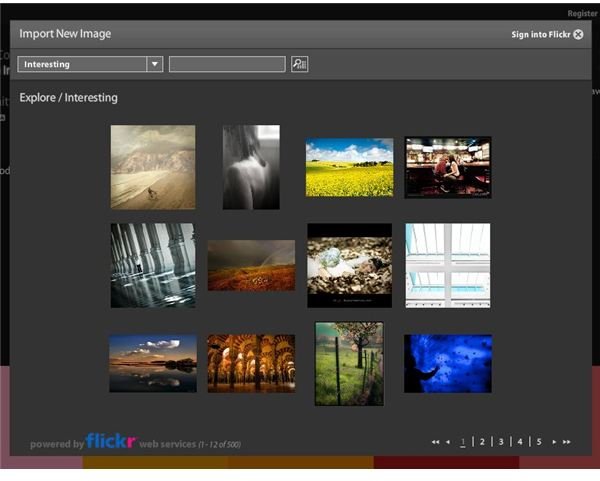
Here’s a quick screenshot of the built in Flickr photo search interface, for those of you who might be interested in using this option. As you can see, it has several easy-to-navigate options that are based directly on the Flickr website.
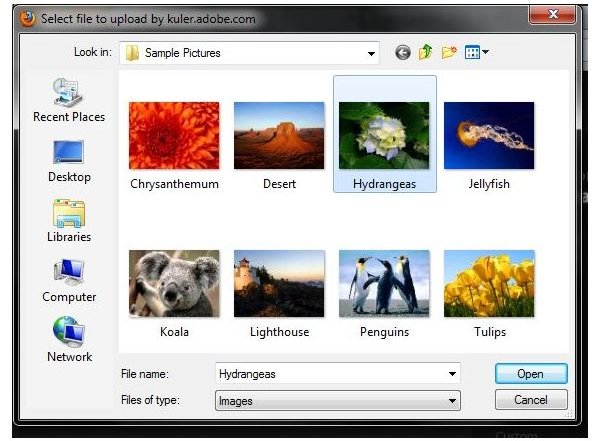
Click on “Upload” and select your photo in the image browser. Upload it into Kuler.
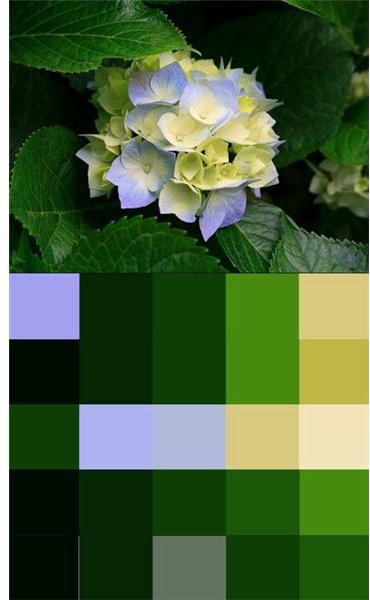
Now you’ve got some options to click through. This is the fun part! Here’s an example of the picture, as well as each of the five moods that Kuler takes the time to create around it.
Of course, you can always click and drag the individual points in the image to select your own colors. This is a great way to get a more exact control over the colors that appear in your palette.
References and Credits
Resources:
Image Credits:
Photograph included with Windows 7
All screenshots taken by Amber Neely of Adobe’s Kuler


