There are some excellent third-party plugins available for Corel Paint Shop Pro Photo X2 that can allow you to expand your photo editing capabilities even more. In this article, we’ll walk through the steps you need to take in preparation for installing these add-ons.
Paint Shop Pro Plugins
Even though Corel Paint Shop Pro Photo X2 Ultimate is packed with tons of digital photo editing tools, there are even more powerful features to be found in the multitude of third-party plugins available for the software. These add-on applications can range anywhere in price from completely free to well over $100, but most have some sort of trial version so you can test their capabilities before you buy them.
One reason that some people shy away from these third-party plugins is the worry they will be too difficult to install or to uninstall if found to be unwanted. While there are a couple of things that you need to pay attention to when loading these applications, the installation process really isn’t that bad at all and works pretty much the same for any Paint Shop Pro plugin. There are just a couple of things you need to do on your PC to prepare before installing these items, and we’ll walk through those steps now.
Create a Plugin Folder
It really doesn’t matter where you create a special plugin folder, but it is necessary to have one. Not only will this allow you to keep all the third-party add-ons that you download organized, but it will make it much easier for Paint Shop Pro to find any new additions to your library.
Just to make this folder a little easier to find, I generally call it Plugins and create it in Paint Shop Pro’s main program directory which is C:\Program Files\Corel\Corel Paint Shop Pro Photo X2 on most computers if you chose the default options when installing the software. However, you can create it anywhere you like – just remember where because you’ll need that information in the next section.
Add the Folder Location to Paint Shop Pro
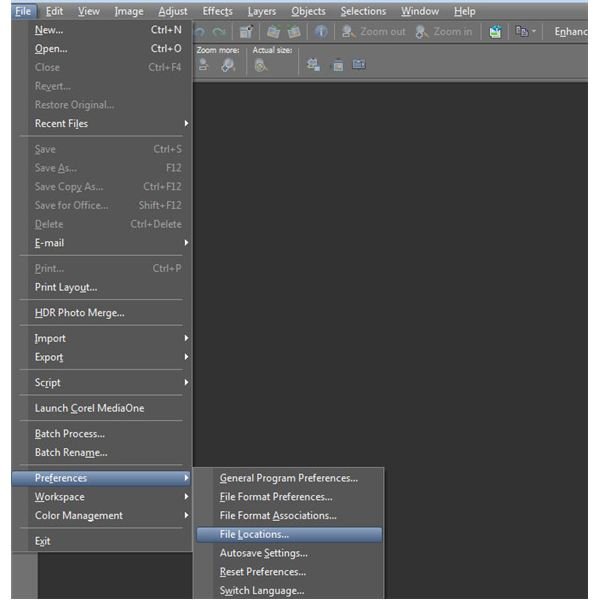
Once you’ve created the folder to hold downloaded third-party plugins, the next step is to make sure that Paint Shop Pro knows where to look for them. To do this, open the File menu on Paint Shop Pro’s main toolbar, select Preferences and then click on File Locations. (Click the image below for a larger view.)
In the File Locations window that appears, select Plug-ins from the list of File types.
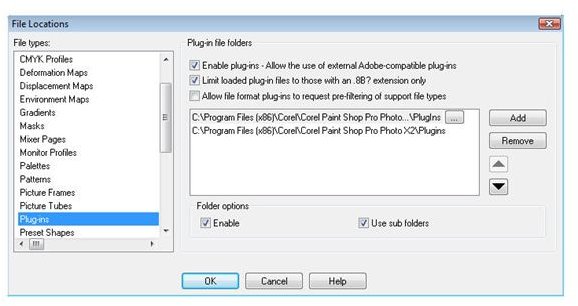
Click on the Add button and locate the folder that you created in the previous section to store your plugins.
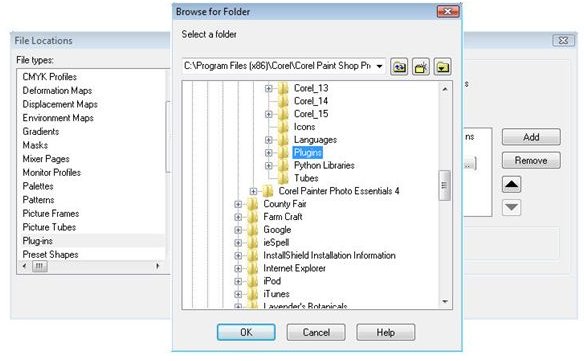
Select that directory and then click OK to continue. The new directory will now be seen in the list in the File Locations window. Click OK again to exit the window.
Now, each time you download a third-party plugin, make sure to either install it in this directory or add the directory that you do use to the list of plugin file locations. This will ensure that Paint Shop Pro recognizes the add-on so you can use it right away.
One extra little thing to note is that you may need to close and restart Paint Shop Pro for the plugin to load in the software.
How to Check if the Plugin is Recognized
If you want to check to make sure that Paint Shop Pro recognizes the new plugin, open the Effects menu and then select Plugins.
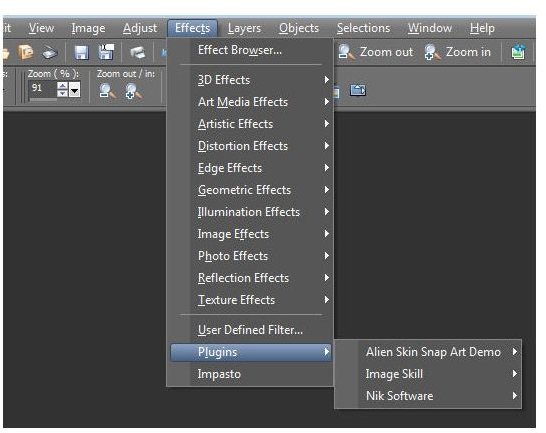
If everything went as planned with the installation, you should see a new choice here for the plugin you just loaded. Even if the selection is “grayed out”, that’s fine. Most plugins require that you have at least one image open and selected before you can actually choose to use them.
If you want to find out more about the other tools and features in Paint Shop Pro, check out the collection of user guides and tutorials found here at Bright Hub.


