For alternative ways to open Photoscape, take a look at this guide where I will walk you through the options of opening Photoscape.
Photoscape Introduction
Photoscape is a free photo editing software application that allows you to do many things with your photos like editing, applying effects, create collages, and so on. There are also things you can do that aren’t associated with your photos like create notebook paper. When Photoscape is loaded, you will be offered alternative ways to open Photoscape. For example, if you wanted to edit your photos, you would select the Editor option. If you are looking for help in understanding how to open sections in Photoscape, continue reading this guide, I will try to help you get a better understanding of Photoscape opening alternatives.
Alternative Ways to Open Photoscape
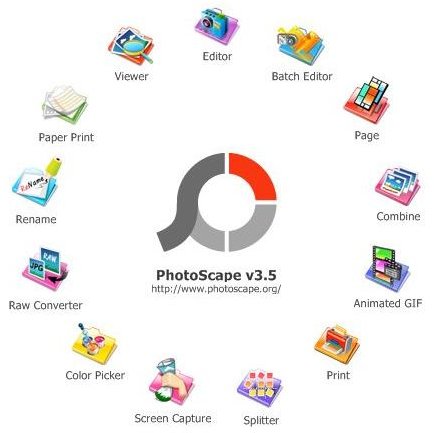
To get started, load your Photoscape program . Once it has loaded, you will see a splash screen in a circular form. These are your alternatives to Photoscape. In this circle, you will see all of the sections inside the Photoscape program. Let’s take a look at each of these sections:
Editor - This section of Photoscape is where you would go if you want to edit your images to do things such as crop your photo , apply effects, add text, add clipart, frame photos, and adjust your photo’s colors.
Batch Editor - The Batch Editor is the same as the above, except this is where you edit multiple photos at a time.
Page - The Page section of Photoscape is where you can create a page of photos, also known as a photo collage.
Combine - The Combine section is where you blend two or more photos together on a page. This can be side by side or a checkered pattern.
Animated GIF - This section of Photoscape is where you can turn your photo into an animation. You can also turn graphics and clipart into animations in this section.
Print - If you simply want to print photos, you can open this section, select the photo and printing size and print the photo.
Splitter - The Splitter section will allow you to open a photo and split it into as many sections as you want. Kind of like a puzzle.
Screen Capture - The Screen Capture section is where you can capture any section of your screen, edit it, and save it to your computer.
RAW Converter - This section will allow you to convert RAW files to JPEG. To learn more about this file format, read RAW Image Files - Understanding RAW Photography .
Color Picker - This is a built-in tool that allows you to select a color on your computer. It will then give you the color code and this is often used by web designers.
Rename - If you have photos that you need to rename, this is the section you will need to open. You can also rename more than one photo at a time.
Paper Print - In this section, you can create your own notebook paper and print it right from your computer.
Viewer - The Viewer simply allows you to view your photos.
The above are the alternative ways to open Photoscape. There are many sections in Photoscape to cover just about every photo editing need you may have. In the Editor section, there are several tools you can use.
Photoscape Tips
Here are a couple of tips to keep in mind when using Photoscape:
-
If you are in one of the sections and want to get back to the splash screen, click the Photoscape tab at the top of the program.
Advertisement -
To switch between sections while you are in a section, click the section tab at the top of the program you want to visit.
-
To quickly create a photo collage, use the Page section and apply a background.
Advertisement
References
Screenshot taken by the author for educational purposes only.
Photoscape, https://www.photoscape.org/ps/main/index.php