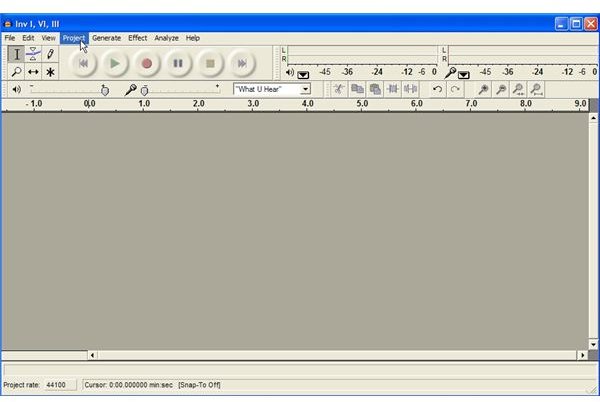
This guide will help new or beginning Audacity users who have trouble muting single tracks. Read onwards if you want to find out how to play tracks one at a time with Audacity.
Audacity is a popular free audio editor and recorder, available for Windows, Mac or Linux systems. It is simple to use and includes most of the features which you would expect in such an editor, although understandably not as comprehensive as software such as Sound Forge . It can be used to easily chop audio to create a loop, enhance low/high frequencies by equalization, adding effects and many more audio-processing related purposes.
You can import audio tracks, such as a Wav files or already compressed MP3s, simply by loading your files or dragging and dropping them into the open window. Once you are done, your audio will show as a series of peaks in a graphical representation like in all audio editors . You can then process the audio according to your needs.
This method can also be used to upload more than one file: simply import or continue dragging and dropping the files into the window until you are finished. Each of the files will then show as a different track which you can process separately. The problem of course lies in playing each track separately and muting the others, so you can process the one you need. Read onwards for a step-by-step process on how to play tracks one at a time with Audacity - it’s as simple as clicking in the right spot.
Muting Tracks
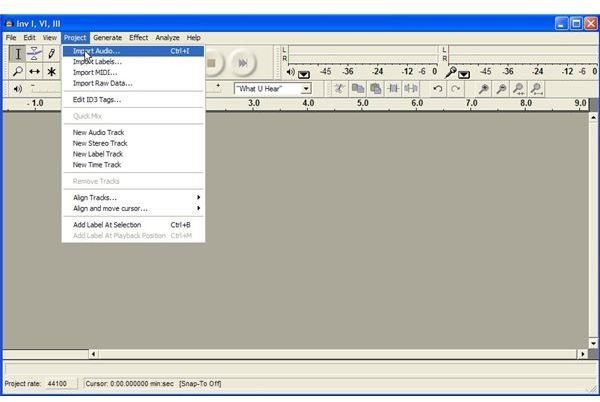
Start the application without loading anything. Now go to the top menu and click on ‘Project’, then in the drop-down menu click on ‘Import Audio’. Wait for the program to process the audio and import it into the project, as the progress bar fills up. Repeat this procedure until all the audio tracks which you want show up in the project.
Now you have different tracks in your project all ready to be processed as you wish. You can see your tracks in the main window, each one with a different name/number depending on the order you imported them. On the left-side you have information about the track’s bit-rate quality and others, and you also have Mute and Solo buttons.
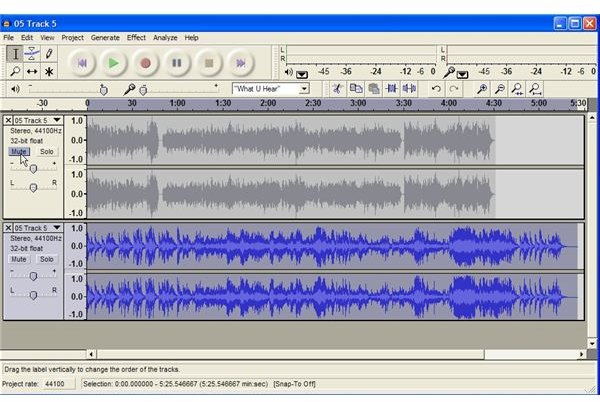
Lastly, click on either Mute or Solo. In the case of the former it makes no difference if you only have two tracks in your project, since one track will be muted and the other will play. If you have multiple tracks it may be easier to just select one and click on Solo. You can also use the Mute button if you have five tracks, for example, and need to hear how only two of these sound in a mix.
Either way, it really is as easy as that, the two buttons have a similar function. Now you know how to play a single track in Audacity.


