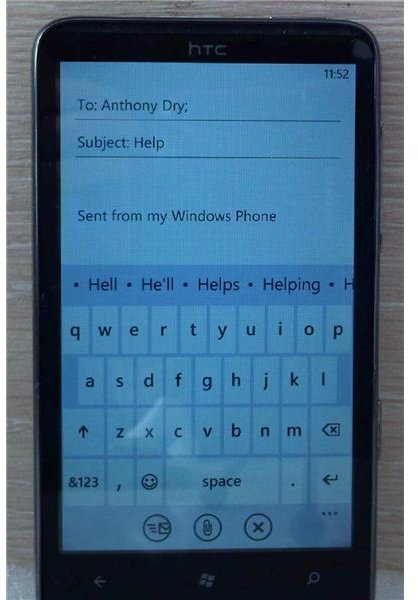
Windows Phone 7 features one of the world’s fastest touchscreen keyboards for superfast text entry and a great contextual dictionary spellchecker.
Windows Phone 7 - Superfast Text Entry!
One of the best features of Microsoft’s Windows Phone 7 is the software keyboard that accompanies the devices. Offering a fast typing experience and the ability to quickly access spellchecking options, the keyboard comprises two screens, with standard QWERTY present by default and various symbols accessed by means of the second screen.
Using the keyboard doesn’t necessarily require a lot of practice, but if you are having difficulty at first it is worth persevering. Ideal for people with tiny or large fingers, this software keyboard is among the best available across all mobile platforms.
Activating the Windows Phone Keyboard
The Windows Phone keyboard cannot be accessed unless the application or function you are using requires it. For instance if you are writing an e-mail or searching for something, the keyboard will be displayed, but other than that it will be hidden from view.
If you’re visiting a web page and want to enter information into a form (or indeed into the address bar) then simply double tap this area of the web page to zoom in and then tap the form field to open the keyboard.
Note also, that with the keyboard open in most cases the phone can be tipped into landscape view, offering both easier typing and widescreen browsing.
Using the Windows Phone Keyboard
When the keyboard opens, you will notice that all characters are in lower case; also you will spot that there are no numbers visible. You can change this by pressing the shift button (an up-pointing arrow) or tapping the &123 button to display numbers and non-alphanumeric characters.
If you feel that the choice of non-alphanumeric characters is too narrow, the shift button can again be used to provide more options.
As you type, the Windows Phone spellcheck will present suggestions for you to tap to complete the words you are entering. It will also suggest some alternatives, as well as highlight any words that it doesn’t find in the on-board dictionary. To change a word that you have mistyped, simply tap the word on the screen and choose the correct option from the listed suggestions.
Configuring the Windows Phone Keyboard
When text input is required on Windows Phone, the keyboard can be used in a variety of ways. Most notably the software input method will tailor itself to specific tasks – for instance when you are typing a URL into the address bar of the Internet Explorer Mobile browser, a .com button will appear. Here’s a useful Windows Phone tip - thanks to localization settings, if you tap and hold this button some local options will appear; in the UK, it will present .co.uk as a choice.
Meanwhile various phone settings can be adjusted via Settings > Keyboard. Here you can toggle the spellcheck to automatically Correct misspelt words and Suggest text and highlight misspelt words, as well as change the Keyboard language. Finally you can also reset the spellcheck with the Reset text suggestions button.
References
Source: author’s own experience
Image provided by author


