More great tips and tricks for getting the most out of your new Windows Phone 7 handset, from using the Search button to adding new spellcheck languages!
Looking for Tips and Tricks?
Anyone with a new phone will need to know how it works, and while it might be easy to read the guide it’s always much more fun to find out through experience!
Following our previous tips round up , let’s take a look at more great ways to get the most out of your Windows Phone, from adding a new spellcheck language to pausing the download of new apps!
Unexpected Phone Calls
One of the most annoying things about owning a mobile is forgetting to switch the ringtone to “silent” or “vibrate” when you’re in a meeting. WP7 offers a quick method to ignore the call which involves nothing more than tapping the power button to silence the ringtone.
Another way to silence incoming calls, emails and text messages is to turn your phone face down. The built in gyro-sensor will detect the phone’s orientation and disable the alert.
Frequent Flyer Tools
If you’re regularly travelling and prone to forgetting to insert the correct international dialling code for your current location, Windows Phone 7 includes a useful tool that can fill in the blanks for you.
Go to Start > Settings > Applications > Phone and find the switch for International Assist. Simply activating this will auto-correct any mistakes you make with an international telephone number.
Similarly, you can bring in a second language to your spellcheck, which is particularly useful if you regularly communicate in multiple languages. This is done in Start > Settings > Applications > Keyboard, where the Keyboard languages menu will allow you to select additional languages.
Useful More Windows Phone 7 Search Tips
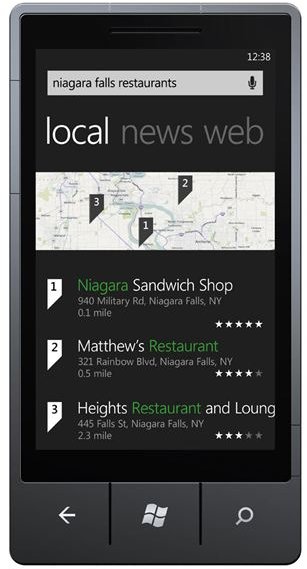
As with Microsoft’s general strategy of making Bing ubiquitous, the Windows Phone 7 features a very useful search function available from the Search button on the device. This can be used to search for emails in your inbox, to launch Bing to search the web, to search the Zune Marketplace and also find a specific contact in the People hub.
It’s fair to say that Bing is almost as ubiquitous on one of these phones as it is on the web, with Bing maps also included with the OS.
Marketplace Downloads
If you are purchasing apps or music, you can pause downloads to wait until you have a faster connection available, something that is particularly useful if you’re downloading games or albums which generally take up more bandwidth than apps and single MP3s. To pause a download, simply tap and hold and choose Pause from the contextual menu.
Staying with the Marketplace, your Windows Phone will alert you as to when an update is available for any of your apps. Sometimes, however, network connectivity issues will prevent download, but you can retry the download with a tap and hold, and then select Retry.
Reset Your Phone
To finish, if you ever reach a stage where you need to turn off your phone, don’t head straight for the back cover to remove the battery! Instead, simply hold down the power button for 10 seconds to reset your WP7 device.
This is much safer for your battery and mobile device, although it isn’t the best choice in all cases. Should you run into situations where the phone will not respond, try the reset method first and failing that, remove the battery.
References
- Author’s own experience.
- Images via Windows Phone Newsroom, https://www.microsoft.com/presspass/presskits/windowsphone/imageGallery.aspx


